Find your way around the staff portal
Workspaces, the More list, Search (⌘K), Recent, and where the less obvious pages live.
Where do I go to…
Admissions → Enquiries. Create the enquiry, keep notes, move its status.
Create and work an enquiry →Admissions → Applications — the pipeline board with offers, invoices and conversion.
Issue an offer and enrol →Learner services → Students — the learner's record, tabs for programme, documents, notes, finance.
The learner record →How far along are they?
Teaching → Submissions, then Open a submission for SpeedGrader.
Mark in SpeedGrader →Teaching → Gradebook — Post grades to students per assessment column.
Release grades →Teaching → Attendance — set the date, mark each learner or Mark all present.
Record attendance →Course design → Courses, then Content Builder on the course.
Content Builder →Which part?
Learner services → Cases → Raise concern.
Pastoral cases →Learner services → Inbox for a conversation in the portal; Communications for email, SMS or WhatsApp.
Inbox →Teaching → At-Risk Students — the explainable score and one-click case.
At-risk learners →What kind of help?
Compliance → SDR Returns — generate, validate, preview what TEC would receive.
SDR returns →Compliance → NZQA Exports.
NZQA exports →Compliance → NSN Search — live lookup with an ESL account, batch CSV without.
NSN search →Compliance → StudyLink — upload the request, generate the response.
StudyLink →Compliance → Pastoral Care Code — self-review, complaints and incidents registers.
Pastoral Care Code →Which one?
Administration → Financial → Invoices → Create Invoice.
Invoices →Administration → Financial → Payment Tracking.
Financial records →Admissions → Commission — recalculate, approve, mark paid.
Agent commission →Which part?
Administration → Workflows — describe it in plain English and Draft it.
Workflows →Administration → Permissions.
Roles and invitations →Administration → Integrations — Stripe, Twilio, DocuSeal, NZQA, NSI, TEC, SSO.
Integrations →Administration → Modules.
Modules →Administration → Settings → API access → Mint a token.
API access →What?
What do you want to do?
Every path, as a list
- Bring a learner in → Just asked about a course Admissions → Enquiries. Create the enquiry, keep notes, move its status. Create and work an enquiry
- Bring a learner in → Applying Admissions → Applications — the pipeline board with offers, invoices and conversion. Issue an offer and enrol
- Bring a learner in → Already enrolled Learner services → Students — the learner's record, tabs for programme, documents, notes, finance. The learner record
- Teach or mark → Mark submissions Teaching → Submissions, then Open a submission for SpeedGrader. Mark in SpeedGrader
- Teach or mark → Release grades Teaching → Gradebook — Post grades to students per assessment column. Release grades
- Teach or mark → Take the roll Teaching → Attendance — set the date, mark each learner or Mark all present. Record attendance
- Teach or mark → Build a course Course design → Courses, then Content Builder on the course. Content Builder
- Look after a learner → Raise a concern Learner services → Cases → Raise concern. Pastoral cases
- Look after a learner → Message them Learner services → Inbox for a conversation in the portal; Communications for email, SMS or WhatsApp. Inbox
- Look after a learner → See who is struggling Teaching → At-Risk Students — the explainable score and one-click case. At-risk learners
- Report to an agency → TEC (SDR) Compliance → SDR Returns — generate, validate, preview what TEC would receive. SDR returns
- Report to an agency → NZQA (F23 / QE1) Compliance → NZQA Exports. NZQA exports
- Report to an agency → NSI (NSN) Compliance → NSN Search — live lookup with an ESL account, batch CSV without. NSN search
- Report to an agency → StudyLink (VoS) Compliance → StudyLink — upload the request, generate the response. StudyLink
- Report to an agency → The Pastoral Care Code Compliance → Pastoral Care Code — self-review, complaints and incidents registers. Pastoral Care Code
- Money → Invoice a learner Administration → Financial → Invoices → Create Invoice. Invoices
- Money → Record a payment Administration → Financial → Payment Tracking. Financial records
- Money → Pay an agent Admissions → Commission — recalculate, approve, mark paid. Agent commission
- Set something up → An automation Administration → Workflows — describe it in plain English and Draft it. Workflows
- Set something up → A staff account or role Administration → Permissions. Roles and invitations
- Set something up → An integration Administration → Integrations — Stripe, Twilio, DocuSeal, NZQA, NSI, TEC, SSO. Integrations
- Set something up → An optional module Administration → Modules. Modules
- Set something up → API access for a tool Administration → Settings → API access → Mint a token. API access
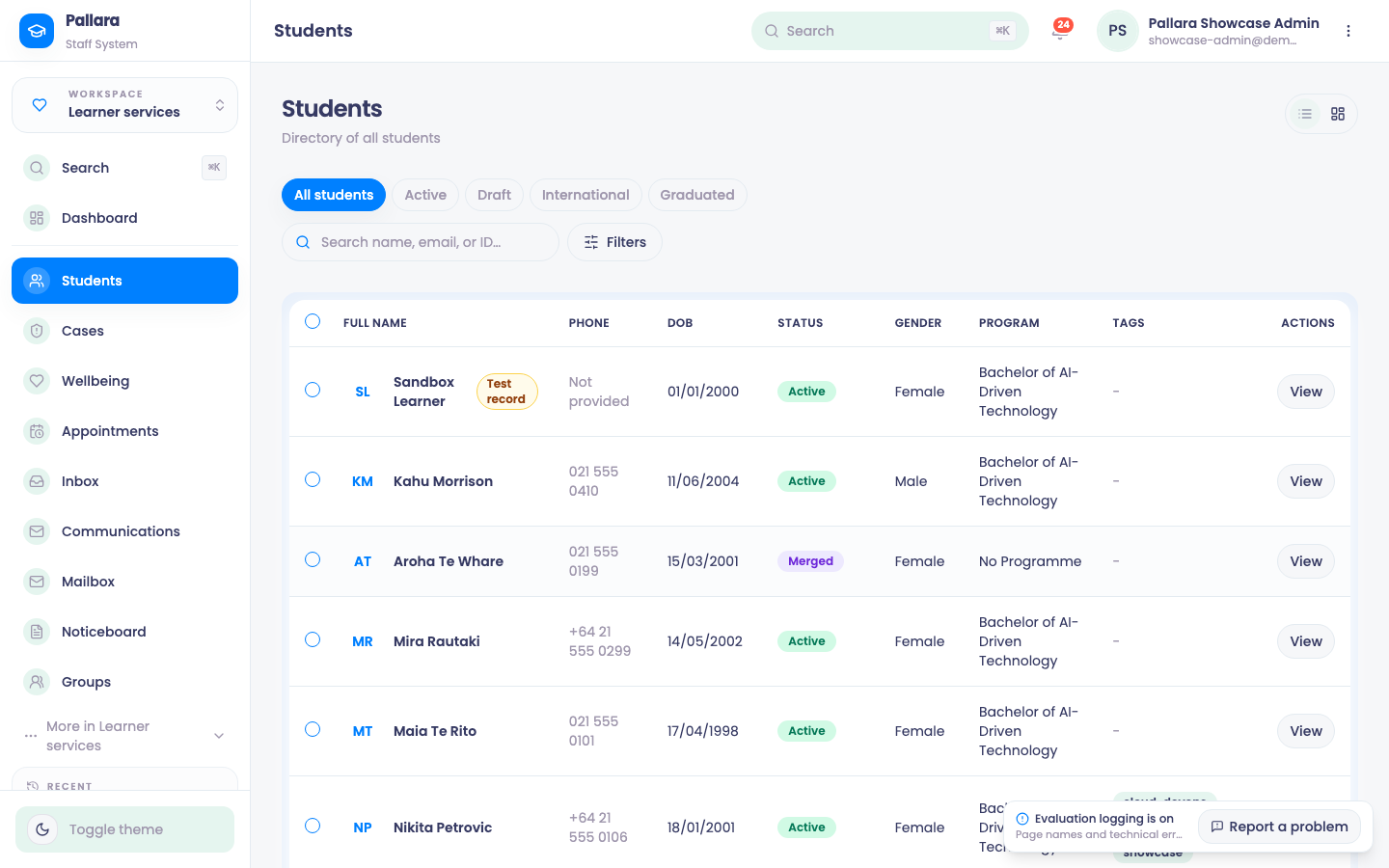
The staff portal is organised into workspaces — one for each kind of work. The workspace switcher sits at the top of the left-hand navigation; below it are that workspace's main pages, then More in <workspace> for its long tail, then Recent for the pages you have just used. Search (⌘K on a Mac, Ctrl+K elsewhere) opens every page in the portal by name, labelled with its workspace. Dashboard is available from every workspace.
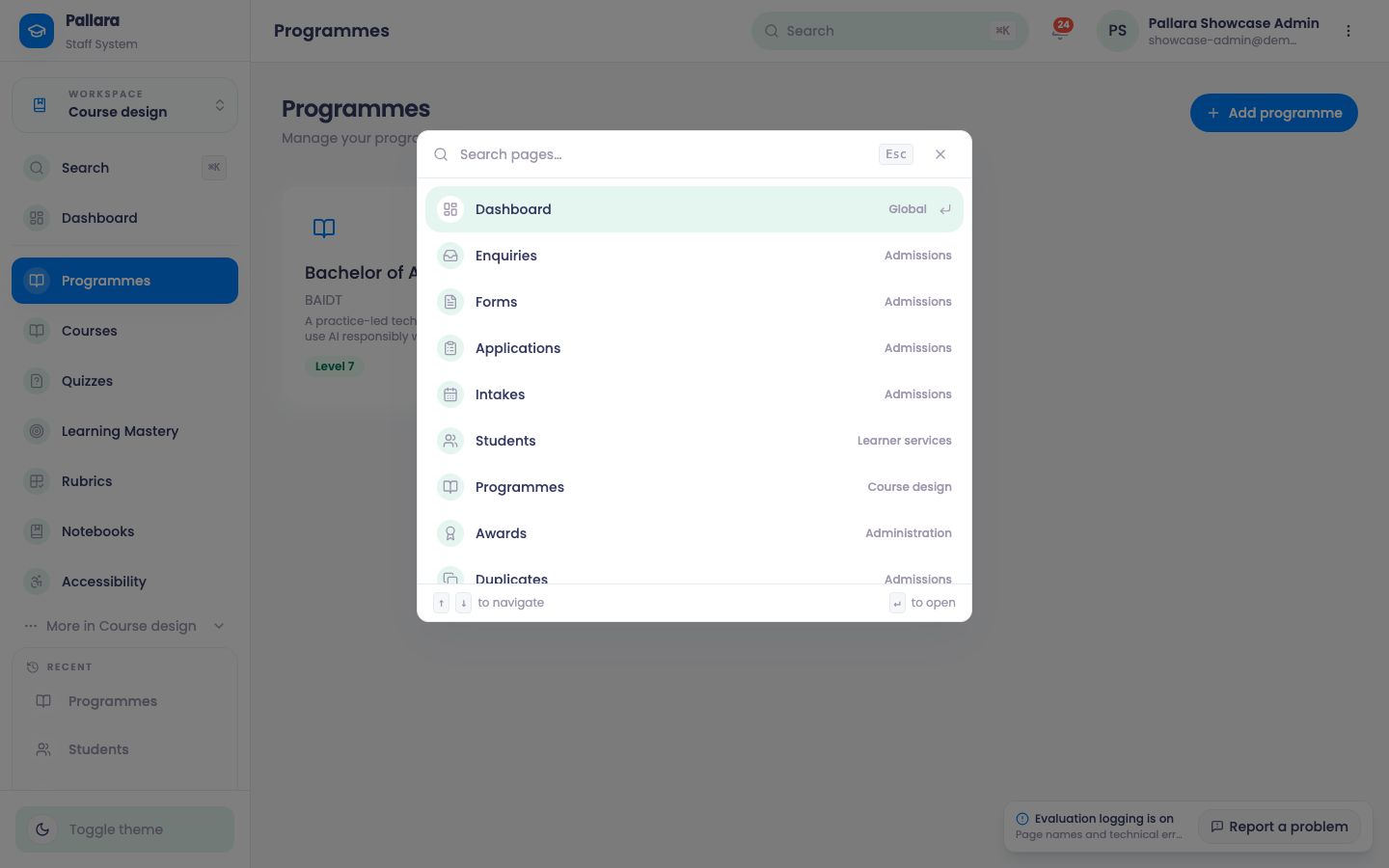
Your default workspace follows your role — Administration for administrators, Admissions for managers, Teaching for everyone else — and you can switch at any time.
| Workspace | Main pages | Under More |
|---|---|---|
| Admissions — recruit, review and enrol | Enquiries, Forms, Applications, Intakes, Commission | Agent performance, Duplicates, Address Finder, Stakeholders, International |
| Teaching — teach, mark and support progress | My Teaching, Submissions, Gradebook, Moderation, Attendance, Timetable, Completion, At-Risk Students | AI Grading, Assessment Analytics |
| Course design — shape programmes and learning | Programmes, Courses, Quizzes, Learning Mastery, Rubrics, Notebooks, Accessibility | Competency, RPL |
| Learner services — care, communicate and follow up | Students, Cases, Wellbeing, Appointments, Inbox, Communications, Mailbox, Noticeboard, Groups | Discussions, Two-way SMS, Email Templates, Homestay, Record Confidentiality |
| Compliance — validate, submit and evidence | Compliance Hub, Pastoral Care Code, Attendance Compliance, NSN Search, NZQA Exports, StudyLink, SDR Returns, TEC Submissions | Compliance items, Activity & System Logs, Sent messages |
| AI — ask, review and govern the AI | AI Assistant, Ask Your Data, Insights, Agents, Models, Memory, Approvals, Findings, Policies | Analytics, Prompt Testing, Sandbox, Scheduler, Notifications, DevOps |
| Administration — run finance, access and systems | Reports, Financial, Workflows, Permissions, Modules, Integrations, API access, Settings | Webhooks, Calendar, Awards, Custom Reports, Invoices, Payments, Work-based Training, Live Evaluation, Public Trust, LNAT, Data Warehouse, Assets, Graduation, Statistics, Network Benchmarks, E-Signatures, Eisenhower Matrix, My Dashboard |
The guides in this help centre write paths the same way: Teaching → Gradebook is a main page in the Teaching workspace; Admissions → More → International is under More in Admissions. Anything can also be reached by typing its name into Search.
Things people look for
- Modules is its own item in Administration, not a tab inside Settings. That is where optional capabilities are switched on, and a page that is missing from the navigation is usually a module that is off or a role that does not include it.
- Submissions (the marking queue) and Gradebook are separate pages: you mark in one and release in the other. See Mark an assessment in SpeedGrader and Release grades from the Gradebook.
- Mailbox (inbound email) and Inbox (in-portal conversations) are different things. Mailbox needs the
mailboxpermission — managers and administrators have it. - Toggle theme at the bottom of the navigation switches light and dark; Settings → Appearance has the finer controls.
- Super Admin appears only for platform super-administrators and opens the separate platform control plane, which is not covered by these guides.