Configure and disconnect an integration
Single sign-on, Stripe, Twilio, DocuSeal, NZQA, NSI, TEC DXP and form requests — each configured per provider, tested from the card, disconnected from the same place.
Flow
Every integration, the same four moves
Diagram: Every integration, the same four moves. Steps:
- Configure
- Save — card turns Active
- Test (where safe)
- Disconnect when no longer needed
Connections:
- Configure → Save — card turns Active
- Save — card turns Active → Test (where safe)
- Test (where safe) → Disconnect when no longer needed
Staff actionPallara does this
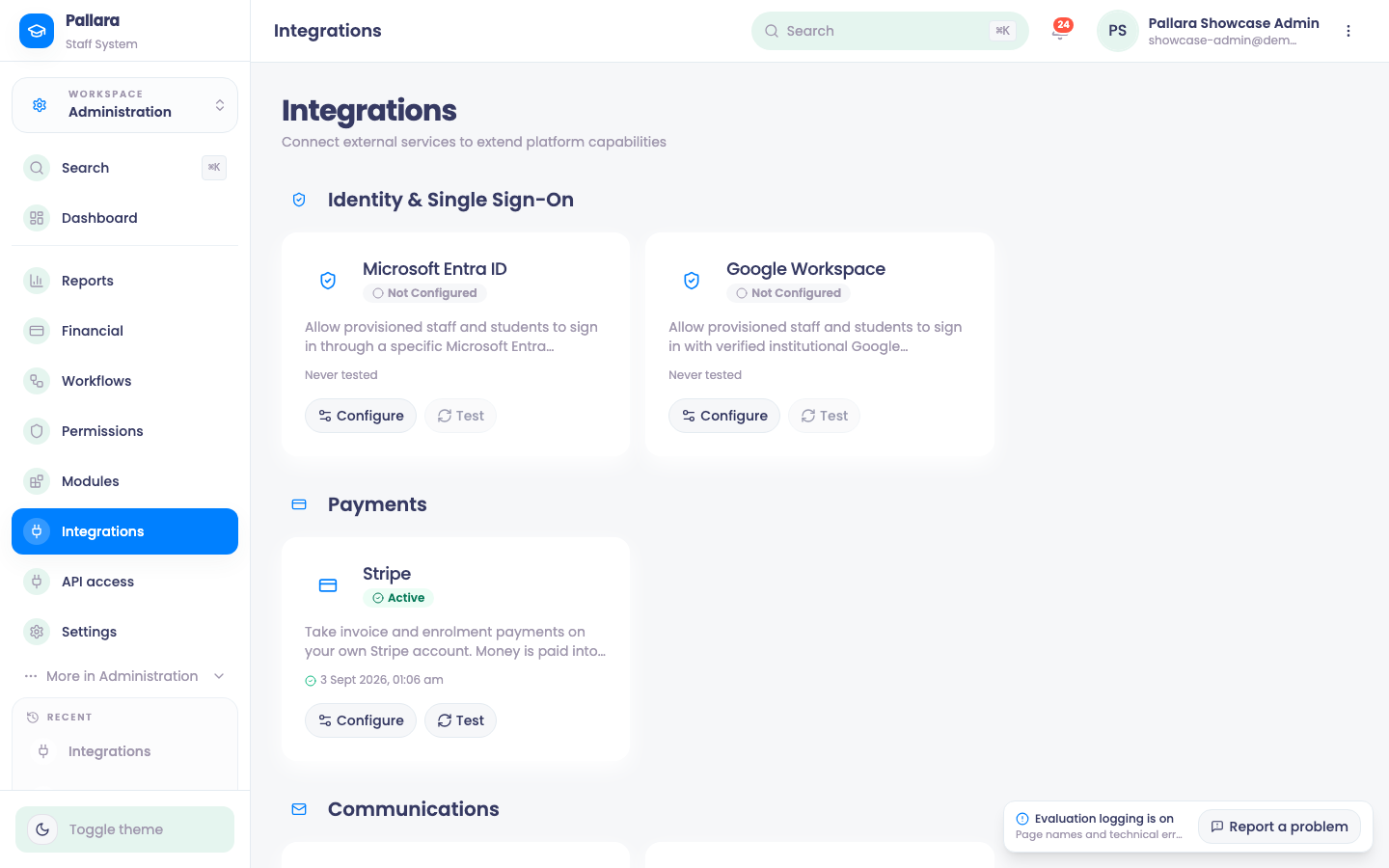
- Open Administration → Integrations and select Configure on the provider's card.
- Enter the configuration and Save. The card changes from Not Configured to Active. Secrets are encrypted at rest and belong to your provider; a platform-level setting is only a fallback for providers that have not configured their own.
- Select Test where it is appropriate. NZQA validates that a provider code exists without a network call; DocuSeal reports Connected — templates endpoint reachable; Twilio reports Connected — account verified.
- Configure → Disconnect removes the configuration and returns the card to Not Configured.
| Integration | What it enables |
|---|---|
| NZQA Results Reporting | Your provider code for the F23 and QE1 results returns. |
| TEC Data Exchange Platform (DXP) | SDR/ITR submissions and Ngā Kete services via OAuth2 client credentials — the ESL machine account. |
| National Student Index (NSI) | NSN search, verification and assignment via OAuth2 client credentials — the Ministry machine account. |
| Stripe | Invoice and enrolment payments on your own Stripe account. Money is paid into your Stripe balance, not Pallara's; the keys come from Developers → API keys in your Stripe dashboard. |
| DocuSeal (e-signatures) | Enrolment agreements and consent forms for signature on your own DocuSeal; documents are stored on the instance you name. |
| Twilio SMS & WhatsApp | Send and receive SMS and WhatsApp through your own Twilio account. |
| Microsoft Entra ID / Google Workspace | Single sign-on for provisioned staff and learners against your own directory. |
| Student Form Requests | Send enrolment forms and consent requests to learners through a secure tenant webhook. |
Address lookup (Google Places) is configured at the platform level rather than per provider, and the key is restricted by IP or API — never by HTTP referrer, because Pallara calls Google from the server.
Take careThe TEC and NSI Test controls call real OAuth endpoints. Do not use them with placeholder credentials.
Was this guide helpful?