Create and work an enquiry
Record a prospective learner, keep notes on every conversation, and move them through the enquiry pipeline.
Flow
Where an enquiry comes from, and where it goes
Diagram: Where an enquiry comes from, and where it goes. Steps:
- Public form on your website
- Agent portal
- Staff types it in
- Enquiry in the Active list
- Contacted → Follow up → …
- Convert to application
- Application card on the pipeline
Connections:
- Public form on your website → Enquiry in the Active list
- Agent portal → Enquiry in the Active list (attributed)
- Staff types it in → Enquiry in the Active list
- Enquiry in the Active list → Contacted → Follow up → …
- Contacted → Follow up → … → Convert to application
- Convert to application → Application card on the pipeline
Learner actionStaff actionPallara does this
Every route lands in the same list; agent-introduced enquiries carry their agent through to commission.
Walkthrough · 3 steps
Work an enquiry
Select a step to see the screen for it.
- 1Open Admissions → Enquiries. Search, filter, export, or select New Enquiry.
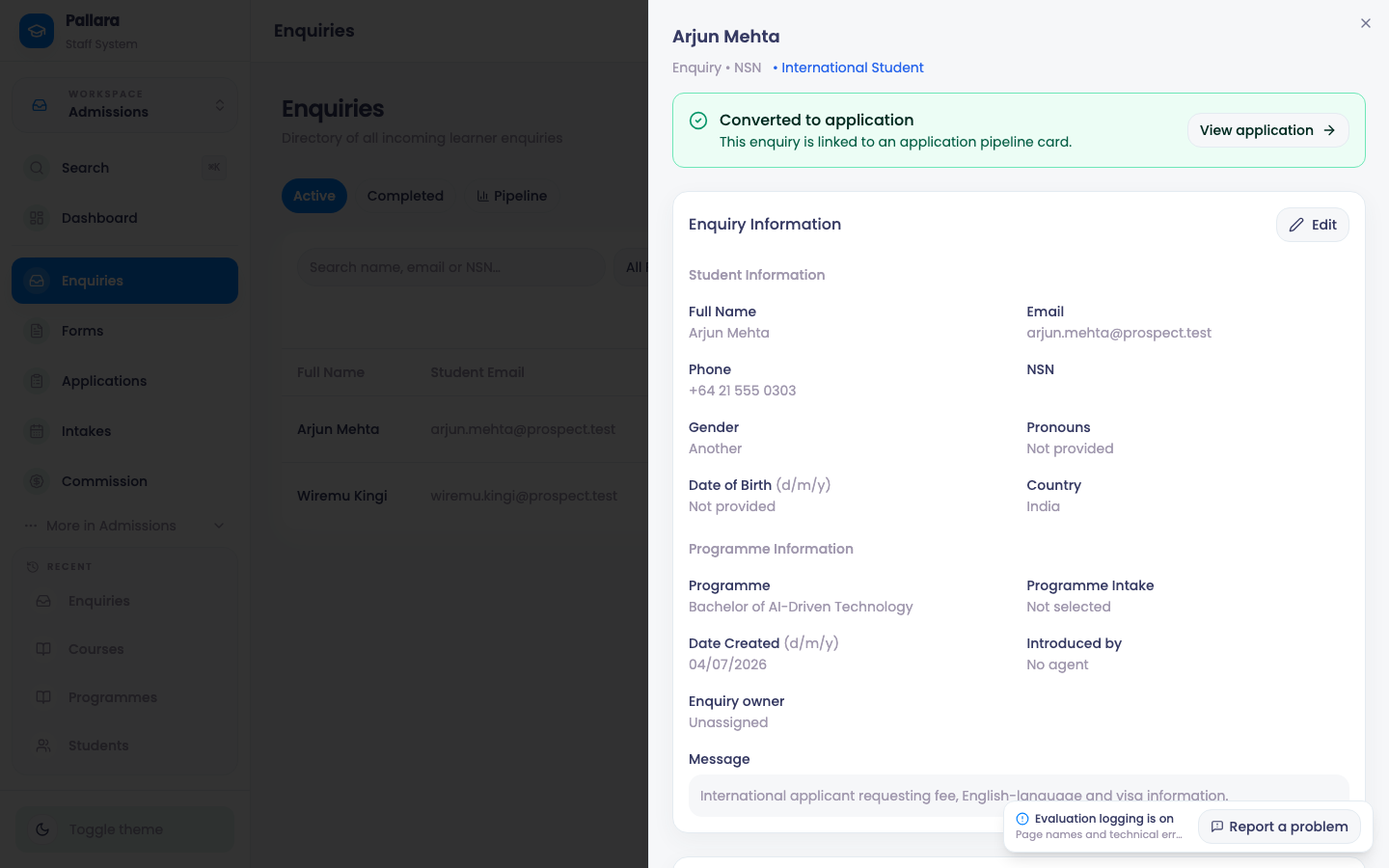
- 2Select View on a row. The drawer holds the person's details, the programme, notes and the status control.
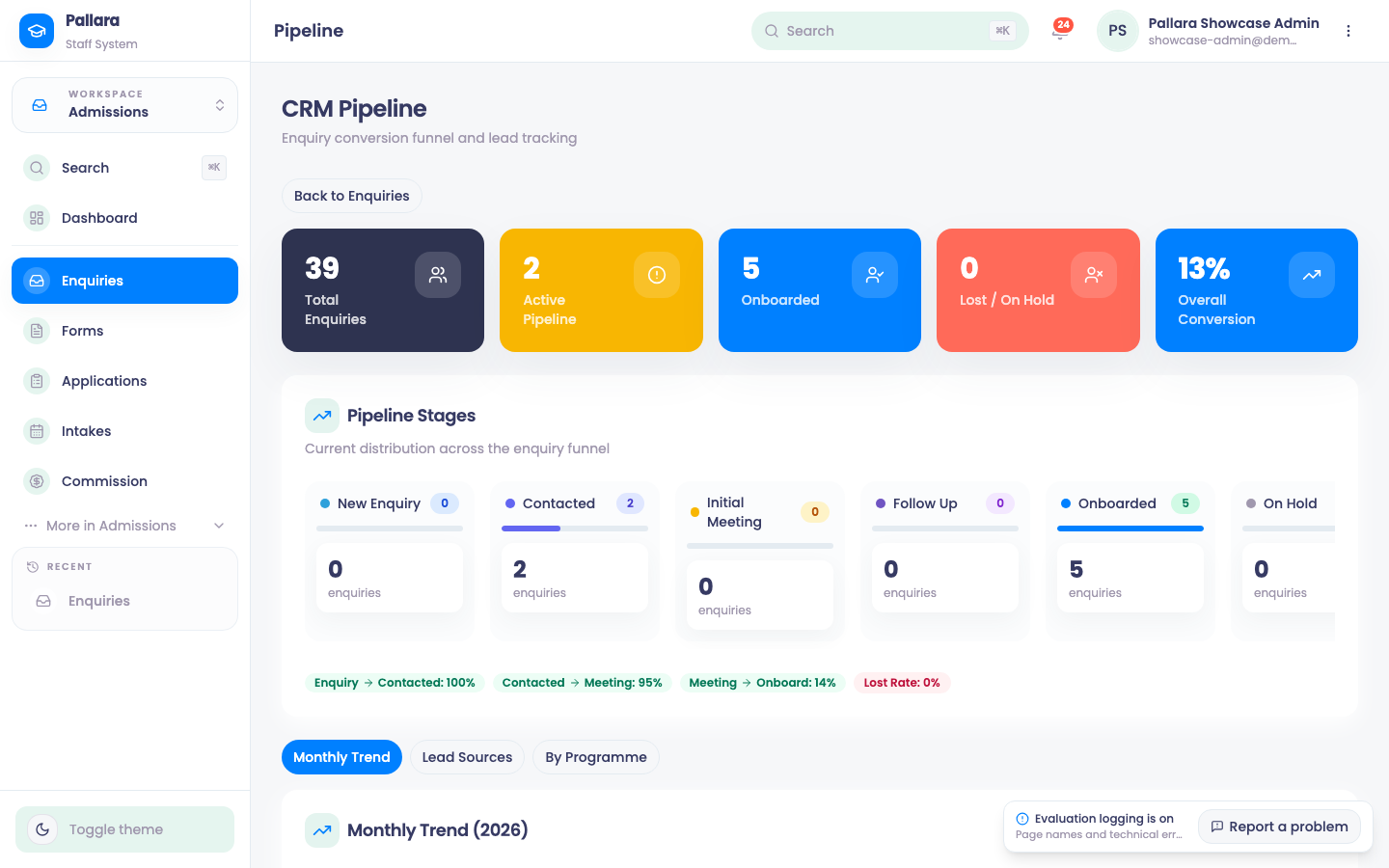
- 3Select Pipeline for the stage columns, programme breakdown, lead sources and the monthly trend.
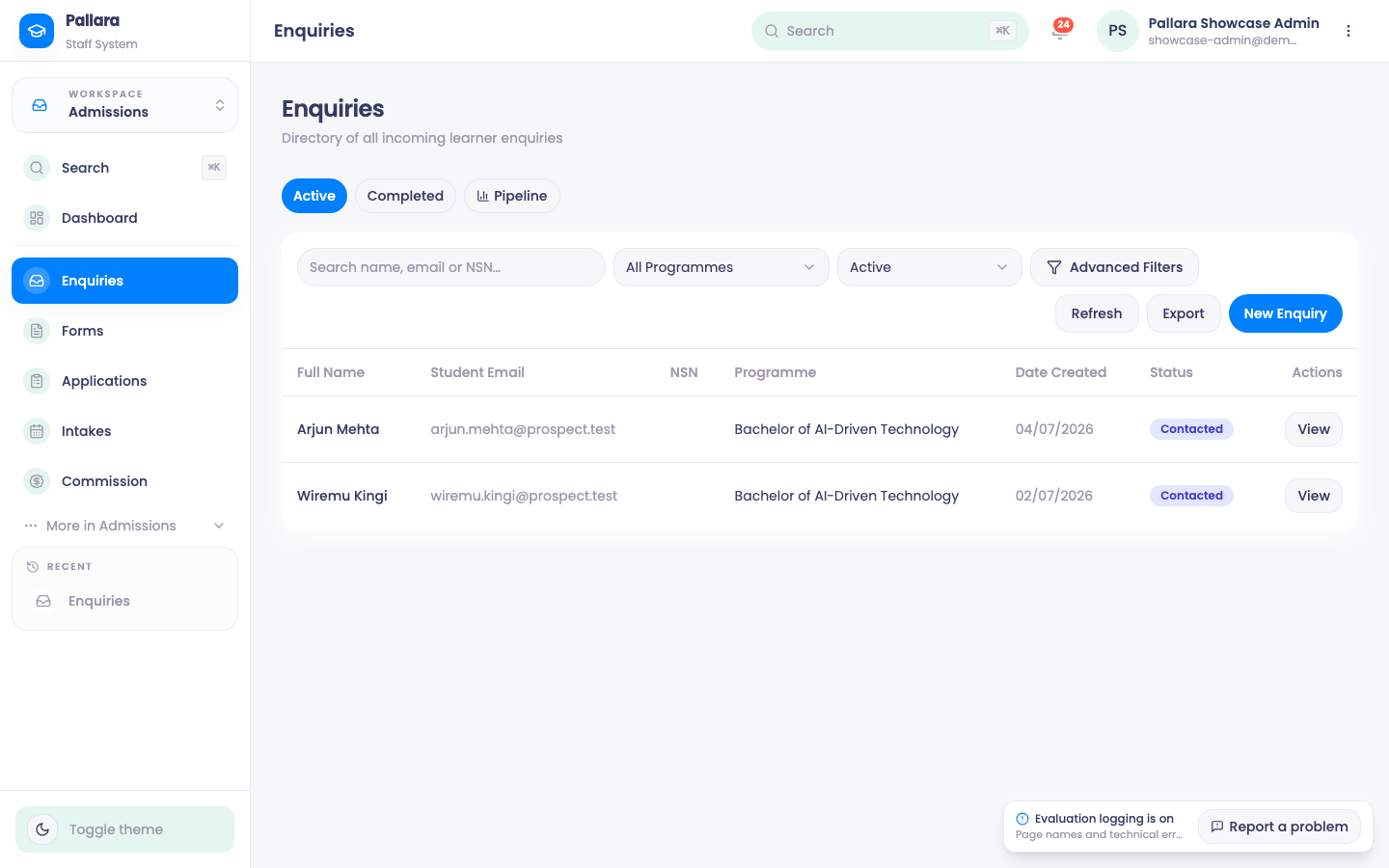
The Active enquiries list.
An enquiry drawer — this one already converted, with a View application link.
The enquiry pipeline view.
1 / 3
Create the enquiry
- Open Admissions → Enquiries. The Active list loads first.
- Select New Enquiry.
- Enter the person's identity and contact details: first name, last name, preferred name, email, phone, NSN if they know it, and date of birth. Dates are day/month/year — check the date of birth on screen before you submit.
- Select the programme. Leave the intake blank if it is not yet known, and set Status to Enquiry.
- Complete gender, how they heard about you, the international-student flag and the message as required.
- Select Create Enquiry. The person appears in the Active list with Enquiry status and the programme you chose.
- Select View on the row and check what was stored.
Edit, progress and annotate
- From the row, select View, then Edit in the drawer. Change any identity, contact, programme or message field and select Save Changes.
- Under Management, choose the next status — for example Follow up — and select Update Status. The row changes immediately and keeps the status after a reload.
- Under Notes, enter a title, choose a meeting type, write the note and select Add Note. Use Edit note to revise it later.
Find, filter and export
- Use Search name, email or NSN… for a quick lookup.
- Select Advanced Filters to combine status, programme, domestic/international, gender, discovery method and whether an NSN is present, then Apply Filters.
- Select Export, keep the required First Name, Last Name and Email fields, add any optional columns, choose CSV or Excel, name the file and select Export. The file contains the filtered rows shown in the table; Excel exports are real workbooks.
Review the pipeline
- Select Pipeline above the list.
- Read the Overview totals and stage columns, then By Programme to compare enquiry and onboarded counts. Lead Sources and Monthly Trend describe the same filtered population.
TipAn enquiry that arrives through a published web form (see Published forms) or an education agent's portal lands in this same list, already attributed to its source.
Was this guide helpful?