Create, send and settle an invoice
GST-correct invoices with line items and payment terms, exported to CSV, marked sent and paid.
Flow
Invoice states
Diagram: Invoice states. Steps:
- Draft
- Sent
- Paid
Connections:
- Draft → Sent
- Sent → Paid
Staff actionPallara does this
A draft can be deleted; sent, paid, overdue and cancelled invoices are kept. Payment terms set the due date; an offer of place creates a pro-forma automatically.
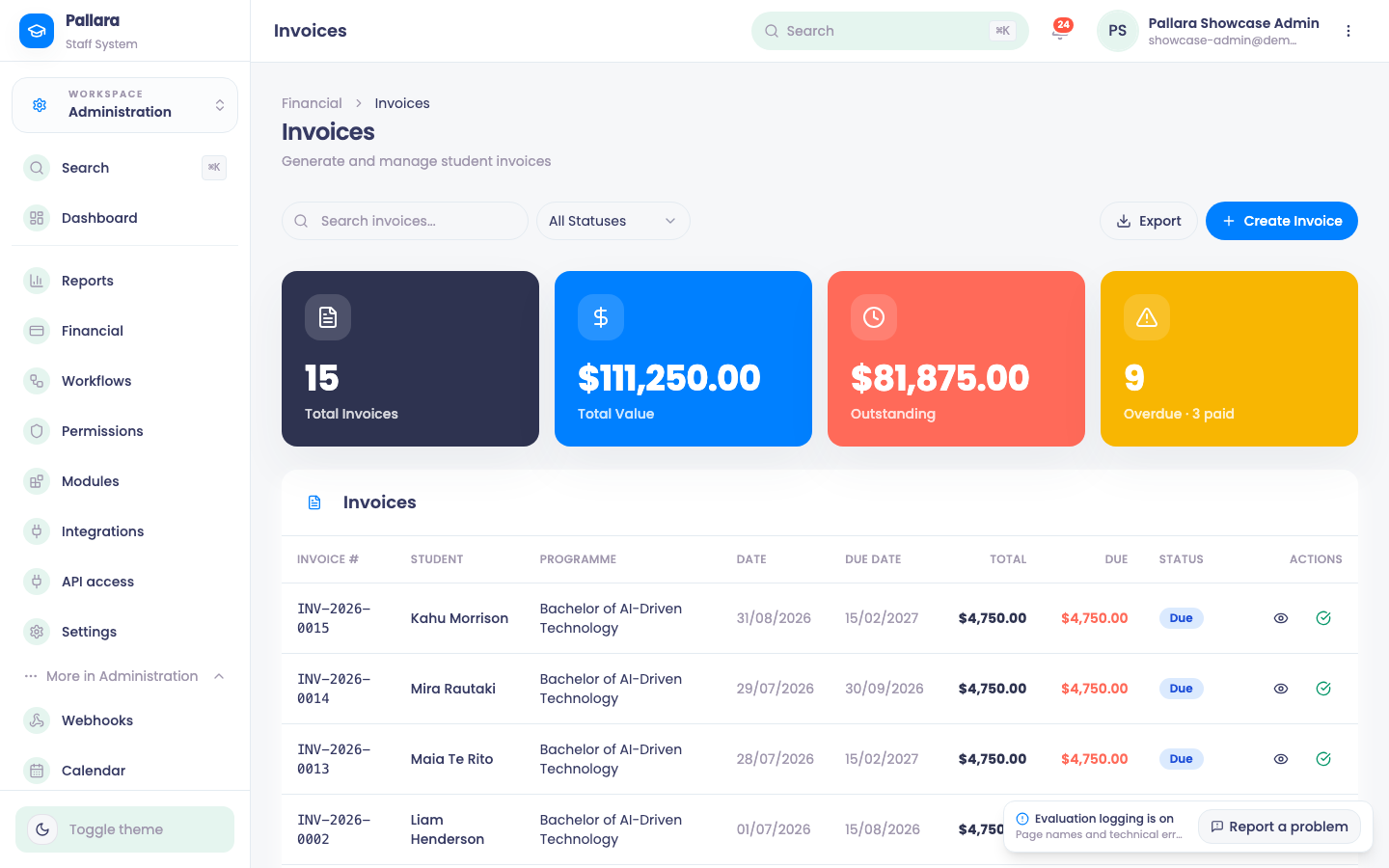
- Open Administration → Financial → Invoices, then Create Invoice.
- Select the learner and, when known, the programme. Set the Invoice Date and choose Payment Terms; Due Date is calculated from the terms.
- Under Line Items, enter a description, quantity and unit price for each row. Confirm the subtotal, GST and total, add a note if needed, and select Create Invoice. The new row is a Draft.
- Select View invoice <number> to check every field. Search by number, learner or programme; the four summary values describe the filtered rows.
- Select Export to download the filtered rows as CSV: Invoice #, Student, Programme, Date, Due Date, Subtotal, GST, Total, Paid, Due and Status.
- Select Mark invoice <number> as sent to issue it, and later Mark invoice <number> as paid to settle it. A draft can be removed with Delete draft invoice <number>; sent, paid, overdue and cancelled invoices cannot be hard-deleted.
TipAn offer of place generates a pro-forma invoice automatically — see Issue an offer of place.
Was this guide helpful?