Update a learner's profile, contacts, notes and documents
Preferred name, emergency contact, tags, status, major, staff notes, uploaded documents and consents — all from the learner's record.
Walkthrough · 7 steps
The learner record, tab by tab
Select a step to see the screen for it.
- 1Profile — personal information, emergency contacts, tags. Edit Student opens the editor.
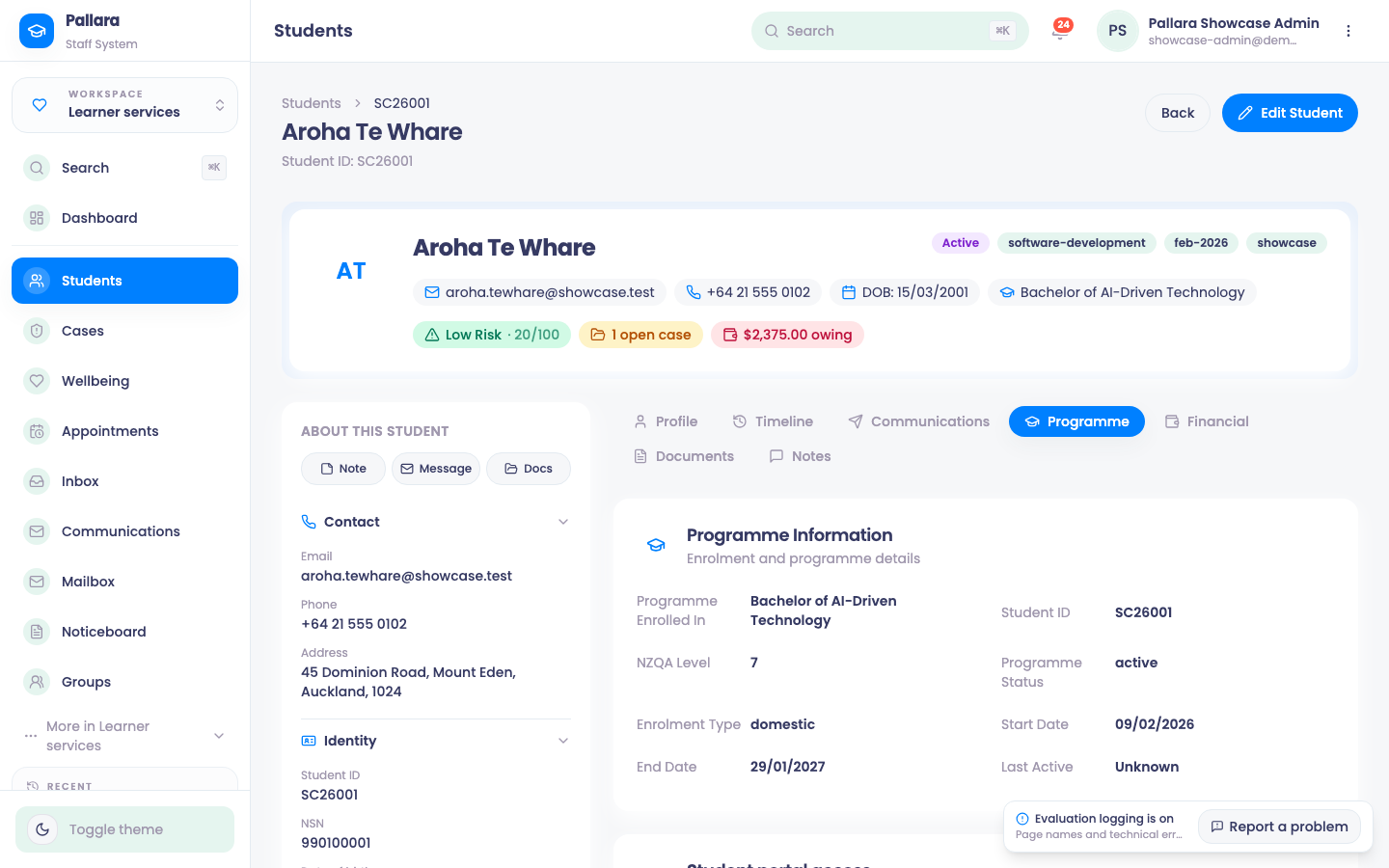
- 2Programme — enrolment details, intakes, major, portal access, and Student Courses with assign / remove / early unlock.
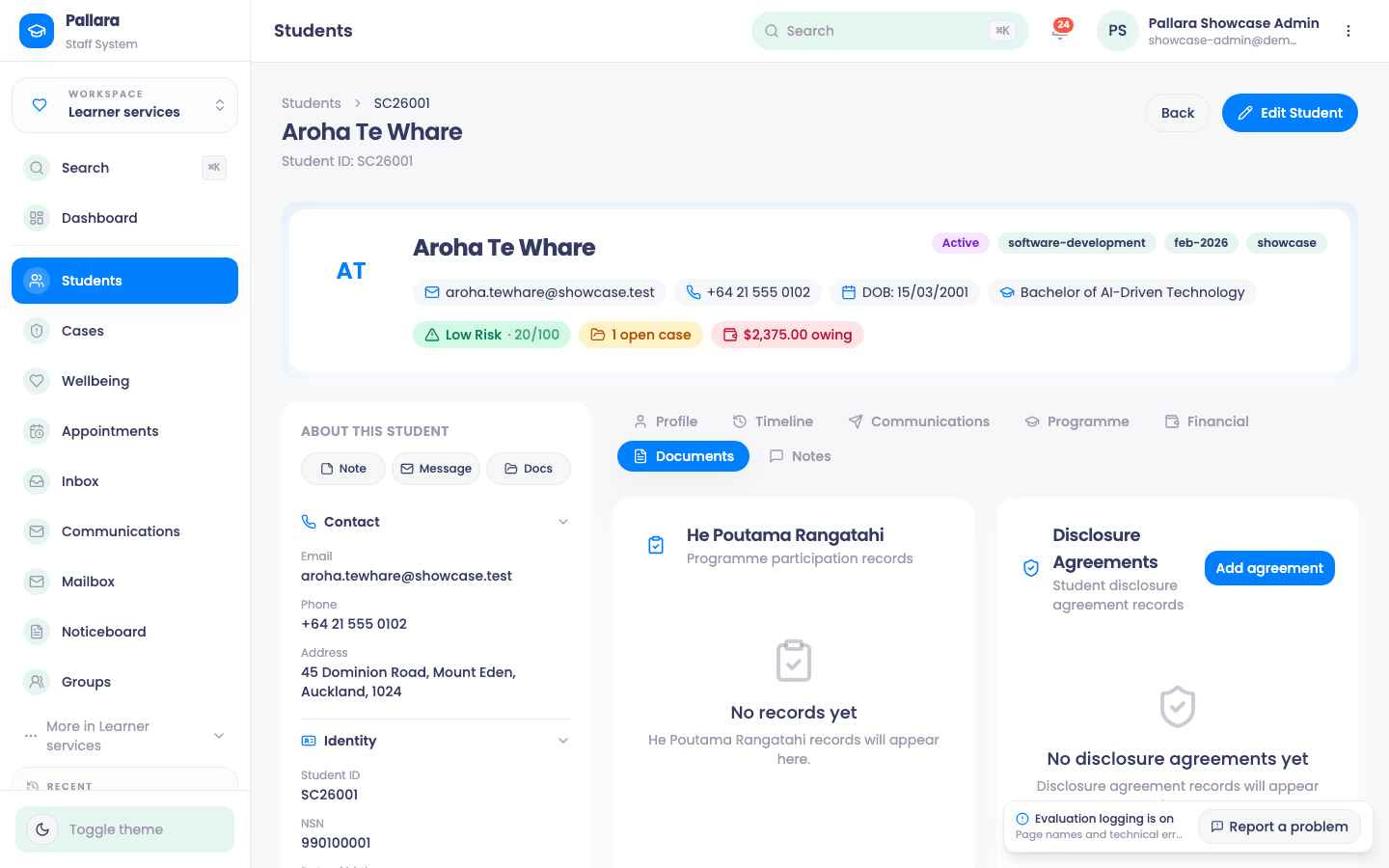
- 3Documents — He Poutama Rangatahi records, disclosure agreements, excursion and van-travel consents, uploaded files.
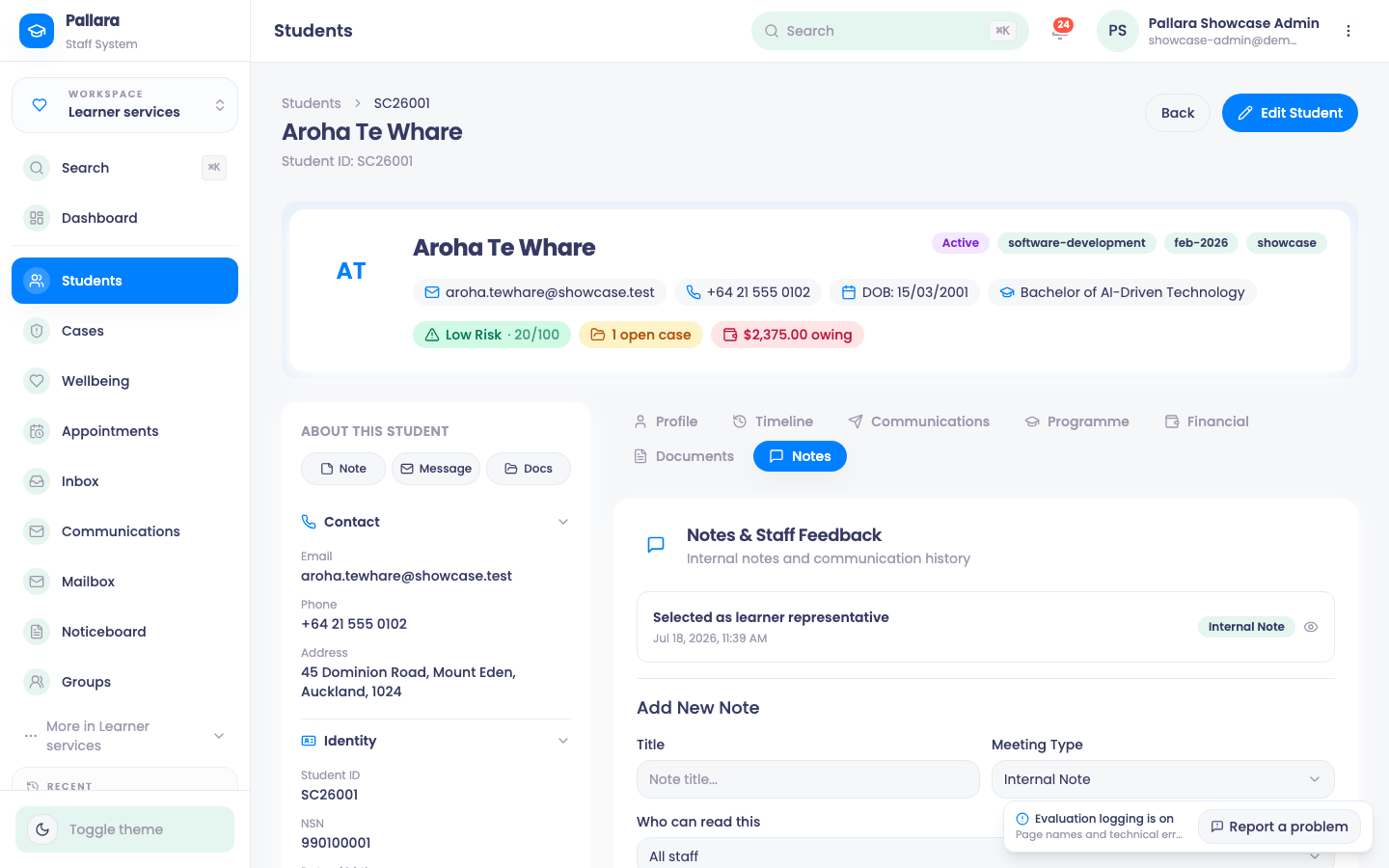
- 4Notes — dated staff notes with a meeting type; each opens in Note Details.
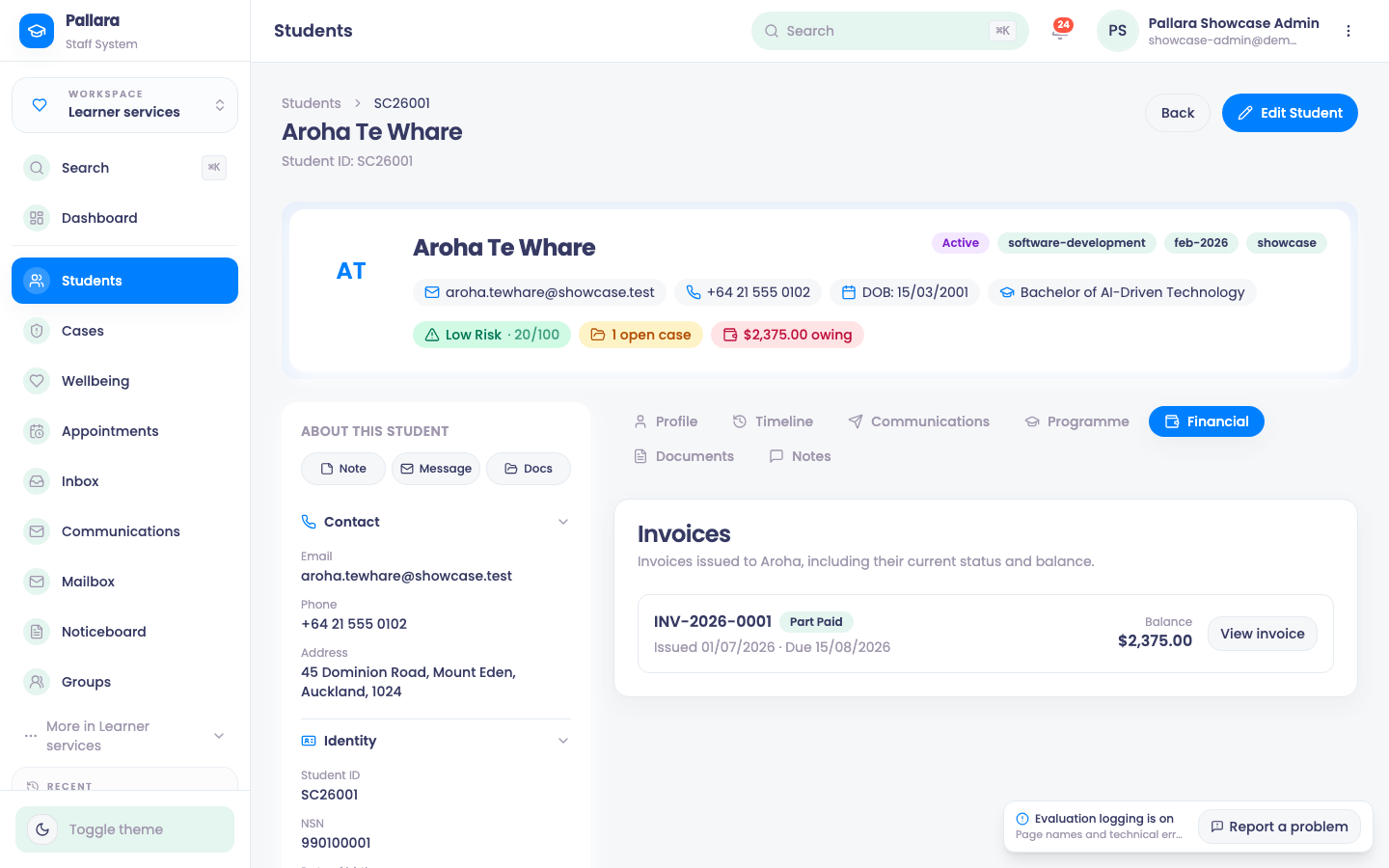
- 5Financial — the learner's ledger and invoices.
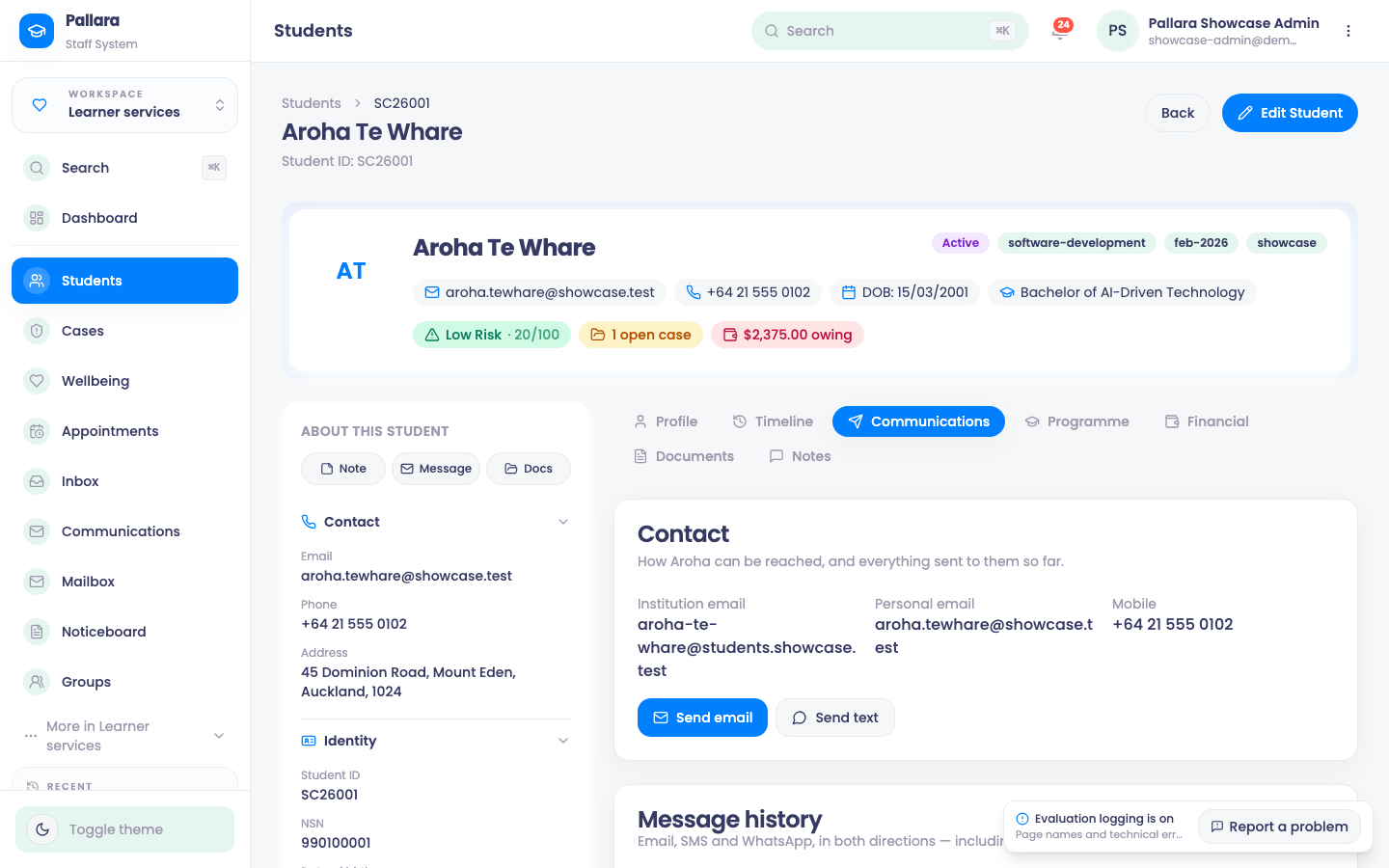
- 6Communications — every email, SMS and WhatsApp, with mailbox replies attached.
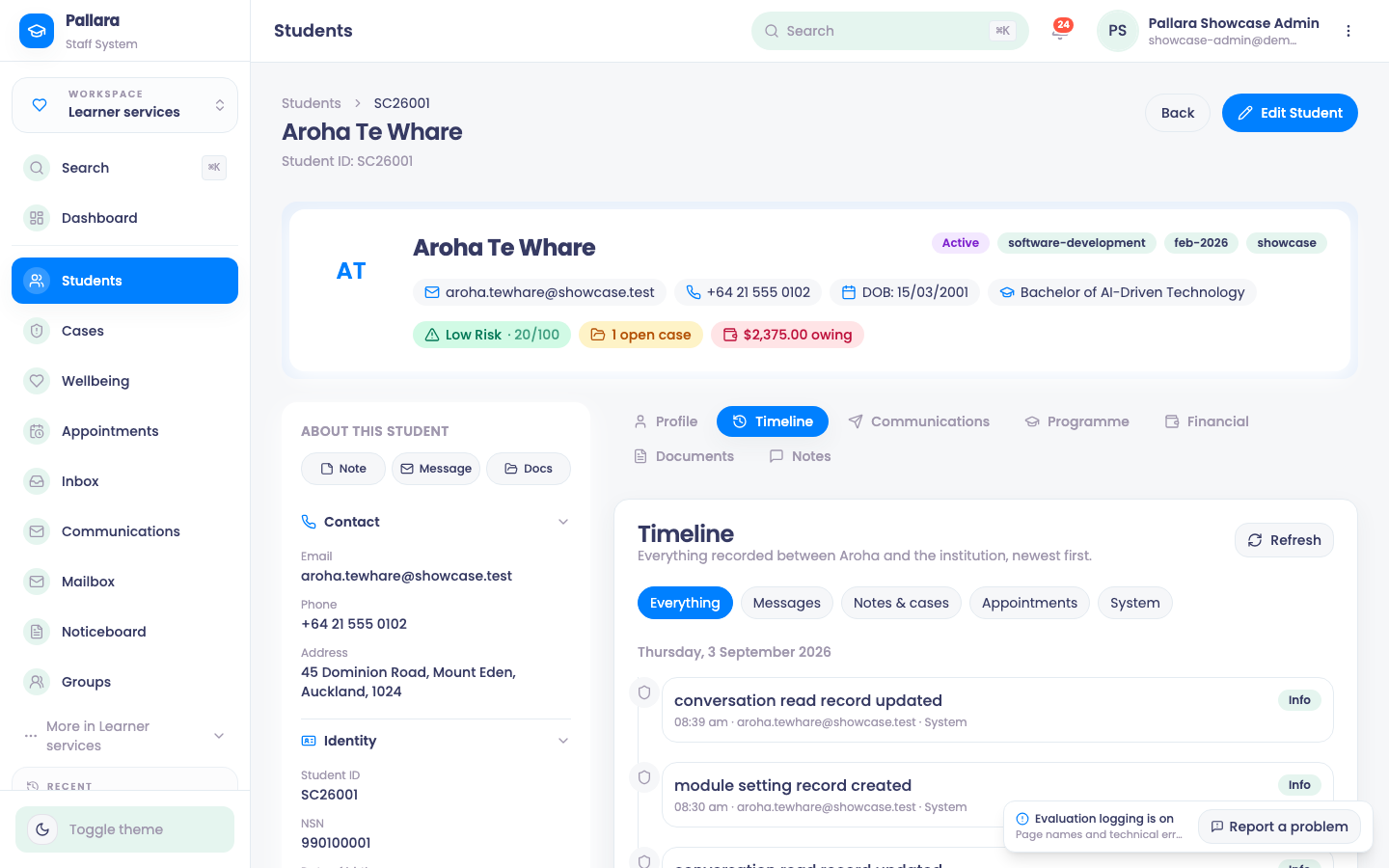
- 7Timeline — the learner's activity in date order, from the same log the rest of Pallara writes to.
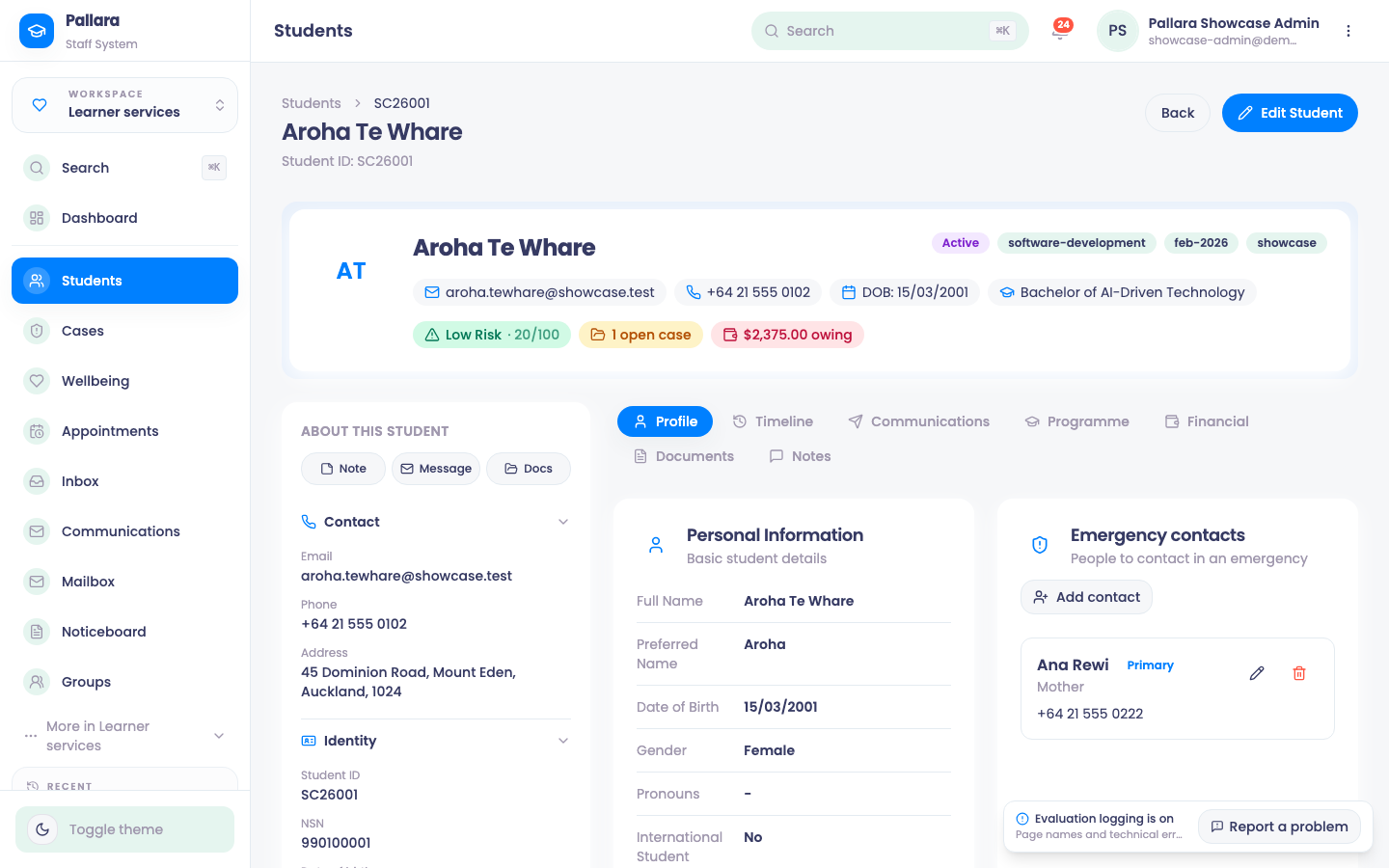
Profile.
Programme.
Documents.
Notes.
Financial.
Communications.
Timeline.
1 / 7
Profile and emergency contact
- Open Learner services → Students, search for the learner and select View.
- Select Edit Student. Update Preferred Name and the emergency contact's name, relationship, phone and email.
- Select Save Changes. The Profile tab shows the new values; reload once before relying on them.
- To clear an emergency contact, empty each field and save — do not leave stale values behind.
- Update the learner's own phone and postal address in the same editor.
Tags
- In Edit Student, type a short label into Add tag…, select Add, then Save Changes.
- Remove a tag with its Remove tag control, then save.
Status
- In the Students directory, tick the learner's row. The bulk controls show 1 selected.
- Open Set status for selected students, choose the status, then select Update status. The row's chip and an Updated 1 student(s) confirmation change together.
Major
- On the Programme tab, under Change major, select the specialisation and add a short reason in Notes.
- Select Change major. The Current major card names the specialisation, shows Active and the declaration date. An earlier declaration becomes historical.
Staff notes
- On the Notes tab, under Add New Note, enter a title, choose the meeting type, write the note and select Save Note.
- Select a note card to open Note Details; use Edit Note or Delete Note from there. Deletion asks for confirmation.
Documents and consents
The Documents tab holds five cards: He Poutama Rangatahi programme participation records, Disclosure Agreements, Excursion Consents, Van Travel Consents, and Student Documents for uploaded files.
- Under Student Documents, select Click to upload documents and choose the file. Wait for Document uploaded.
- Use Preview to open it and Download to save a copy. Delete removes a file after confirmation.
- For a van-travel consent, use Add consent in the Van Travel Consents card: enter the guardian relationship and emergency-contact details, confirm Consent confirmed and Guardian signed, then Save consent. The card shows a Consented badge. Excursion consents and disclosure agreements work the same way from their own cards.
Communications and timeline
The Communications tab is the learner's own message history — email, SMS and WhatsApp in one list, with replies that arrived through the provider mailbox attached automatically. The Timeline tab is the learner's activity in date order, drawn from the same log the rest of Pallara writes to. The Financial tab is described in Manage a learner's financial record.
Was this guide helpful?