Build course content in Content Builder
Modules, lessons, resources, video, SCORM, quizzes, assessments, unlock rules — and the teaching suggestions that flag a 49-minute video.
Every course has two authoring surfaces. The course detail page has a simple outline for modules and text items; Content Builder is the full editor for everything a learner will work through.
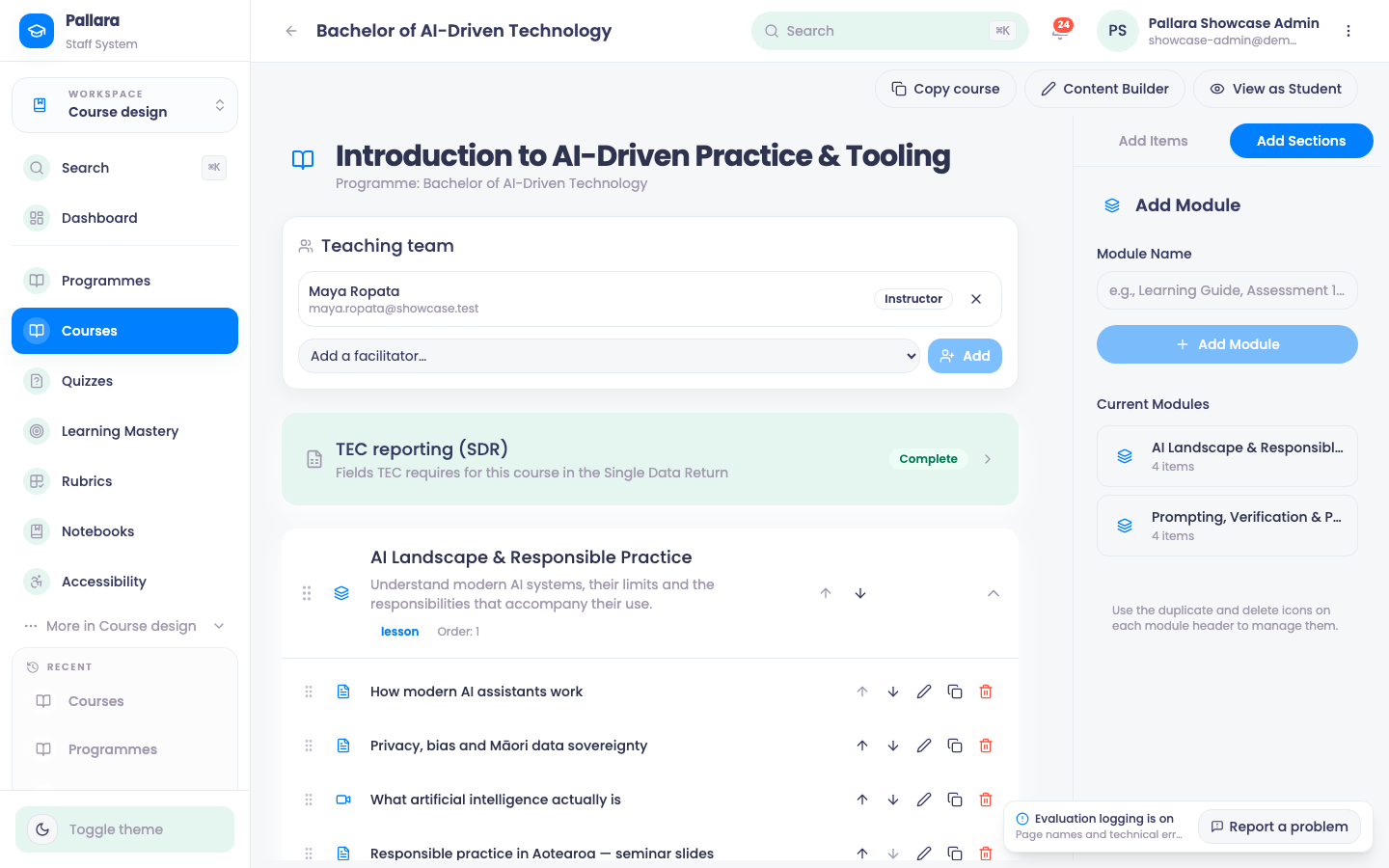
The simple outline
- Open the course. In the right-hand Add Module panel, enter a name and select Add Module.
- Use the pencil beside a module or item to rename it (click elsewhere to save), the duplicate icon to copy it, and the red delete icon to remove it. Deleting a module removes its content.
- Reorder modules with Move [module] up / down in the module header.
Modules and assessments in Content Builder
- Open the course and select Content Builder. The header shows the module and item counts, the total learner time, whether the course is Ready to publish, and the number of teaching suggestions.
- Select Add Module, enter the title and description, then Add Content Item.
- Choose Assessment, enter its title and description, set the Due date and Passing score (%).
- Select Save All. Expect Changes saved successfully. Saving is atomic — if anything fails validation nothing is written, and the error names the field.
- Reload the Builder before relying on the material; the module and assessment should still show the same due date and score.
Content types
How a module reaches a learner
Diagram: How a module reaches a learner. Steps:
- Module with items
- Unlock rule?
- Learner passes the module quiz
- Term start date
- Module opens in the learner's course
Connections:
- Module with items → Unlock rule?
- Unlock rule? → Learner passes the module quiz (quiz passed)
- Unlock rule? → Term start date (none)
- Learner passes the module quiz → Module opens in the learner's course
- Term start date → Module opens in the learner's course
| Item type | What to enter |
|---|---|
| Lesson / Resource | A title and the content; a Resource shows a Resource badge. |
| Video Link | The title, then the Video URL after adding the item. |
| SCORM Package | The title; attach the package through the SCORM upload before making it available. |
| Interactive Quiz | Pick a published quiz from the picker. The item shows Published interactive quiz and the quiz title. |
| Assessment | Title, description, due date, passing score. Choose Use existing and Select rubric to attach a rubric — the item then shows its Rubric field. |
Unlock rules
Each module has an unlock control. Choose Quiz passed when learners must pass the module's quiz before the next module opens. Save, reload and confirm the rule is still displayed.
Teaching suggestions
As you build, a teaching suggestions panel tells you what a course designer would say about the outline: an item that runs 49 minutes in one sitting, a module with nothing for the learner to do, a long run of read-or-watch items with no activity, every assessment sitting in the final module, a learning outcome that is neither taught nor assessed anywhere, items with no duration. These are advice, never a blocker — a check that refused to publish would only train people to type "1 min".
Editing a saved item
Change the Content item title and description, select Save All, reload and confirm both values. Treat the Builder's confirmation as an initial signal only; the reload is the proof.