Manage and run workflows
Describe an automation in your own words, review the draft, publish it, activate it — and watch it run when something happens.
A workflow, from a sentence to a live automation
Diagram: A workflow, from a sentence to a live automation. Steps:
- Describe it in plain English
- Draft it — trigger + steps to review
- Adjust in the builder; fill what is needed before publishing
- Dry run — nothing was changed
- Publish (paused)
- Activate workflow → Live
- Trigger fires: event, schedule, manual, or elapsed time
- Steps run; run history written
- Step fails → owner notified
Connections:
- Describe it in plain English → Draft it — trigger + steps to review
- Draft it — trigger + steps to review → Adjust in the builder; fill what is needed before publishing
- Adjust in the builder; fill what is needed before publishing → Dry run — nothing was changed
- Dry run — nothing was changed → Publish (paused)
- Publish (paused) → Activate workflow → Live
- Activate workflow → Live → Trigger fires: event, schedule, manual, or elapsed time
- Trigger fires: event, schedule, manual, or elapsed time → Steps run; run history written
- Trigger fires: event, schedule, manual, or elapsed time → Step fails → owner notified
Workflows are automations that run when something happens — an enquiry goes quiet, a payment falls overdue, a grade comes in low — and do something about it: create a task for the right person, send a message, move a record.
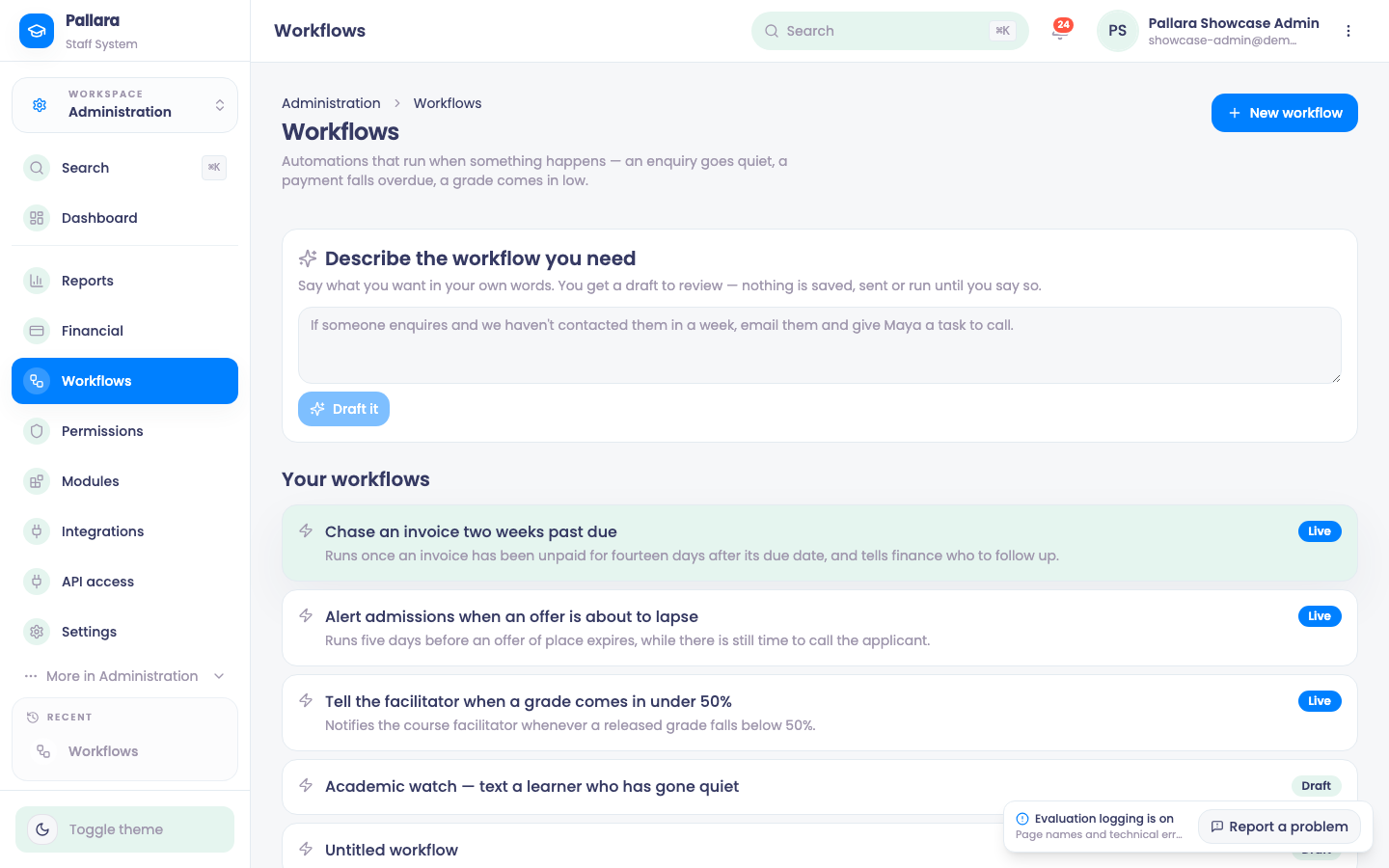
Draft one from a description
- Open Administration → Workflows.
- Under Describe the workflow you need, say what you want in your own words — *chase an invoice two weeks past due and tell finance who to follow up* — and select Draft it.
- You get a draft to review: the trigger, its conditions and the steps. Nothing is saved, sent or run until you say so.
- Adjust the draft in the builder — Search triggers to change what starts it, Search steps to add a step after the selected one, and fill in anything marked Needed before publishing. Save it: Saved as a draft. Publish it when you are ready.
Dry run, publish and activate
- Run the simulation first. Dry run — nothing was changed shows what the workflow *would* do — the task it would create, the message it would send — without doing it.
- Publish the workflow. A published workflow is still paused.
- Select Activate workflow from its menu: This workflow is now active. The row reads Live. Pause workflow stops it again without losing anything.
- A manual workflow can be run from its menu; The workflow ran. Its result is in the run history. Open Run history on any workflow to see every run and its outcome.
- Anything a workflow does — a task on someone's dashboard, an email, a status change — is written to the activity log with the workflow's name.
Triggers
Workflows fire on events — an enquiry created, an application changing stage, a submission arriving, an invoice issued, a payment received, a grade posted — on a schedule, by hand, or when nothing has happened for N days: an enquiry untouched, an offer expiring soon, an assessment due soon, a payment overdue, a case unresolved. The elapsed-time triggers are evaluated by a scheduled job, so a reminder built on one goes out without anyone opening the page.
If a step fails
Each step has an If this step fails setting, and a workflow has an owner. A failed step is recorded in the run history and reported to the owner; a workflow with No owner — failures are not reported says so on its row, so nobody believes a reminder is going out when it is not. Deleting a workflow removes it and its run history, not the tasks or records it already created.