Manage a learner's financial record
Create the ledger record, record a payment, process a refund, schedule a reminder.
Create and update
- In Administration → Financial, select Add Record.
- Select the learner and, where applicable, the programme. Select the financial-aid category, enter Total Fees and Paid Amount, and select the payment method and the payment and financial statuses.
- Use the calendar in Next Due Date to pick the due date, enter the payment reference and any notes, then Add Record. Expect Financial record created and a new row.
- To update, select the row or its pencil, amend the fields and Save Changes.
Record a payment
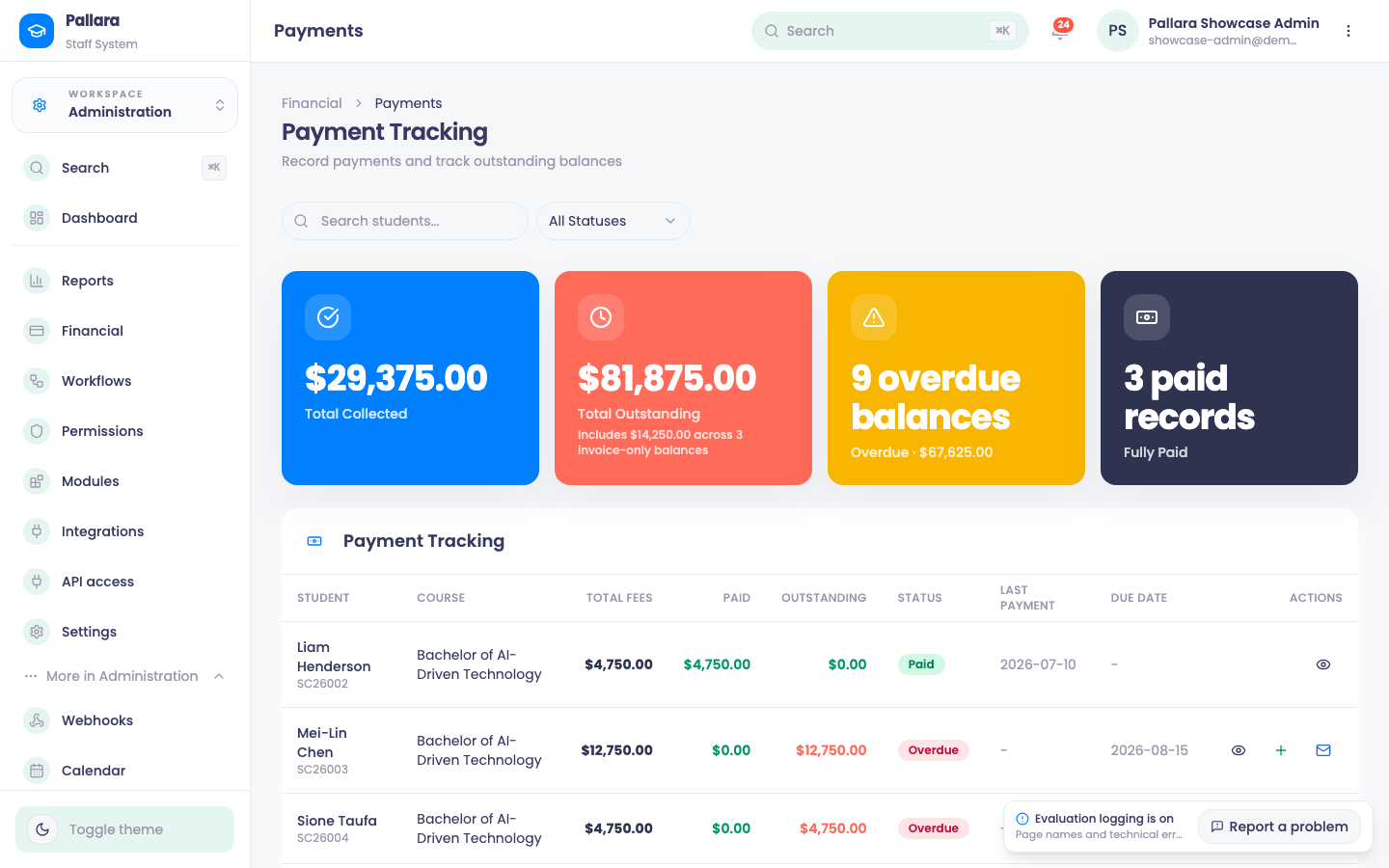
- Select Payment Tracking, find the balance and select its Record payment action.
- Enter the amount, date, method, reference and note, then Record Payment. A full payment shows
$0.00outstanding and Paid.
Refund
- Back on Financial, tick exactly one record and select Process Refunds. Enter the amount and reason, then Process Refund. Paid decreases, Outstanding increases, and the status becomes Partial when a balance remains.
Payment reminder
- Select the record and Schedule Payment Reminders. Enter the date, time and message, then Create Reminder. Pallara opens the Calendar on an event named Payment Reminder: <learner>, 30 minutes long, with the learner as attendee and the current totals in its description.
NotePayment and refund evidence lives in the record's cumulative amount and status fields plus its notes; invoices are a separate ledger managed under Invoices. Deleting a financial record (Delete <learner> financial record) cannot be undone.
Was this guide helpful?