Release grades from the Gradebook
Post marks to learners, edit a mark and see its history, set up assignment groups and grading schemes, and import grades from CSV.
Flow
The assessment loop
Diagram: The assessment loop. Steps:
- Learner submits
- Submissions queue
- SpeedGrader: mark + feedback
- AI Grading draft → review
- Moderation (optional)
- Gradebook: Post grades
- Learner sees mark + feedback
- Grade history + activity log
Connections:
- Learner submits → Submissions queue
- Submissions queue → SpeedGrader: mark + feedback
- Submissions queue → AI Grading draft → review
- SpeedGrader: mark + feedback → Moderation (optional)
- AI Grading draft → review → Moderation (optional)
- Moderation (optional) → Gradebook: Post grades
- Gradebook: Post grades → Learner sees mark + feedback
- Gradebook: Post grades → Grade history + activity log
Learner actionPallara does thisStaff action
A saved mark is invisible to the learner until it is posted — that gap is where moderation lives.
Post grades
- Open Teaching → Gradebook and choose the course. The header shows the grading scheme in force and whether weighted groups are set (No weighted groups — all assessments weighted equally until you create some).
- Search for the learner and confirm the mark is in the assessment column. The column action reads Post grades to students.
- Select Post grades to students. When it changes to Hide grades from students, the results are visible in the learner portal and a grade released notification has gone out.
- Export CSV downloads the grid; Resync quiz scores pulls the latest quiz attempts into their columns.
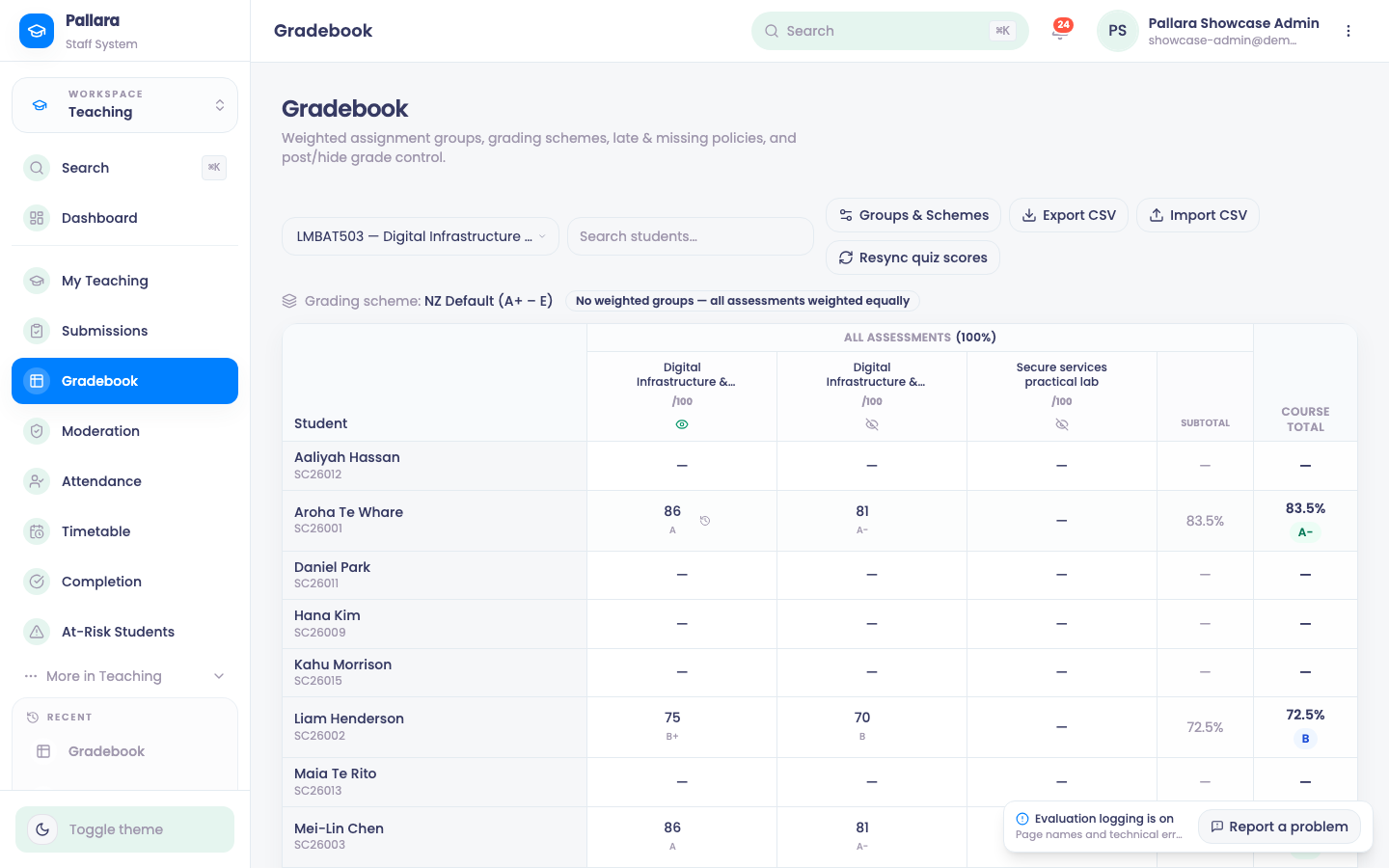
Use Hide grades from students only when a posted result must be withdrawn.
Edit a mark and see its history
- Select the displayed grade, enter a valid mark (or clear it) and press Enter. Expect Grade saved and recalculated totals.
- Use the row's Grade history control. It records the previous and new mark, who changed it, when, and the reason.
Assignment groups and grading schemes
- Select Groups & Schemes. Under Assignment Groups, enter a name, weighting percentage and the number of lowest scores to drop, then Add group. Assign each assessment to a group with its Ungrouped picker.
- Under Grading Scheme, select a built-in scheme and Adopt & customise this scheme, then Edit scheme to change its name or grade bands and Save scheme. Delete scheme returns the course to the built-in default (NZ Default (A+ – E)).
Import grades from CSV
- Select Import CSV. Paste or choose a file with a
Student IDcolumn and one column per assessment, named exactly as the assessment title. - Select Preview (dry run) and read every create, update or clear it reports. Blank values leave a grade unchanged; use
clearto remove one deliberately. - Select Commit.
Was this guide helpful?