Issue an offer of place and convert it to an enrolment
Generate the branded offer letter and pro-forma invoice, then turn the application into an active enrolment with its courses assigned.
From application to enrolled learner
Diagram: From application to enrolled learner. Steps:
- Application received
- Assessment
- Generate offer of place
- Create pro-forma invoice
- Offer letter PDF
- Pro-forma invoice
- Accepted → Ready to enrol
- Convert to enrolment
- Active learner + enrolment
- Core courses assigned, locked to term
- INTL101 onboarding (international)
Connections:
- Application received → Assessment
- Assessment → Generate offer of place
- Assessment → Create pro-forma invoice
- Generate offer of place → Offer letter PDF
- Create pro-forma invoice → Pro-forma invoice
- Offer letter PDF → Accepted → Ready to enrol
- Accepted → Ready to enrol → Convert to enrolment
- Convert to enrolment → Active learner + enrolment
- Convert to enrolment → Core courses assigned, locked to term
- Convert to enrolment → INTL101 onboarding (international)
The pipeline board
Select a step to see the screen for it.
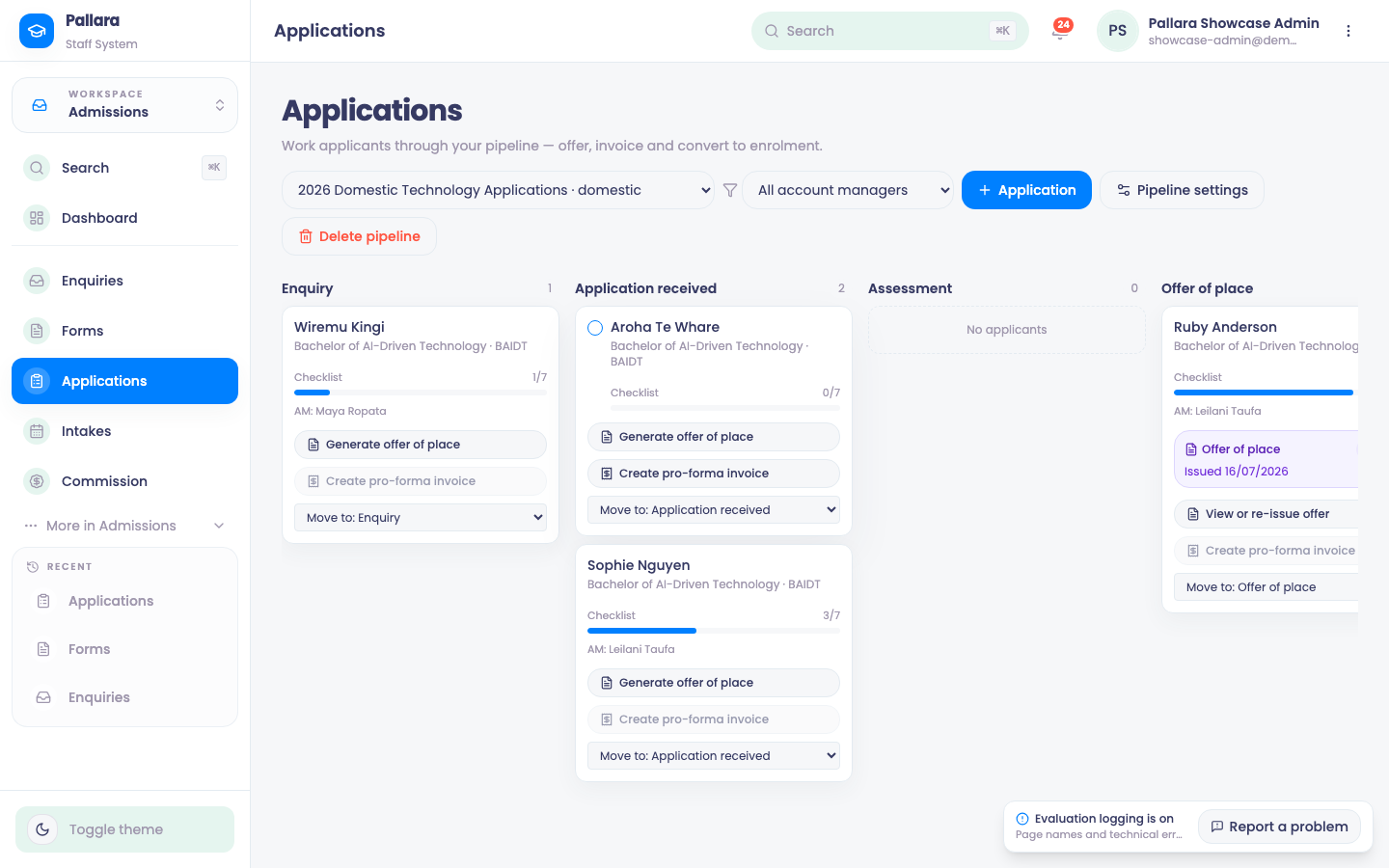
- 1Choose the pipeline — domestic or international — and, if you like, one account manager.
- 2Each card carries the checklist, the account manager and the actions: Generate offer of place, Create pro-forma invoice, Move to: <stage>.
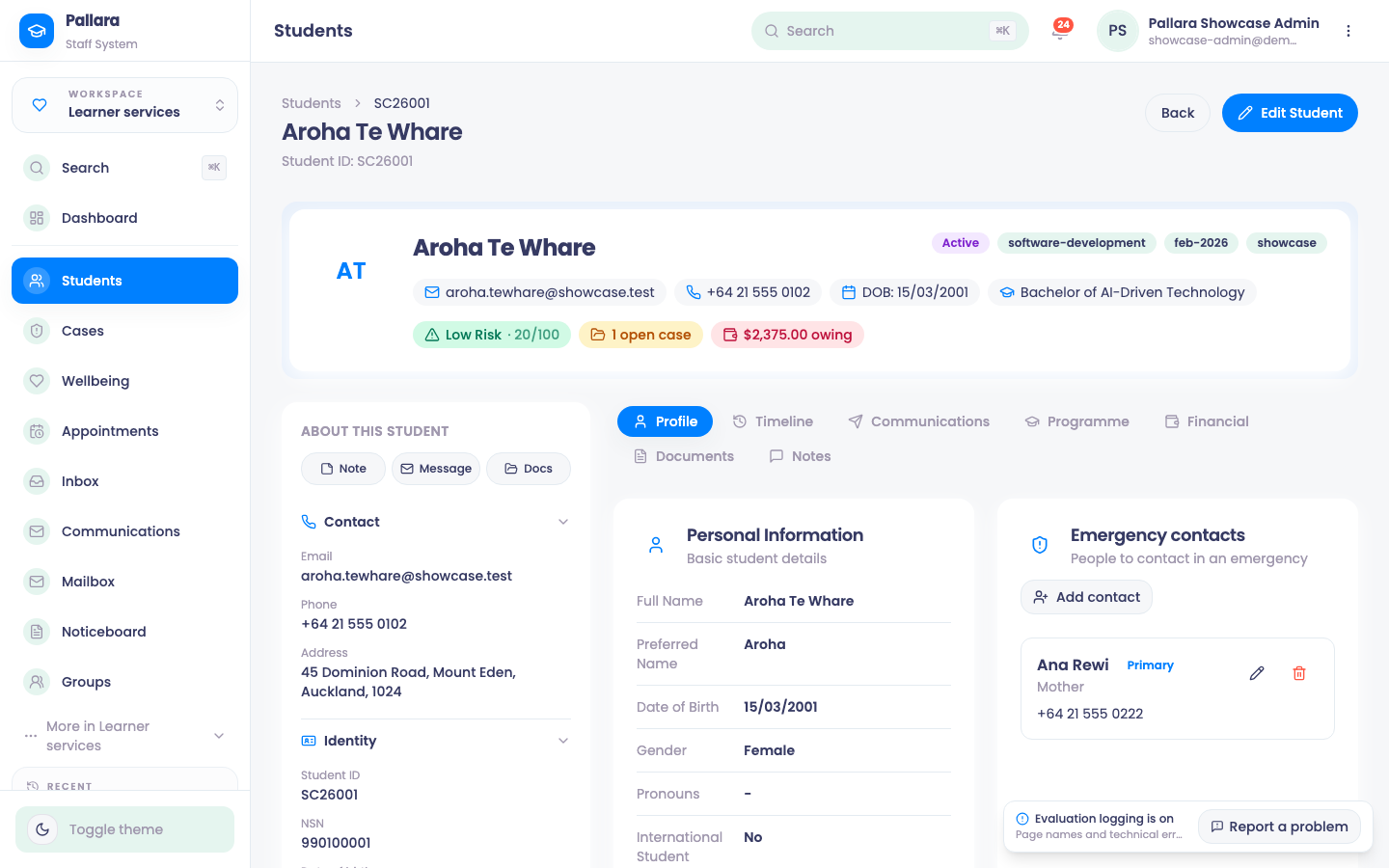
- 3After conversion the learner has a full record: profile, programme with courses, documents, notes, finance and a timeline.
Work the card
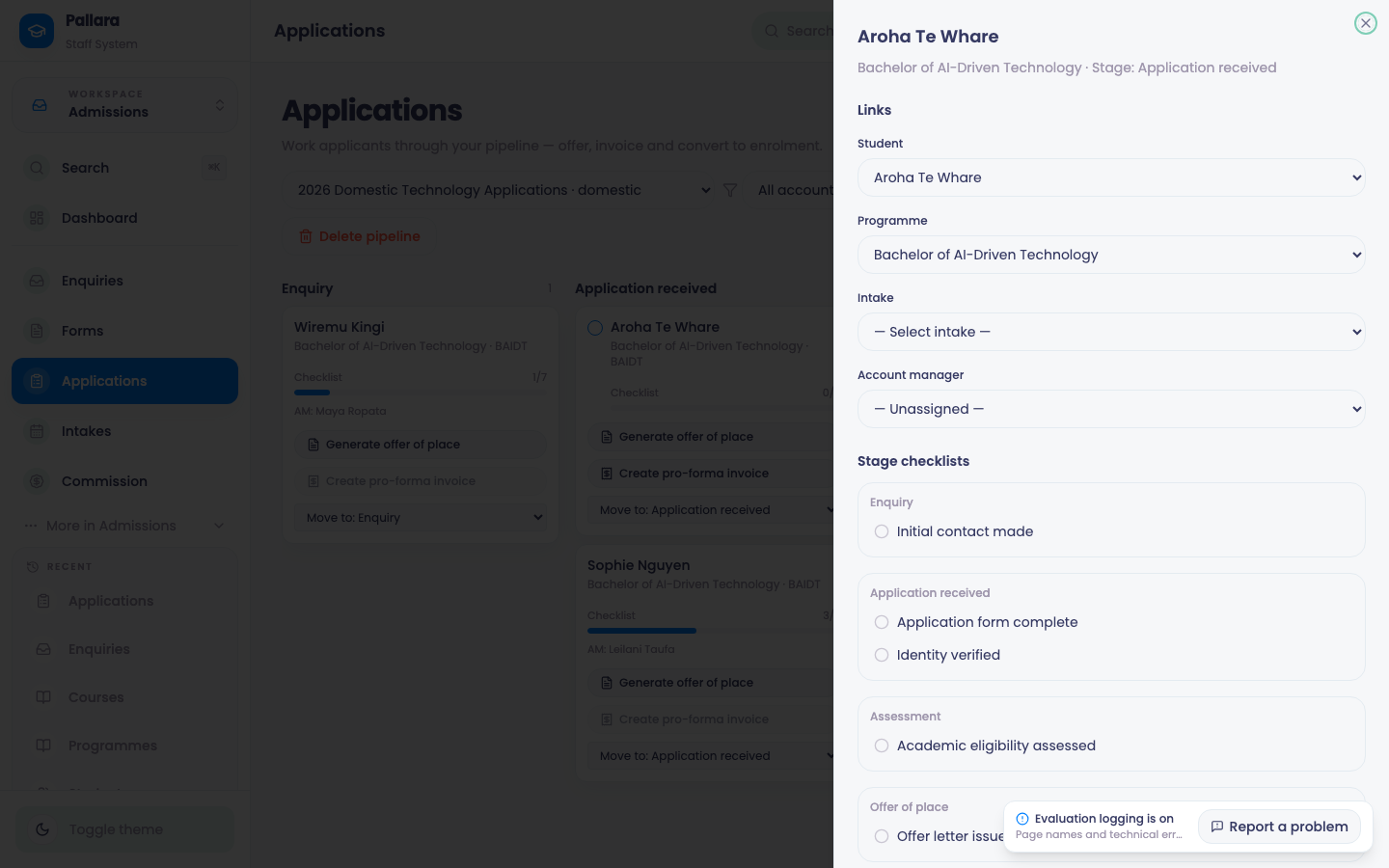
Each application is a card on the pipeline board, moving through Enquiry → Application received → Assessment → Offer of place → Accepted → Ready to enrol. The card shows its Checklist (n/7) and its account manager (AM); the pipeline's own settings define the checklist and stages, and a provider can run several pipelines — domestic and international, say.
- Open Admissions → Applications and choose the pipeline. Filter by account manager if you only want your own applicants.
- On the applicant's card, work through the Checklist and use Move to: <stage> as the application progresses.
- Select Generate offer of place. Enter the tuition fee, any conditions of the offer and internal notes. The card moves to Offer of place and shows Issued with the date; View or re-issue offer opens the letter or generates a fresh one.
- Select Create pro-forma invoice to raise the invoice for the fee, GST shown correctly, against the applicant.
- The letter and the invoice sit under the learner's Documents, each with a Download action.
The letter is a real PDF that carries your provider's logo and brand colours and the learner's actual name — macrons included. Providers who have not uploaded a brand get a neutral, unbranded document rather than Pallara's own.
Convert to an enrolment
- Move the card to Accepted when the applicant accepts, then to Ready to enrol.
- Select Convert to enrolment. Read the success message: if the learner already has an active enrolment on that programme, Pallara links the application to it rather than creating a duplicate.
- The enrolment action becomes read-only on the card once conversion has happened.
What conversion does for you
- The learner becomes an Active student and appears in the Students directory immediately.
- The programme's core courses are assigned to the learner in the same transaction, locked to their term, and unlock automatically on the term's start date. Nobody has to add courses by hand.
- The enrolment, its courses and the documents are all written to the activity log.