Submit an assessment
See what needs submission, submit your work, and find your mark once it is released.
Flow
What happens to your work
Diagram: What happens to your work. Steps:
- You submit
- It joins your marker's queue
- Marked (and moderated, if your provider does)
- Grades posted
- Marked with the mark; Grades shows the feedback
Connections:
- You submit → It joins your marker's queue
- It joins your marker's queue → Marked (and moderated, if your provider does)
- Marked (and moderated, if your provider does) → Grades posted
- Grades posted → Marked with the mark; Grades shows the feedback
Learner actionPallara does thisStaff action
Until grades are posted, your assessment shows as submitted — even if it has been marked.
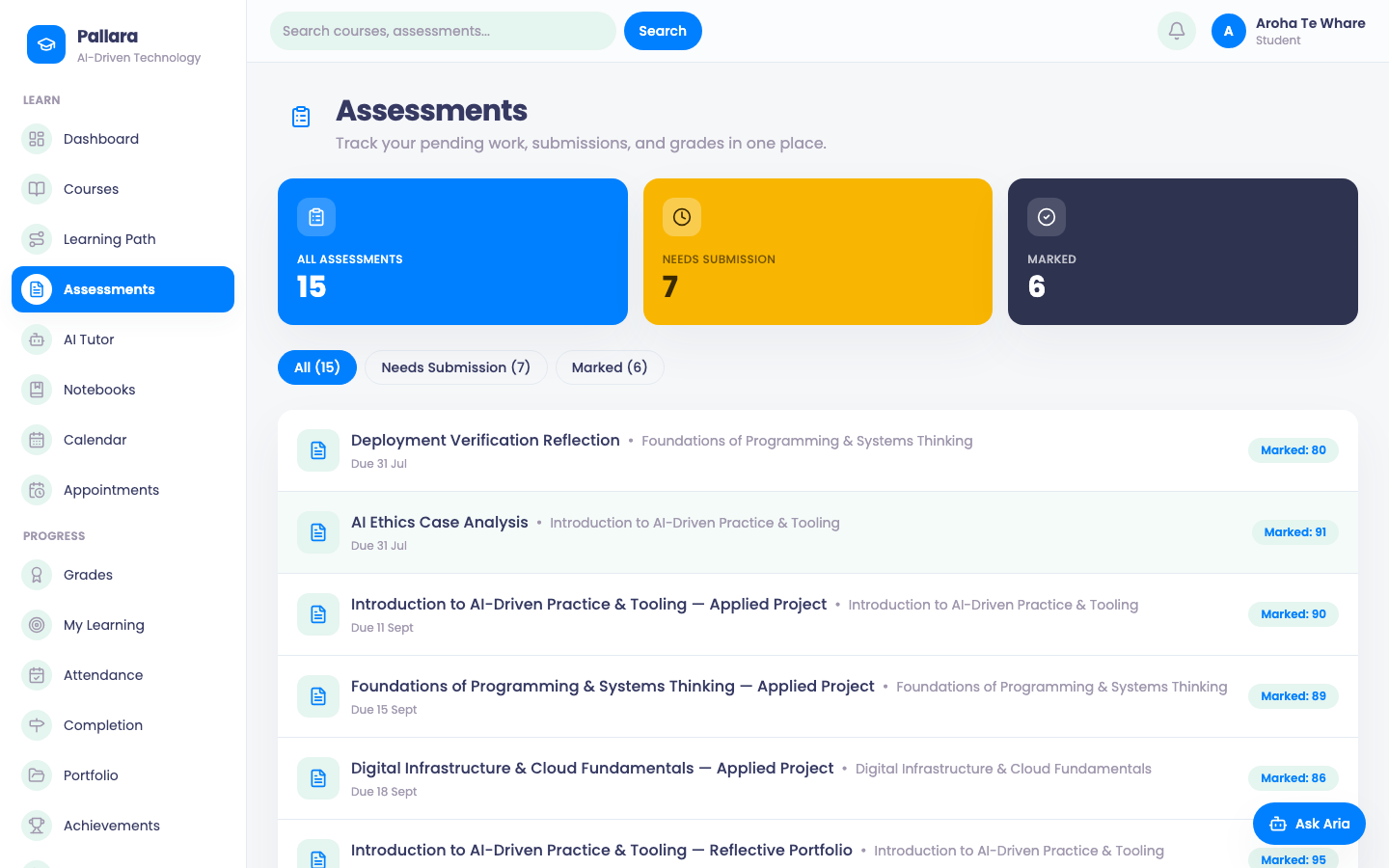
- Select Assessments. The counts show All, Needs Submission and Marked; the tabs filter the list.
- Open an assessment. Read the brief, the due date and, where one is attached, the rubric you will be marked against.
- Enter your work or upload the file, add any notes to your marker, and submit. Your submission time is recorded; a late submission is flagged as such.
- When your marker has marked it and the grade is posted, the assessment shows Marked with the mark, and your grade appears under Grades with the feedback.
NoteA mark is visible only after staff post grades for that assessment. Until then the assessment shows as submitted.
Was this guide helpful?