Work through a course
Modules, lessons, durations and progress — with the AI Tutor and your notebook beside the lesson.
Walkthrough · 4 steps
Inside a course
Select a step to see the screen for it.
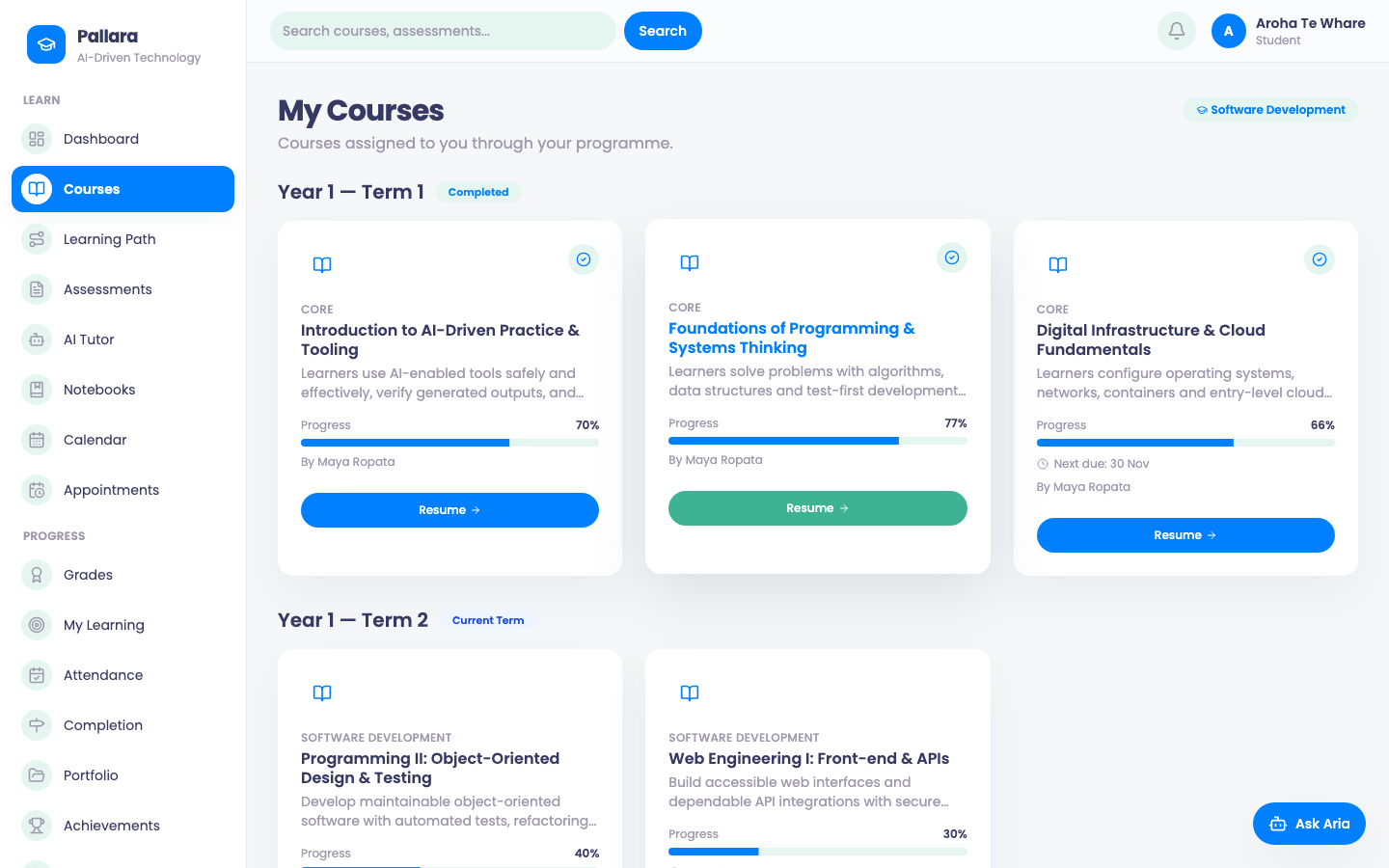
- 1Courses: each card shows progress and the next lesson.
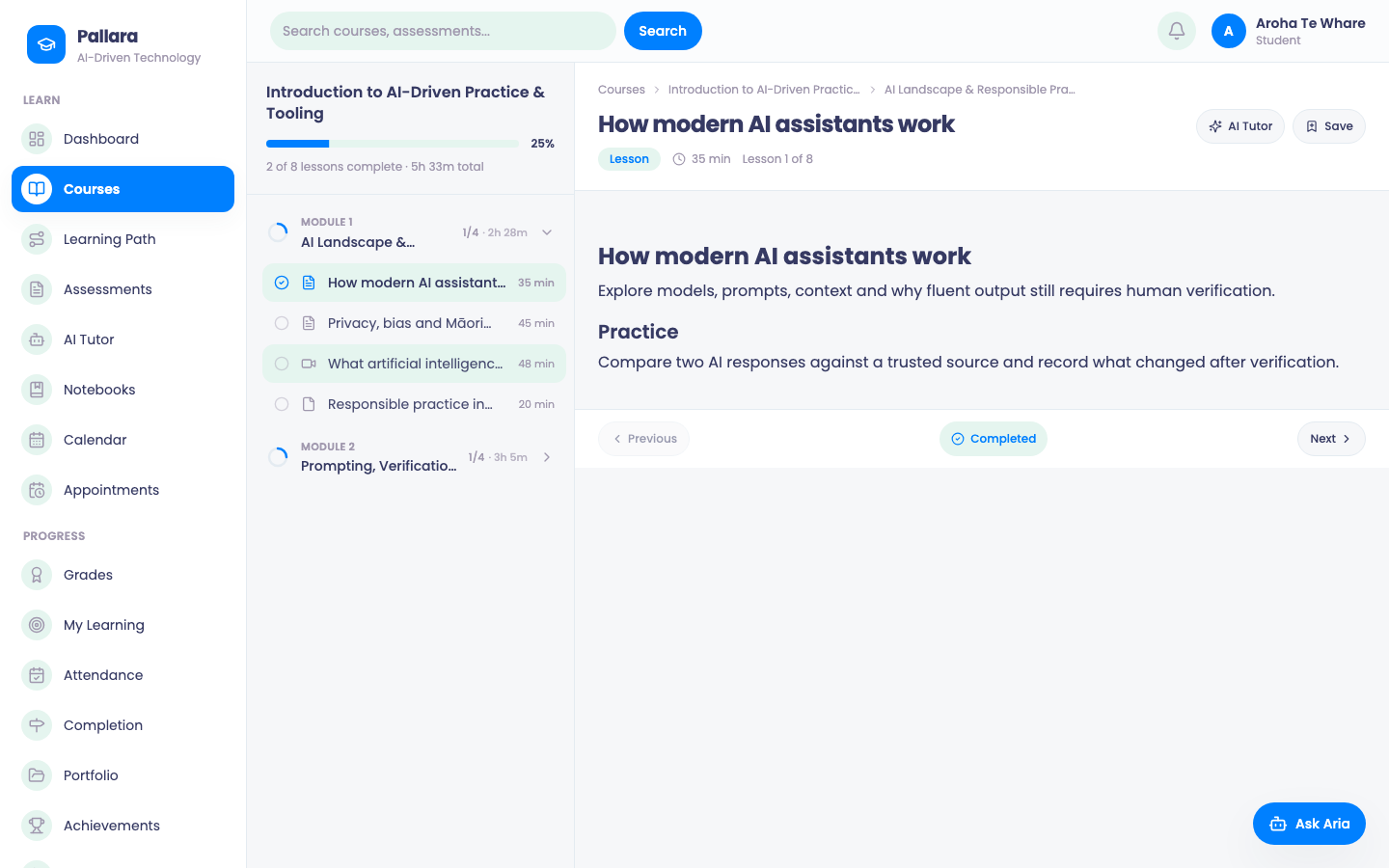
- 2A lesson: the outline on the left, the lesson with its duration, AI Tutor and Save on the right; Completed and Next below.
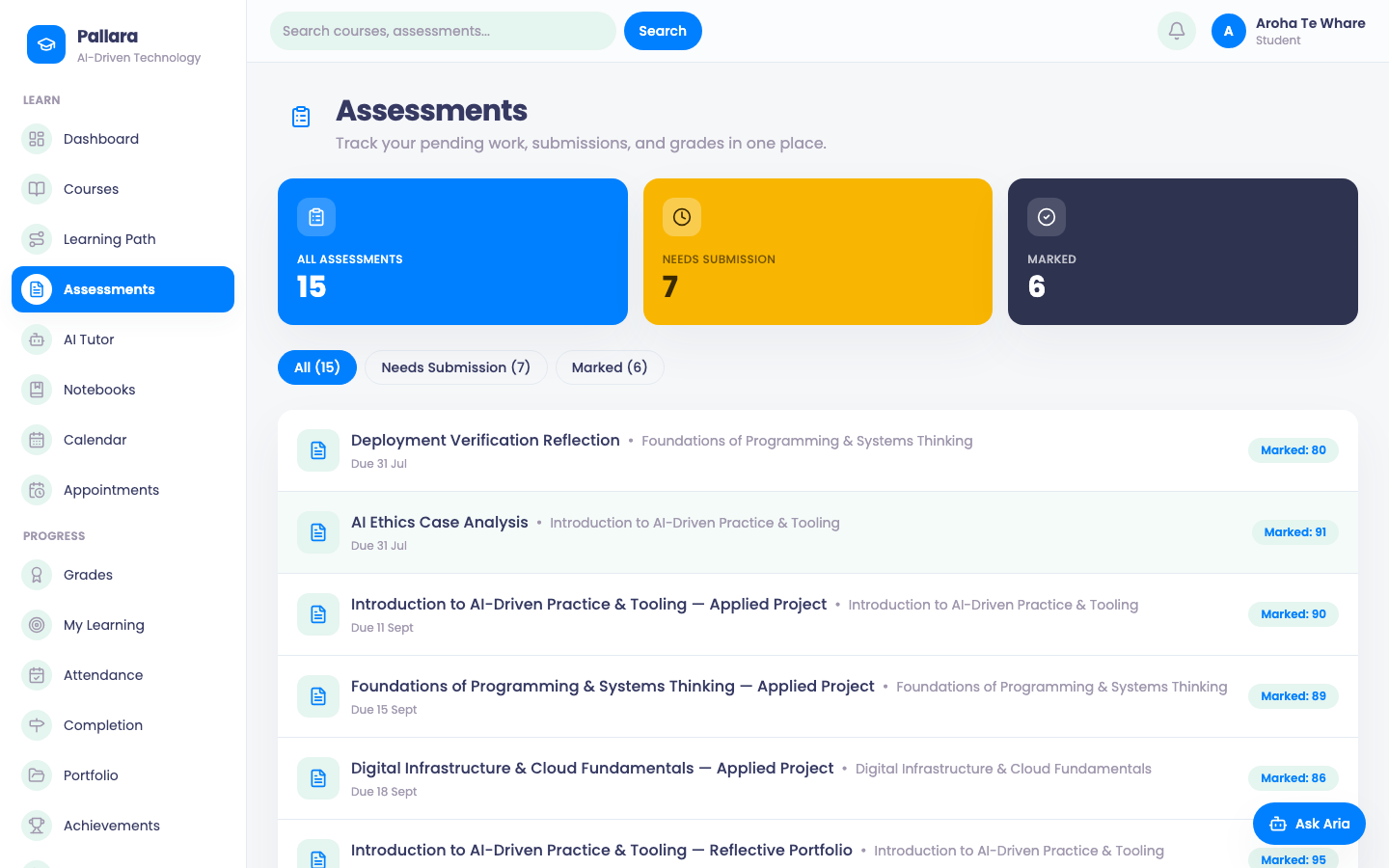
- 3Assessments: what needs submission, what is marked, and the due dates.
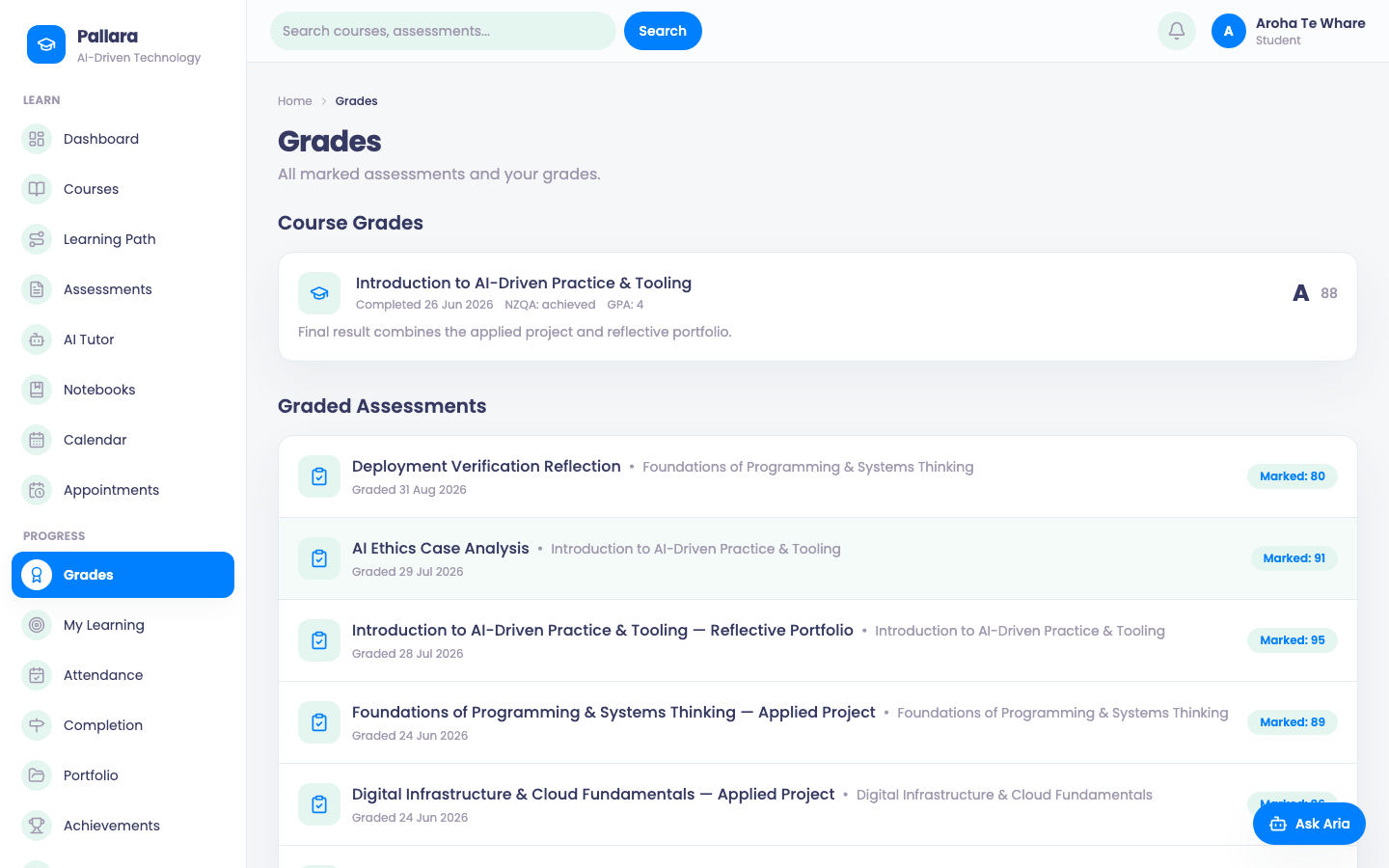
- 4Grades: released marks, letter grades, feedback.
My Courses.
A lesson.
Assessments.
Grades.
1 / 4
- Select Courses. Each card shows the course, its progress and the next lesson.
- Open a course. The outline lists each module and its lessons with their durations and what you have completed — *2 of 8 lessons complete · 5h 33m total*.
- Select a lesson. The outline stays on the left; the lesson — its badge, duration and *Lesson n of m* — fills the page, with AI Tutor and Save (to a notebook) in its header. Lessons may include reading, video, a SCORM package, a Practice activity or a quiz.
- Select Completed when you have finished, then Next. A module with a Quiz passed rule unlocks the next module when you pass its quiz.
- Learning Path offers personalised recommendations for what to do next.
Was this guide helpful?