Sign in and read your dashboard
Where learners sign in, what the dashboard shows, and where everything else is.
Choose your path
Where is…
The Dashboard opens on Next up — resume the lesson, the next deadline, your streak. Tasks has the full Eisenhower list with every due date added automatically.
Tasks and calendar →Grades for released marks and feedback; an assessment shows *Marked* only after your provider posts grades.
Grades →AI Tutor, the AI Tutor button beside the lesson, or Ask Aria at the bottom right of any page.
Ask Aria →Inbox for your teaching team; Appointments to book a slot they have published.
Book an appointment →Payments — fees, what is paid, what is due, and card payment.
Payments →What are you looking for?
Every path, as a list
- My next thing to do The Dashboard opens on Next up — resume the lesson, the next deadline, your streak. Tasks has the full Eisenhower list with every due date added automatically. Tasks and calendar
- My mark Grades for released marks and feedback; an assessment shows *Marked* only after your provider posts grades. Grades
- Help understanding a lesson AI Tutor, the AI Tutor button beside the lesson, or Ask Aria at the bottom right of any page. Ask Aria
- A person to talk to Inbox for your teaching team; Appointments to book a slot they have published. Book an appointment
- My invoice Payments — fees, what is paid, what is due, and card payment. Payments
Activate your access
Flow
From invitation to your dashboard
Diagram: From invitation to your dashboard. Steps:
- Provider prepares your account
- Open your private invitation
- Set your own password
- Sign in to your portal
Connections:
- Provider prepares your account → Open your private invitation
- Open your private invitation → Set your own password
- Set your own password → Sign in to your portal
Staff actionLearner action
- Your provider prepares your learner account and sends an invitation. Open Set your password in that invitation; it does not contain a password for you to reuse.
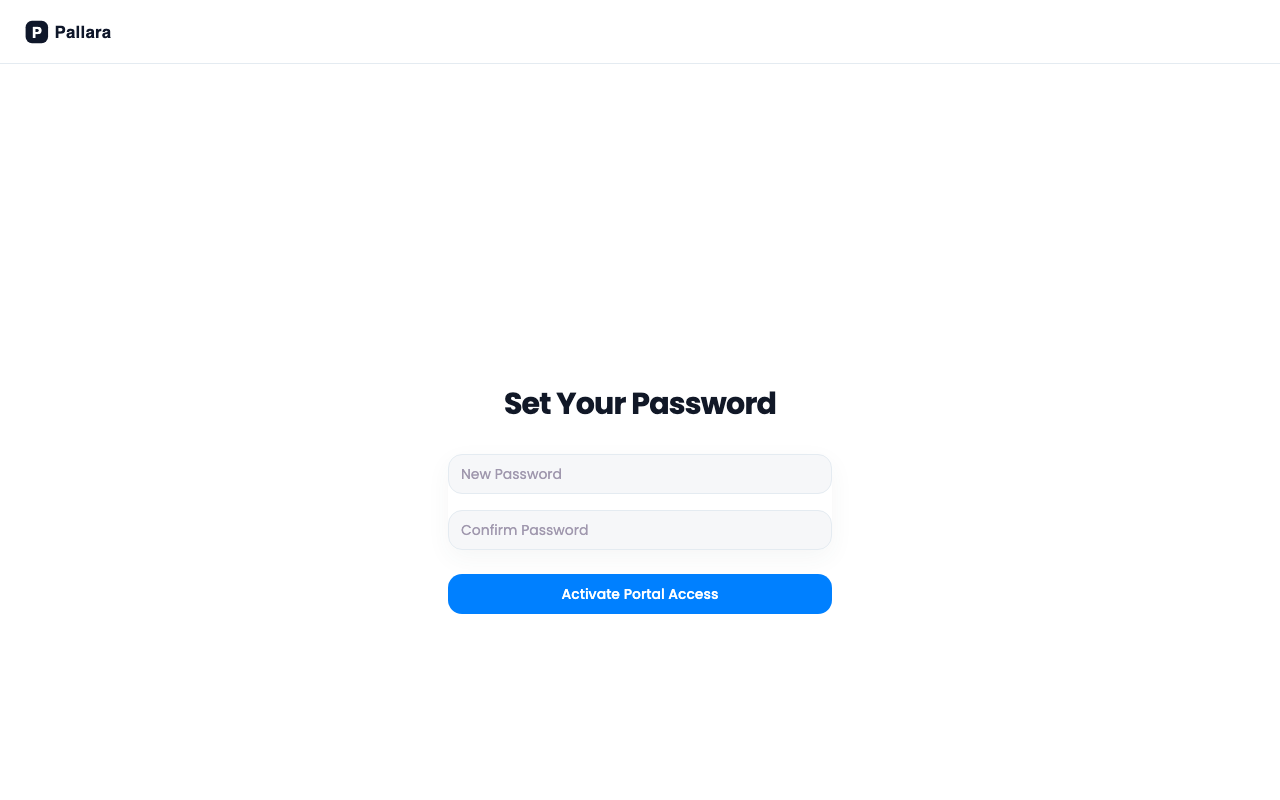
- On Set Your Password, enter New Password and Confirm Password, then select Activate Portal Access. You return to the sign-in page once your access is active.
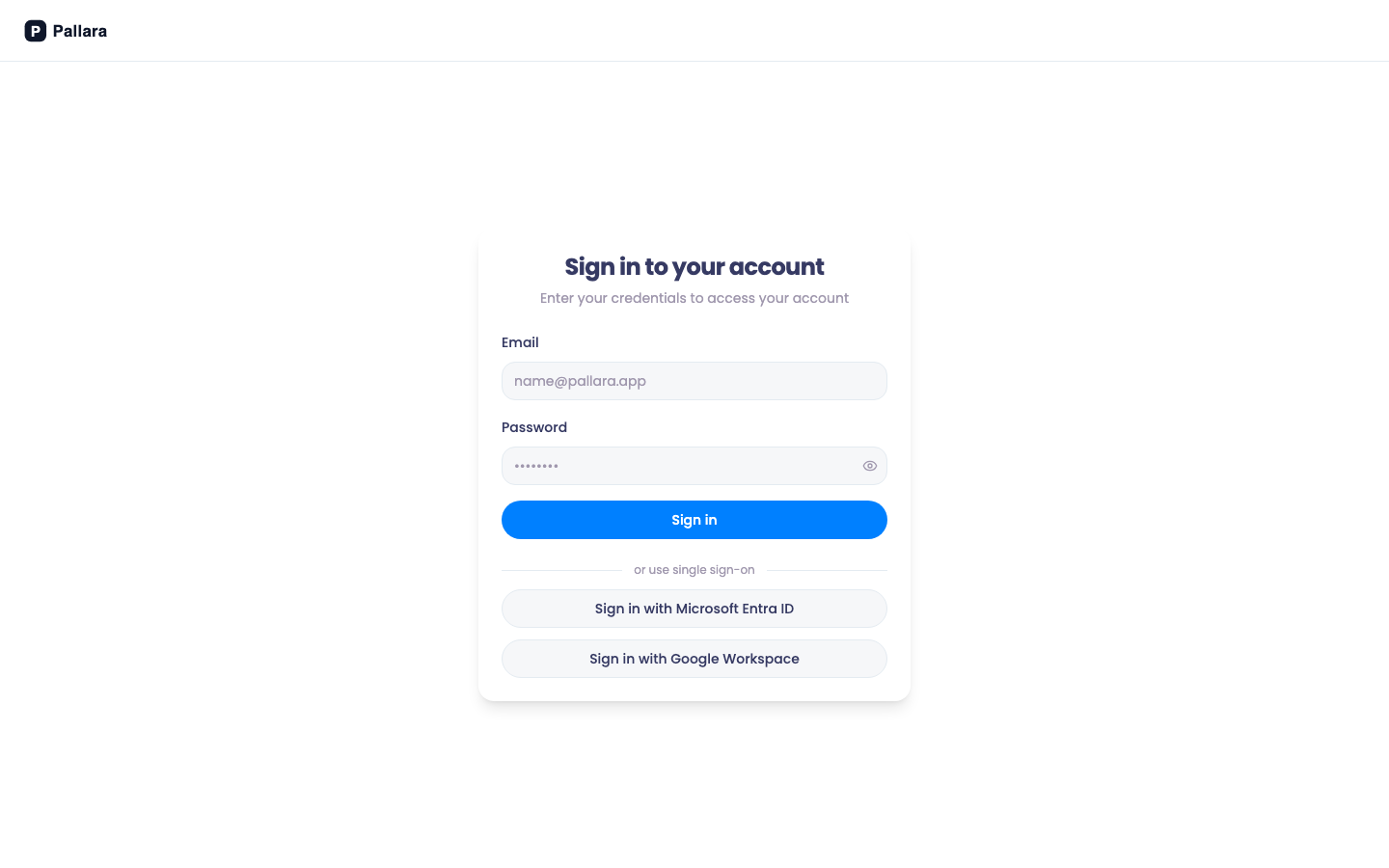
- Sign in using the email address your provider has assigned to your portal account and the password you just chose.
NoteIf your provider uses single sign-on, follow the invitation to sign in with your institution account using Microsoft or Google. You do not need to set a Pallara password for an SSO-only account.
Sign in and find your way around
- Open your provider's learner portal —
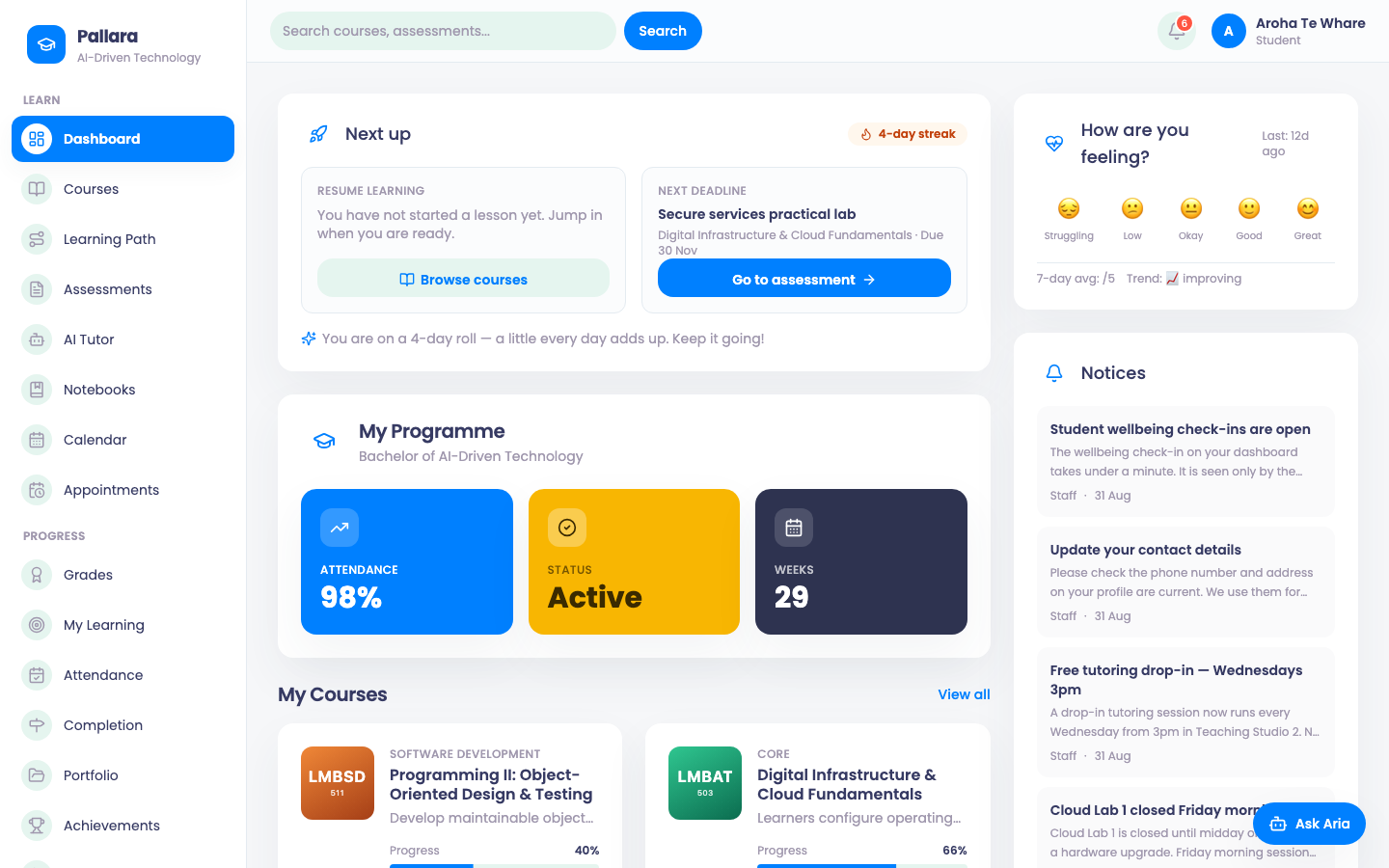
https://<provider>-students.pallara.app— and use your established sign-in details. Use Forgot password? if you need a password reset. - The Dashboard opens on Next up: resume the lesson you were in, your next deadline with a Go to assessment link, your study streak, recent grades, today's attendance, unread messages and notices.
- The left navigation is grouped: Learn (Dashboard, Courses, Learning Path, Assessments, AI Tutor, Notebooks, Calendar, Appointments), Progress (Grades, My Learning, Attendance, Completion, Portfolio, Achievements, My Activity), Community (Discussions, Inbox, Groups, Tasks) and Account (Student ID, Payments, Profile, Settings). The search box at the top finds courses and assessments; Ask Aria at the bottom right opens the AI Tutor from anywhere.
If you cannot get in
- An invitation link can be used once and has an expiry date. If it has expired or has already been used, ask your provider for a fresh link.
- If you have no invitation, cannot receive it, or see an access error after signing in, ask your provider to check Student portal access on your learner record. Tell them which portal address and sign-in email you used; never send your password.
- If a course is missing, ask your provider to check its assignment and unlock status. Signing in does not grant access to every course.
Was this guide helpful?