Use the mobile app
Follow your application, respond to your offer, prepare to start and continue learning from your phone.
Before you study
- Sign in with the same details you use for the student portal.
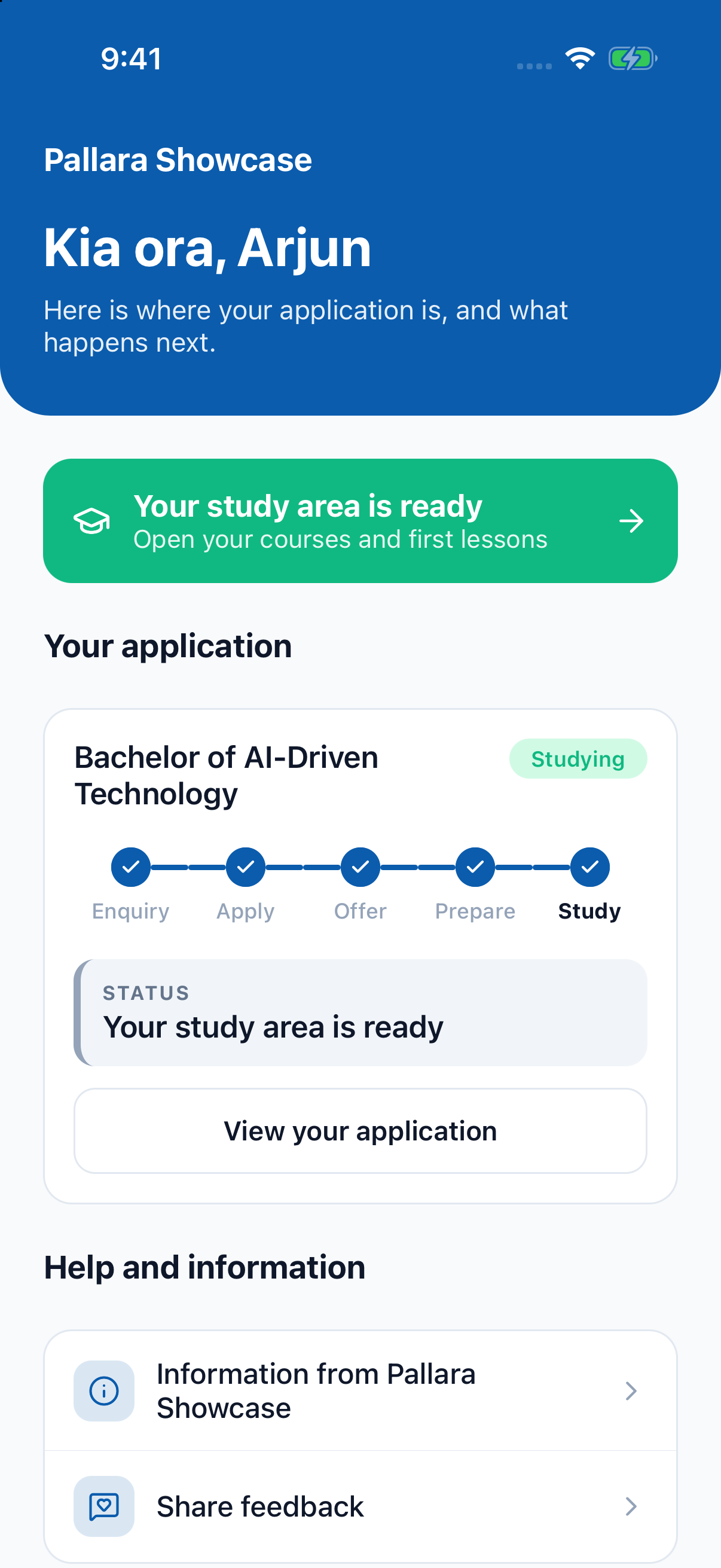
- The home screen shows your applications with a five-step tracker — Enquiry, Apply, Offer, Prepare, Study — and Your next step, including whether it is with you or with admissions.
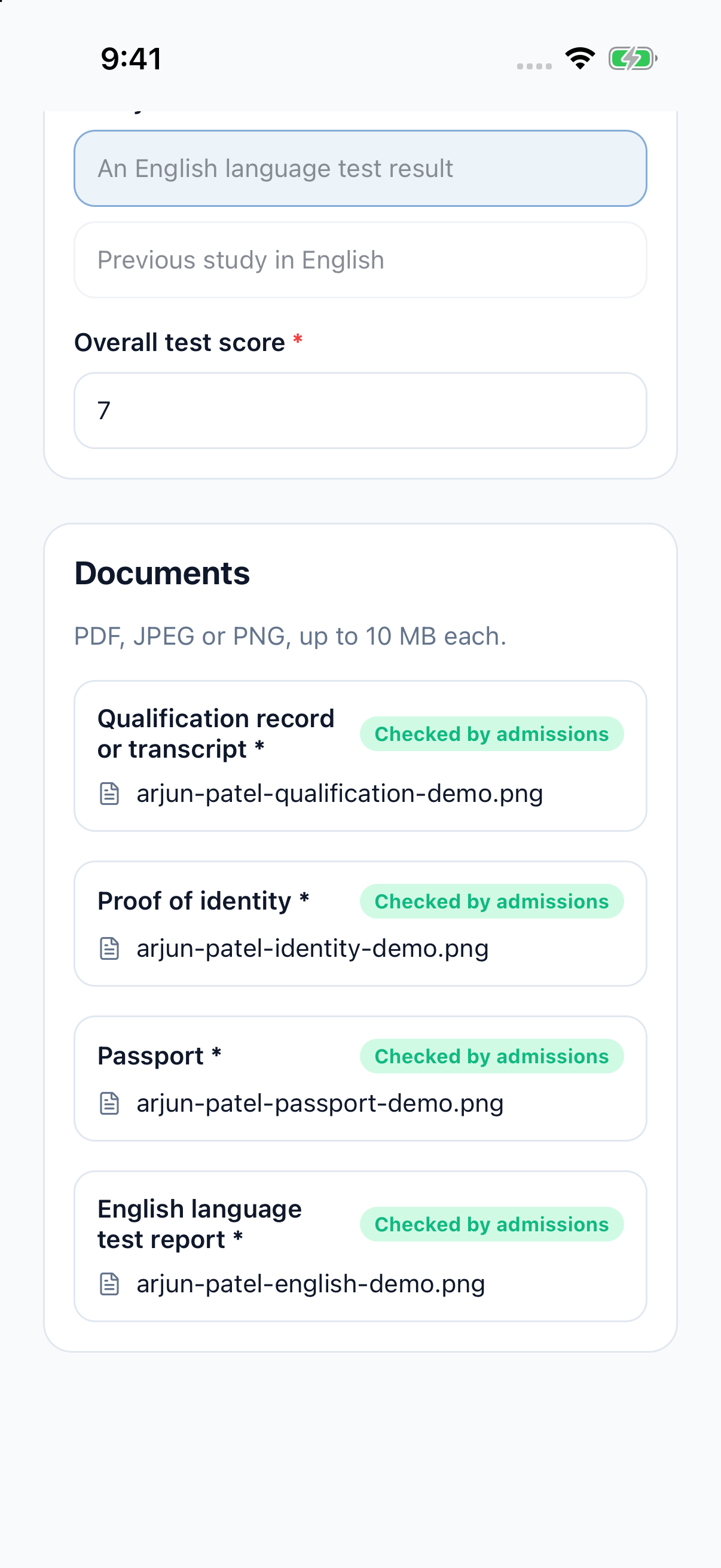
- Open an application to see its progress, answer its questions and upload documents. If admissions returned it, What to update explains why.
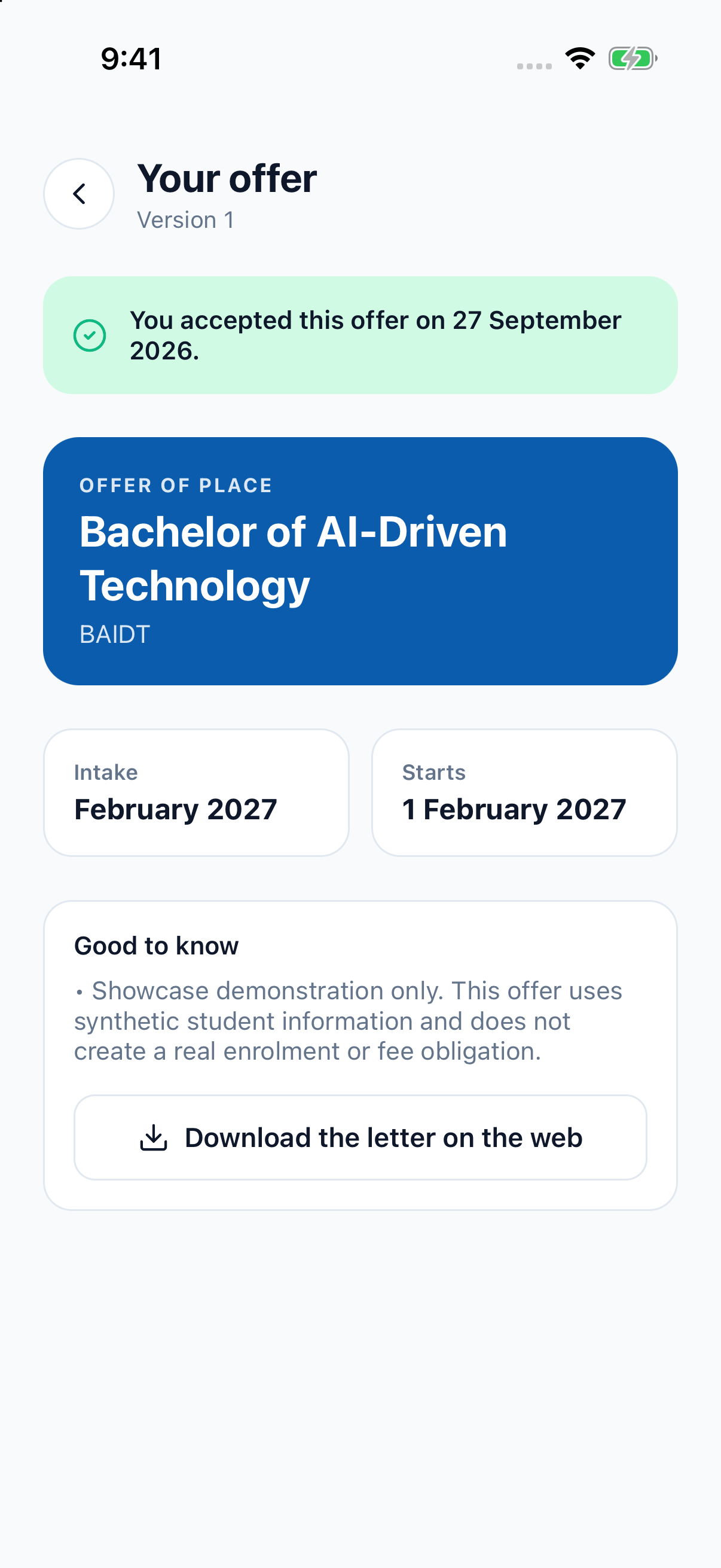
- An offer opens as a card with its key facts and conditions, and the buttons to accept or decline it.
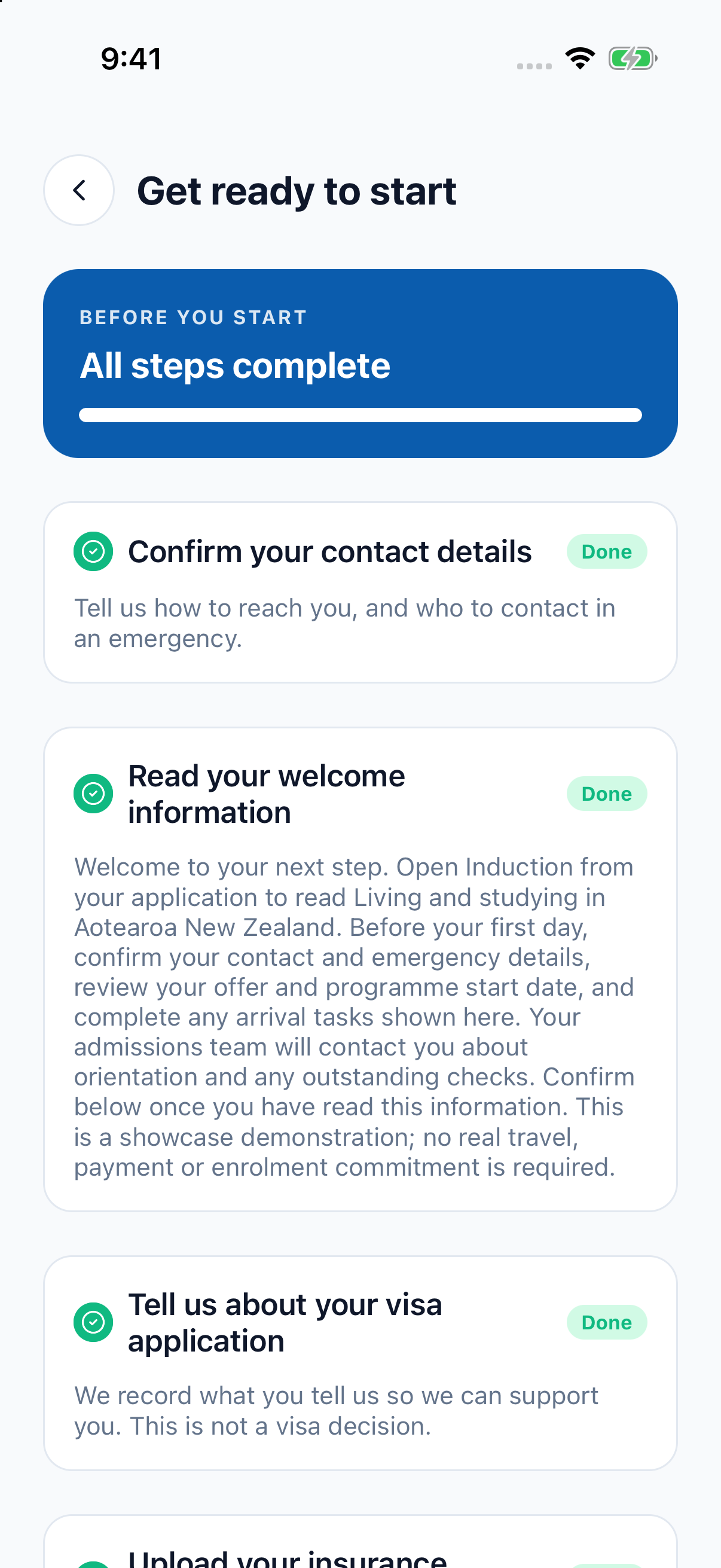
- After you accept, the preparation screen shows your progress through the steps, and the induction course opens from the same place.
Once you are studying
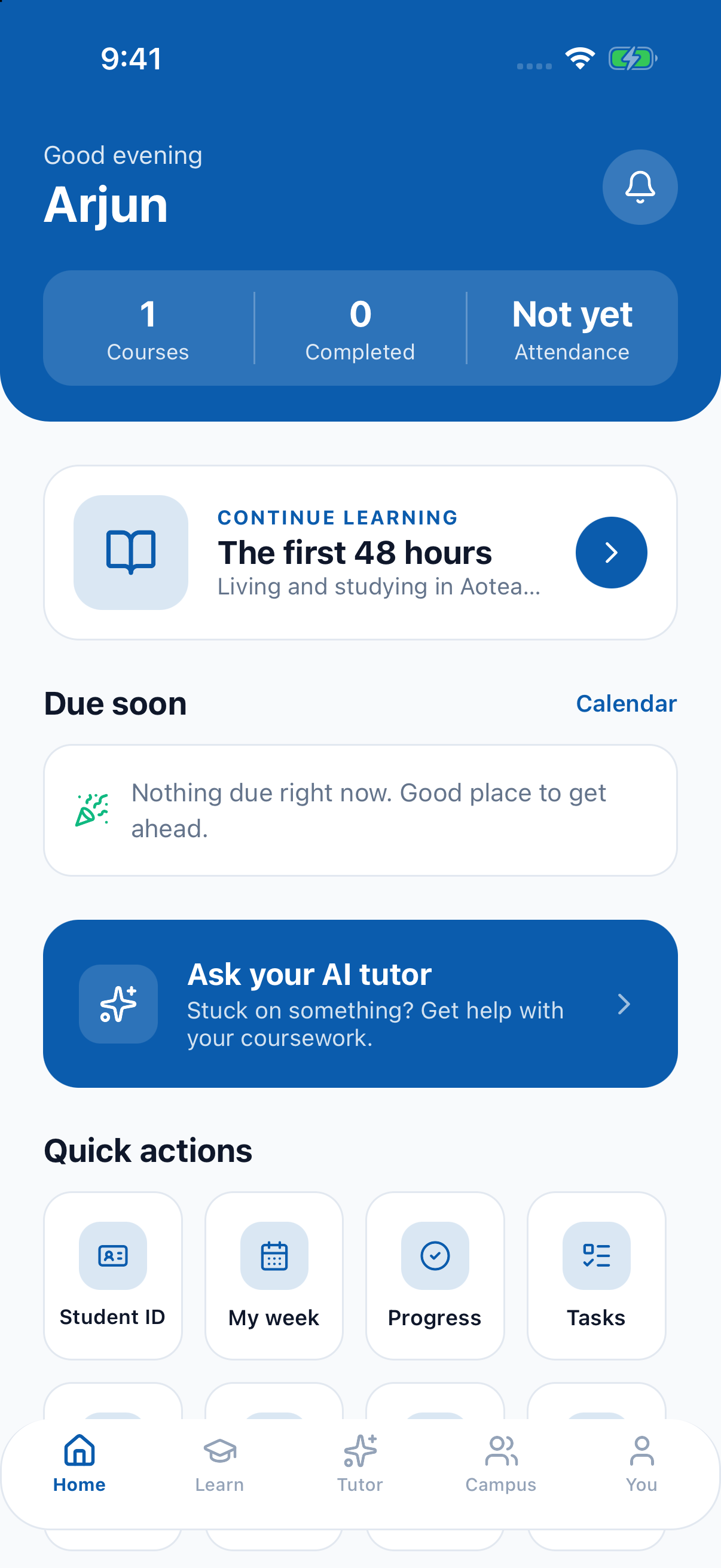
- The home screen changes to your study home: a card to continue the lesson you were in, and quick actions such as Courses, My week, Grades and Student ID.
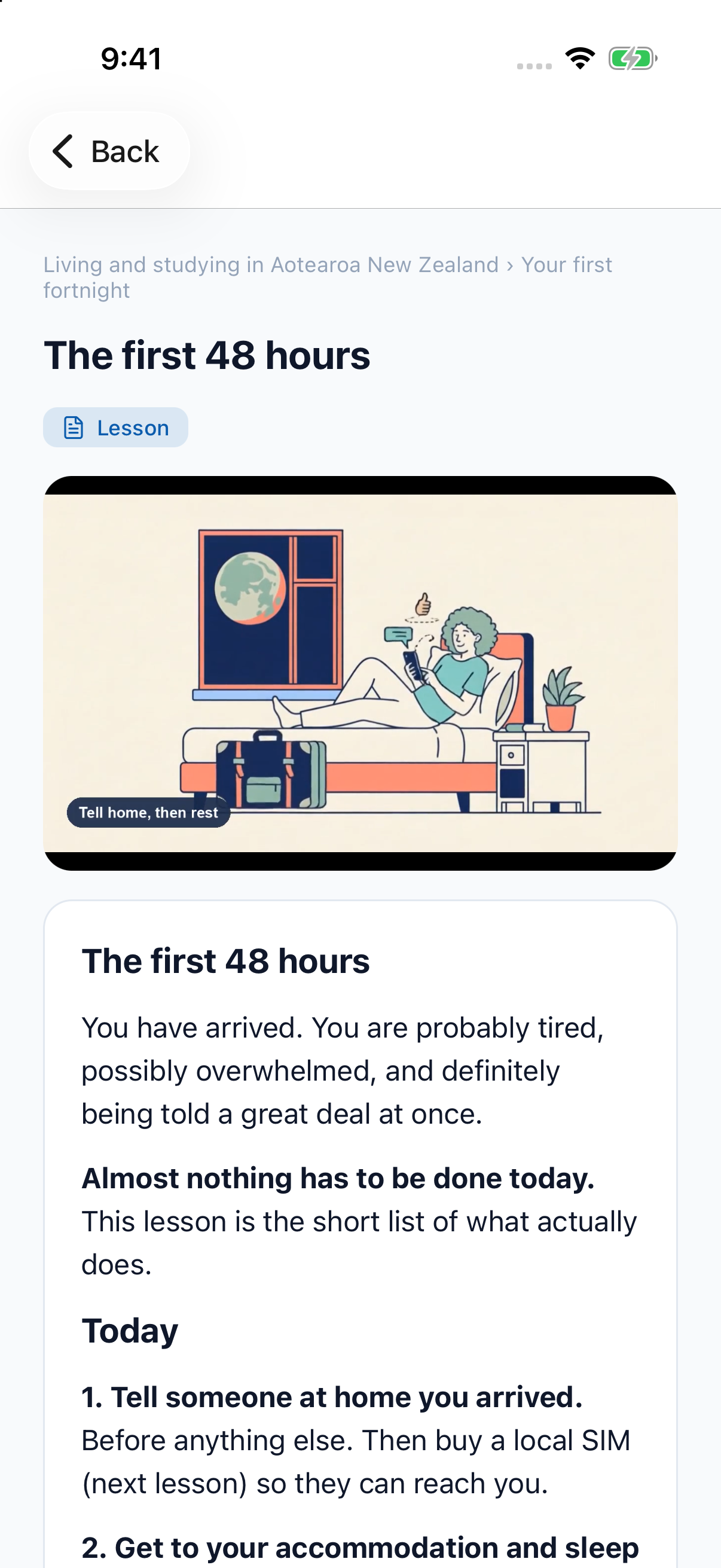
- Lessons show their headings, lists and bold text as written. Where a lesson has an explainer video, it plays at the top of the lesson.
NoteYour provider may offer the app with its own name, colours and logo. Ask your provider how to install it.
Was this guide helpful?