Review an AI grading draft
Let the AI draft marks and feedback against the rubric, then edit, reject or approve — nothing is published without a person.
Flow
AI drafts, a person decides
Diagram: AI drafts, a person decides. Steps:
- Ready for AI (submitted + rubric)
- Generate draft
- Review: scores, flags, feedback
- Decision
- Reject — back to Ungraded
- Approve & Publish
- Grade + history entry
Connections:
- Ready for AI (submitted + rubric) → Generate draft
- Generate draft → Review: scores, flags, feedback
- Review: scores, flags, feedback → Decision
- Decision → Reject — back to Ungraded (unusable)
- Decision → Approve & Publish (edited / accepted)
- Approve & Publish → Grade + history entry
- Reject — back to Ungraded → Generate draft (regenerate)
Pallara does thisStaff actionDecisionStop / refused
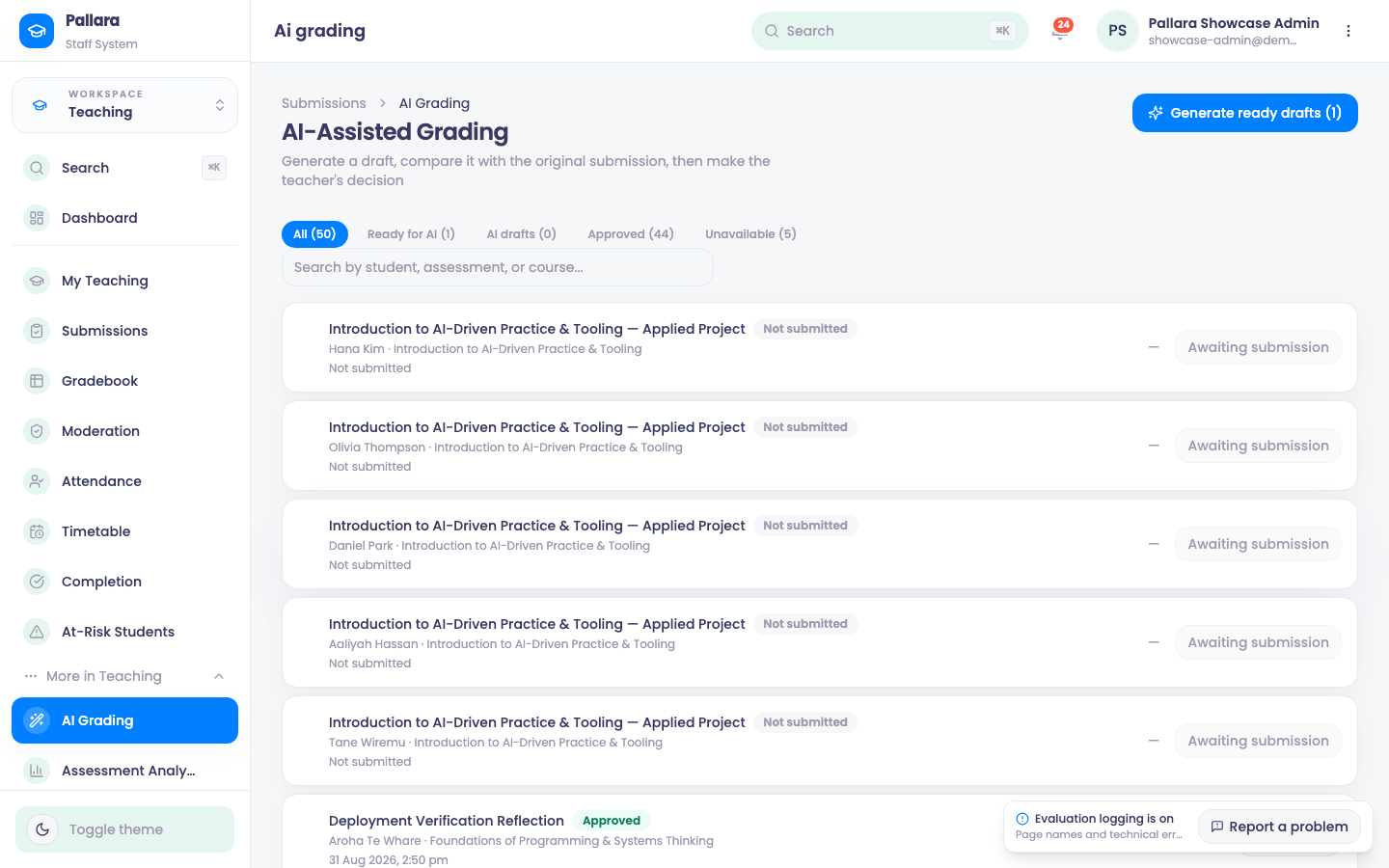
- Open Teaching → More → AI Grading. The tabs sort the queue: Ready for AI (submitted, with a rubric), AI drafts (drafted, awaiting your decision), Approved, and Unavailable (no submission yet, or no rubric).
- Select Generate ready drafts to draft everything in Ready for AI at once, or Grade on one submission. A draft needs text content and an attached rubric.
- When generation finishes, open the Review screen.
- Read the submission, the AI's flags, the per-criterion scores and feedback, and the overall feedback. They are suggestions.
- Adjust scores with the plus/minus controls and edit the feedback.
- If the draft is unusable, select Reject AI Draft. The item returns to the queue as Ungraded; Grade again produces a fresh, independently auditable draft. Rejection never publishes anything.
- Otherwise select Approve & Publish. The submission returns to the queue as Approved with its percentage, and the grade-history entry records the sequence draft → decision.
NoteEvery draft, rejection and approval is written to the AI audit trail and the activity log with the staff member's name. AI grading follows your provider's approval policies — see Set AI approval policies.
Was this guide helpful?