Groups and learner self sign-up
Create group sets for a course, assign learners or let them choose, and cap group sizes.
Flow
Who puts a learner in a group
Diagram: Who puts a learner in a group. Steps:
- Create group set
- Assignment
- Staff assign by hand
- Random within capacity
- Learner self sign-up
- Group at capacity: Join disabled
- Group assignment: one mark for the team
Connections:
- Create group set → Assignment
- Assignment → Staff assign by hand
- Assignment → Random within capacity
- Assignment → Learner self sign-up
- Learner self sign-up → Group at capacity: Join disabled (if full)
- Staff assign by hand → Group assignment: one mark for the team
- Random within capacity → Group assignment: one mark for the team
- Learner self sign-up → Group assignment: one mark for the team
Staff actionDecisionPallara does thisLearner actionStop / refused
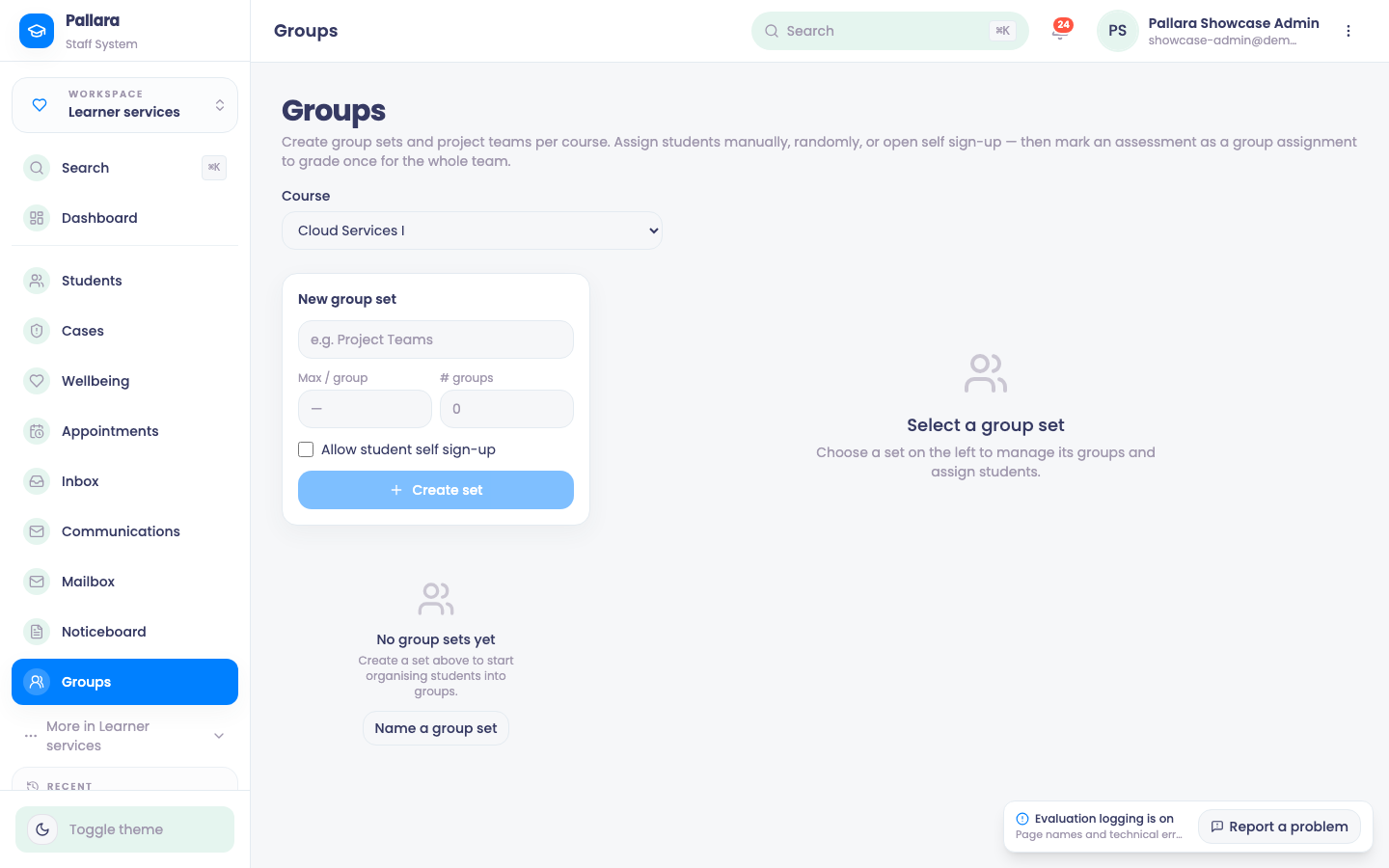
- Open Learner services → Groups and select the course.
- Create a group set: choose the number of groups and the maximum members. Tick Allow student self sign-up if learners should pick their own group. Select Create set.
- Assign learners by hand, or use random assignment within the capacity limit.
- Rename, add or delete groups from the set; delete a whole set with its named confirmation. An empty course shows No group sets yet.
- To grade a project once for the whole team, mark the assessment as a group assignment in Content Builder; one mark then flows to every member.
With self sign-up on, a learner sees only the eligible sets in their portal, and can Join, Move here or Leave group. A full group shows a disabled Join and This group is full. A locked course does not stop early team formation; withdrawn course assignments are excluded. See Join a group.
Was this guide helpful?