Configure a rubric
Criteria, ratings and ordering — the rubric that SpeedGrader and AI grading both sum automatically.
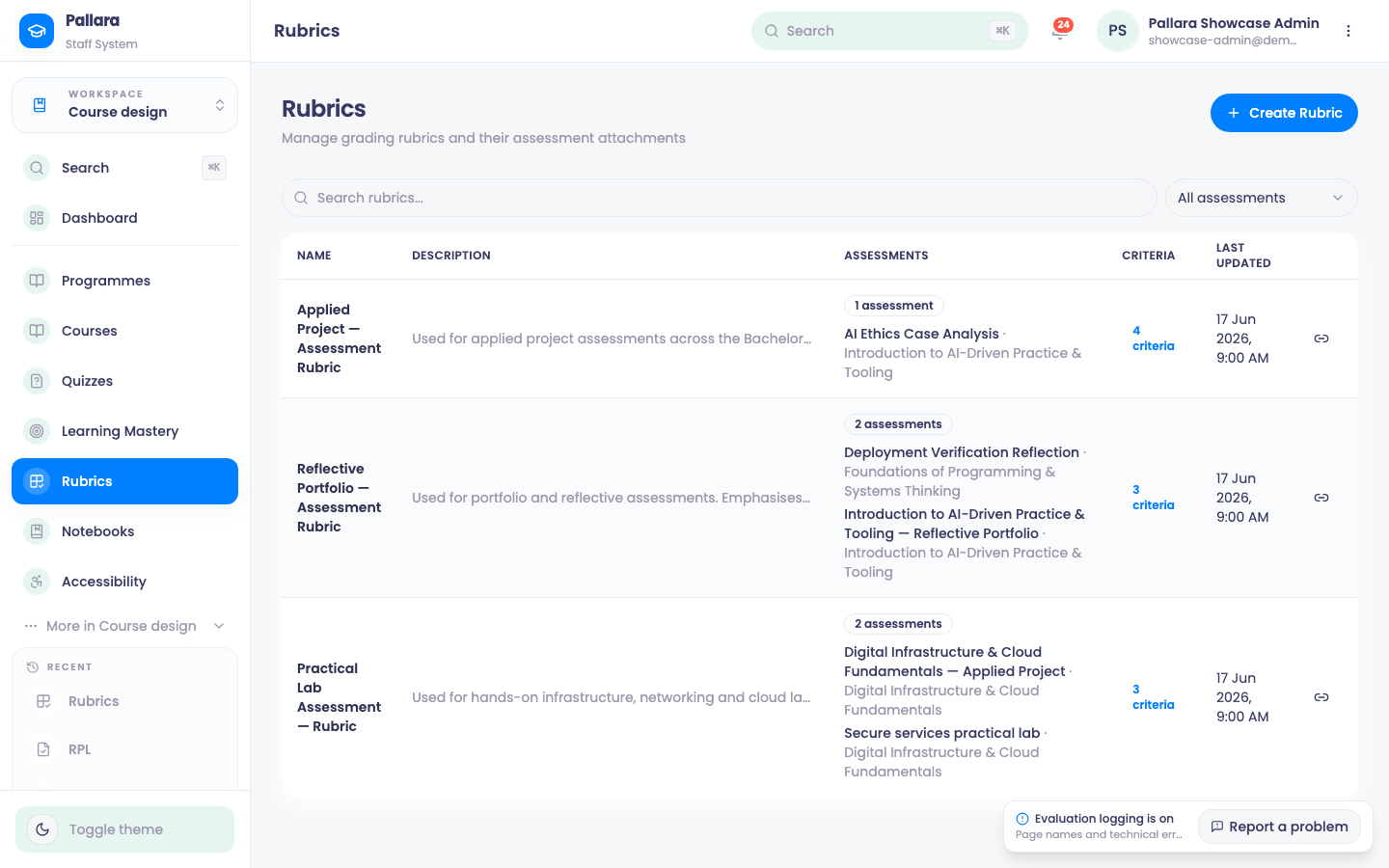
- Open Course design → Rubrics, select Create Rubric, then Continue to Create.
- Enter the title and description. Under Criteria, complete Add First Criterion with its name and description; keep or edit the rating scale.
- Select Create Rubric. The list shows the rubric and its criterion count.
- Select View rubric to edit. Use Add Criterion, Add Rating, Remove criterion and Remove rating as needed, then Save Changes.
- Reorder with Move [criterion] up / down in the criterion header, or Move [rating] up / down beside a rating. Save and reload to confirm the order.
TipAttach the rubric to the assessment in Content Builder (Add Content Item → Assessment → Use existing → Select rubric). Marking then becomes a matter of clicking levels — the total sums itself.
Was this guide helpful?