Discussion channels, summaries and moderation
Create and archive channels, post updates, summarise a discussion with AI, and moderate learner posts.
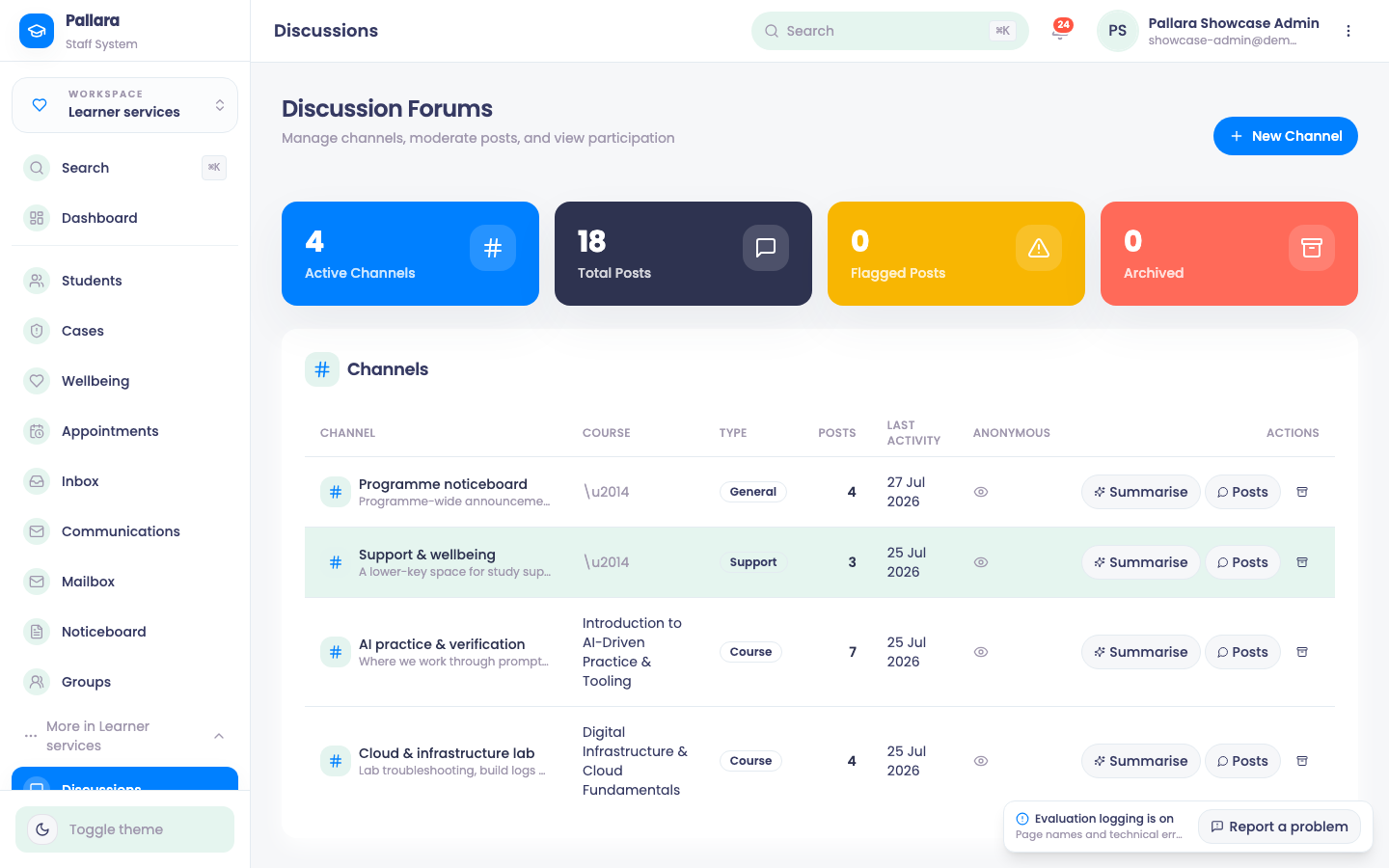
- Open Learner services → More → Discussions and select New Channel. Enter a name, choose the channel type, optionally allow anonymous posts, then Create Channel.
- Select Posts on a channel row to read and publish. Enter an update and select Publish update.
- Each post offers Pin, Flag for review (a visible staff review marker) and Hide post; Clear flag and Restore post reverse them. The Flagged Posts count on the page reconciles with what you have flagged.
- Select Summarise on a channel to get post totals, learner and staff participation, key themes and unanswered questions.
- To retire a channel, select its Archive icon and confirm Archive channel. Posts are kept, but the archived channel is no longer available to learners.
Who can take part
- A course channel is available to learners with a current assignment to that course which is unlocked and not withdrawn. General channels are not tied to one course.
- Reading, posting, replying, editing and reactions all require current channel access. A saved link does not keep access after a channel is archived or the learner's course access changes.
- Allow anonymous posts only when appropriate for the discussion. Anonymous hides the author from other learners; authorised staff can still identify the author for moderation. Do not describe it as anonymous to everyone.
TipIf a learner cannot find a course channel, check that the channel is active and that learner's course assignment and unlock status before creating another channel.
Was this guide helpful?