Create, preview and publish a quiz
Build a quiz by hand or with AI, set its rules, preview it as a learner, and publish it to a course.
Flow
A quiz's life
Diagram: A quiz's life. Steps:
- New Quiz or AI Generate
- Questions and settings
- Save as Draft
- Preview as a learner
- Publish
- Linked from Content Builder
- Archive when retired
Connections:
- New Quiz or AI Generate → Questions and settings
- Questions and settings → Save as Draft
- Save as Draft → Preview as a learner
- Preview as a learner → Publish
- Publish → Linked from Content Builder
- Linked from Content Builder → Archive when retired
Staff actionPallara does this
Create a draft
- Open Course design → Quizzes, then select New Quiz.
- On Details, enter the title and description, select the course and quiz type, and tick Competency Based only when the quiz should use competency rules.
- Select Questions, then Add Question. Enter the question, choose its type, and for multiple choice enter each option and mark the correct one. Set points and an optional explanation.
- Select Settings for time limit, attempts, passing score, feedback timing and randomisation.
- Select Save as Draft. The card shows Draft, the course, question count and time limit.
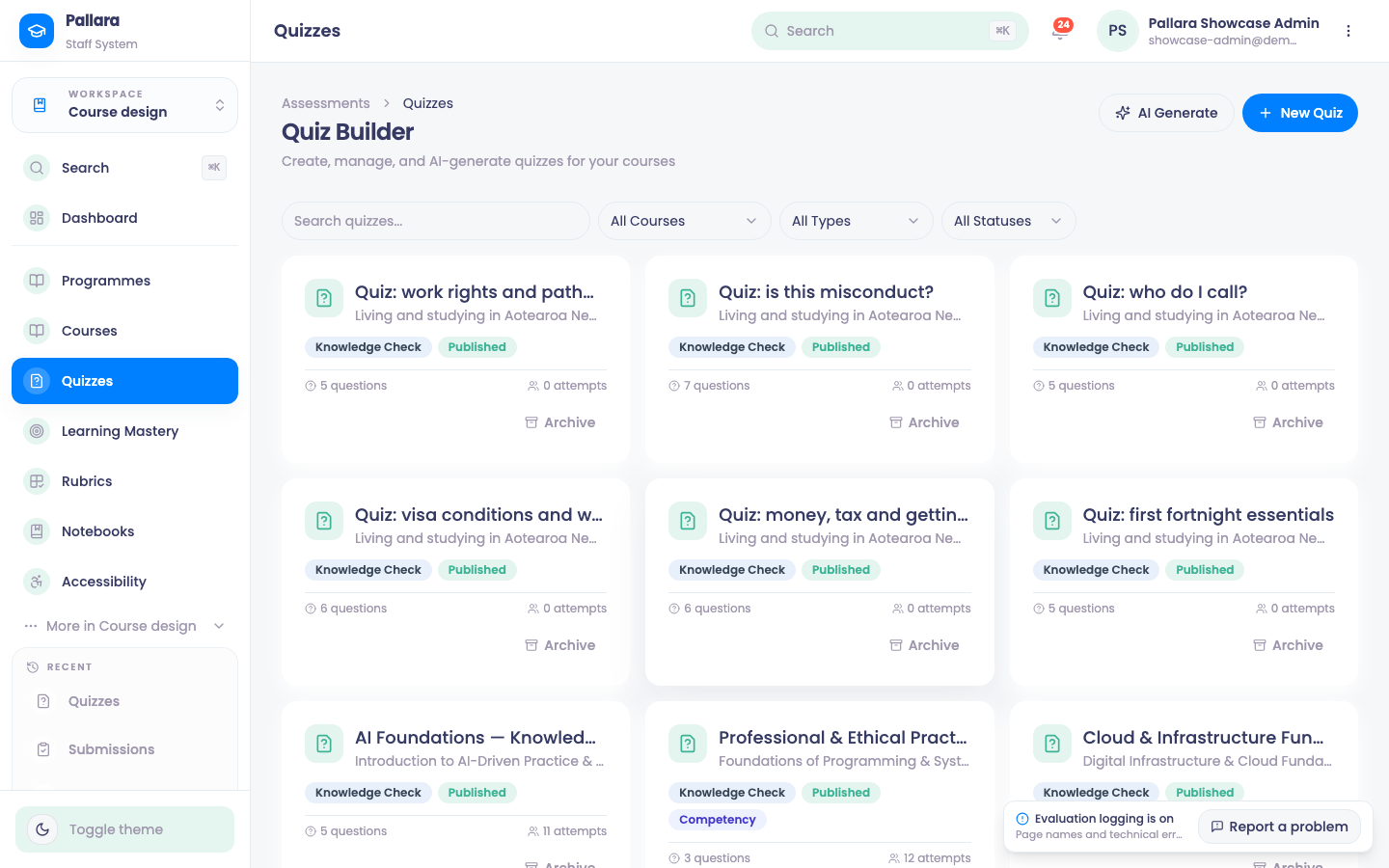
Preview and publish
- Open the quiz card, select Preview and step through every question, then Close Preview.
- When it is ready for learners, select Publish. The card shows Published.
Generate questions with AI
- On Quizzes, select AI Generate. Choose the course, enter a clear topic, choose the number of questions and difficulty, then Generate.
- Review every question and answer. Select Add n Questions to Quiz only when they are suitable, then Save as Draft.
- Remove an unneeded question with Delete question and save again. A standalone question is deleted only when no other quiz or question bank still uses it.
Edit and archive
Open the card, select Questions, change the text or an option and Save as Draft; expect Quiz updated. To retire a quiz, select Archive on its card and accept the confirmation — use the status filter to find archived quizzes later.
Was this guide helpful?