Check a content item for accessibility and apply a rewrite
Run the accessibility check on any content item and accept the suggestions you agree with.
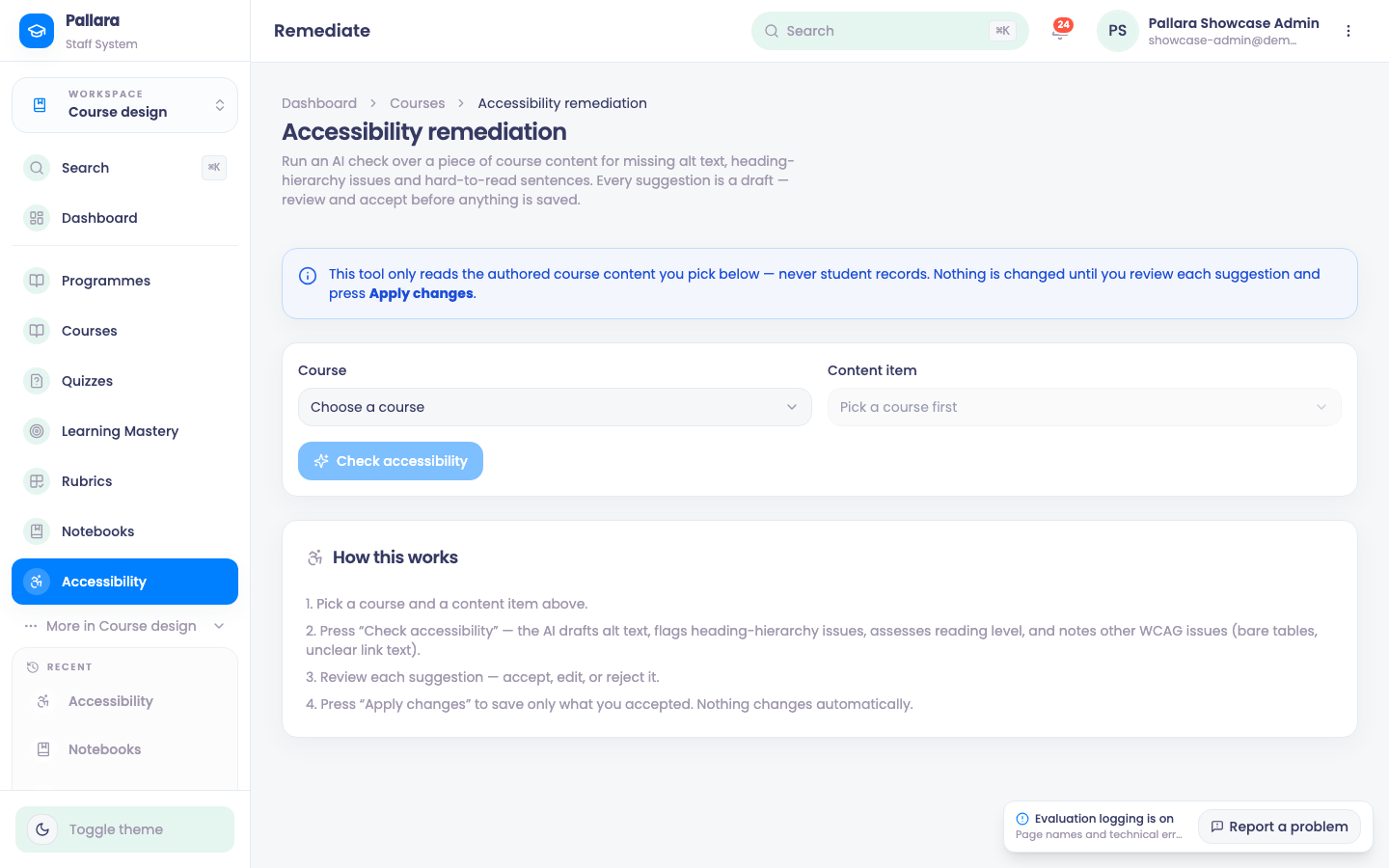
- Open Course design → Accessibility (or use the shortcut from Content Builder).
- In Course, select the course; in Content item, select the item; then choose Check accessibility.
- Review each suggestion card — plain-language rewrites, missing structure, reading-level notes. Select Accept on the ones you want, or edit the proposed wording first.
- Select Apply changes and expect Applied 1 accessibility fix (or the number you accepted).
- Reload the Builder. The replacement sentence must be visible and the original gone.
Was this guide helpful?