Add an explainer video to a lesson
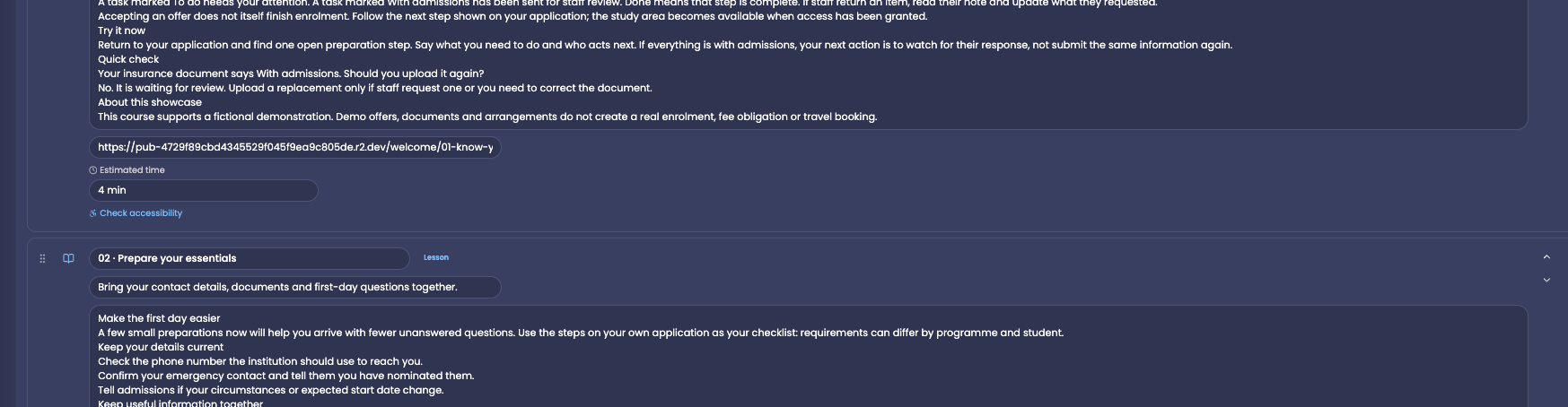
Give a lesson a direct video link so it plays above the lesson text on the web and in the app.
- Open the course in the course builder and expand the module that holds the lesson.
- In the lesson, enter the address in Lesson video link. It must be a direct
httpslink to an.mp4or.webmvideo file. A link to a video page, such as a sharing page, does not play here. - Save the course, then publish it as usual so learners see the change.
Where the video plays
- The web course player, above the lesson text.
- The induction course, on the web and in the app.
- The lesson screen in the app.
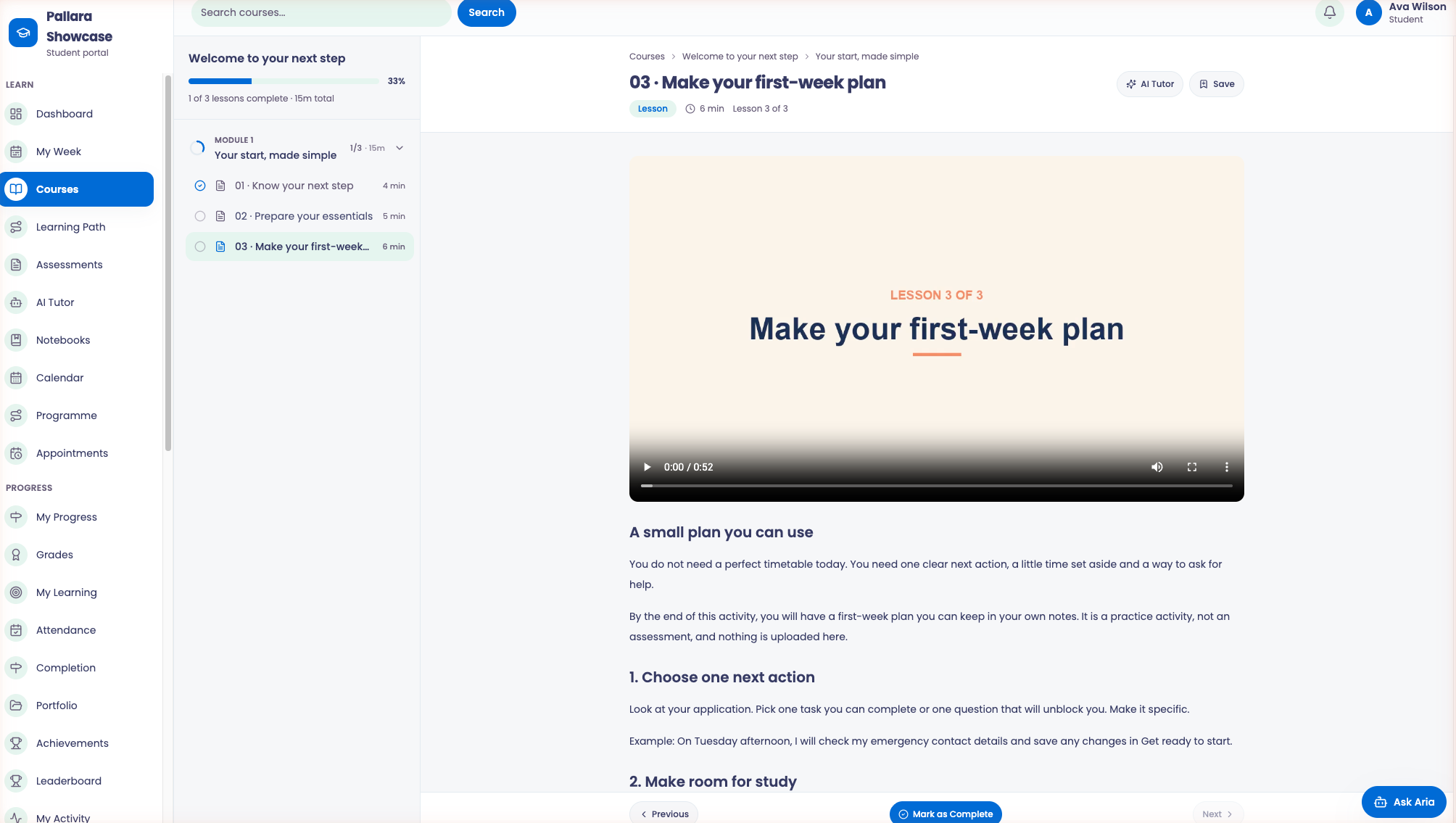
NoteThe field is optional and appears on lesson items only. A lesson without a video link shows its text as before.
Was this guide helpful?