Create a course, assign the teaching team, copy it or save it as a template
The course record: name, programme, instructor, credits, commercial fields, teaching team, copies and reusable templates.
Create a draft course
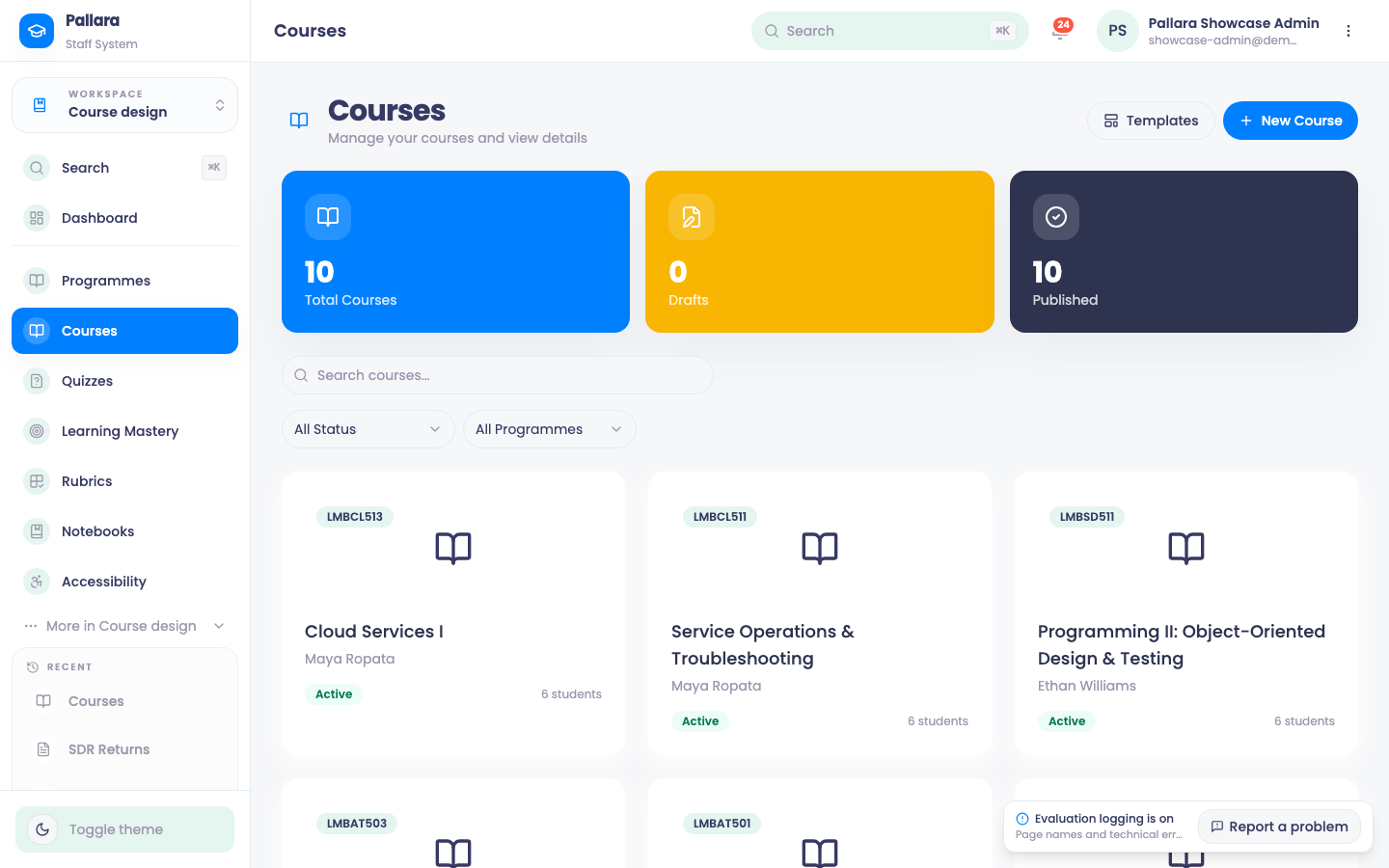
- Open Course design → Courses, then select New Course.
- Enter a Course Name and description, select the programme, and select an Instructor explicitly.
- Enter the credit value, difficulty, requirements and blurb.
- Leave Publish switched off to create a draft. Select Create Course.
Assign teaching staff
- Open the course. In Teaching team, choose a person from Add a facilitator… — the list names each staff member with their role — then Add. They appear in the list with that role.
- Check the TEC reporting (SDR) card on the same page: it lists the fields TEC requires for this course in the Single Data Return and reads Complete when they are all filled in. An incomplete card here is what shows up later as an SDR validation issue.
Copy a course
- Open the source course and select Copy course.
- Enter a distinct New course name and confirm. The copy keeps the programme and teaching team; it does not copy learner submissions, grades or progress.
Templates
- In the Copy course dialog, tick Save as a reusable template and select Save template.
- Under Course design → Courses → Templates, select Use template. Pallara creates an ordinary draft and opens it in Content Builder.
- Before assigning learners, open the new course and select View as Student to see the learner-facing course; Exit Student View returns you to the staff view.
Delete a disposable draft
Search for the draft in Courses and use its red Delete course action. Accept the confirmation only for a course with no learner history or enrolments.
Was this guide helpful?