Publish a form and process its submissions
Build a public form, validate or reject what comes in, and keep a PDF of each submission.
The Forms page (in the Admissions workspace) builds public enquiry, enrolment, application, contact and short course forms. Publishing gives you a shareable link on your own staff host (/f/<form-name>), an embed code, or a WordPress snippet, and every submission lands in one queue.
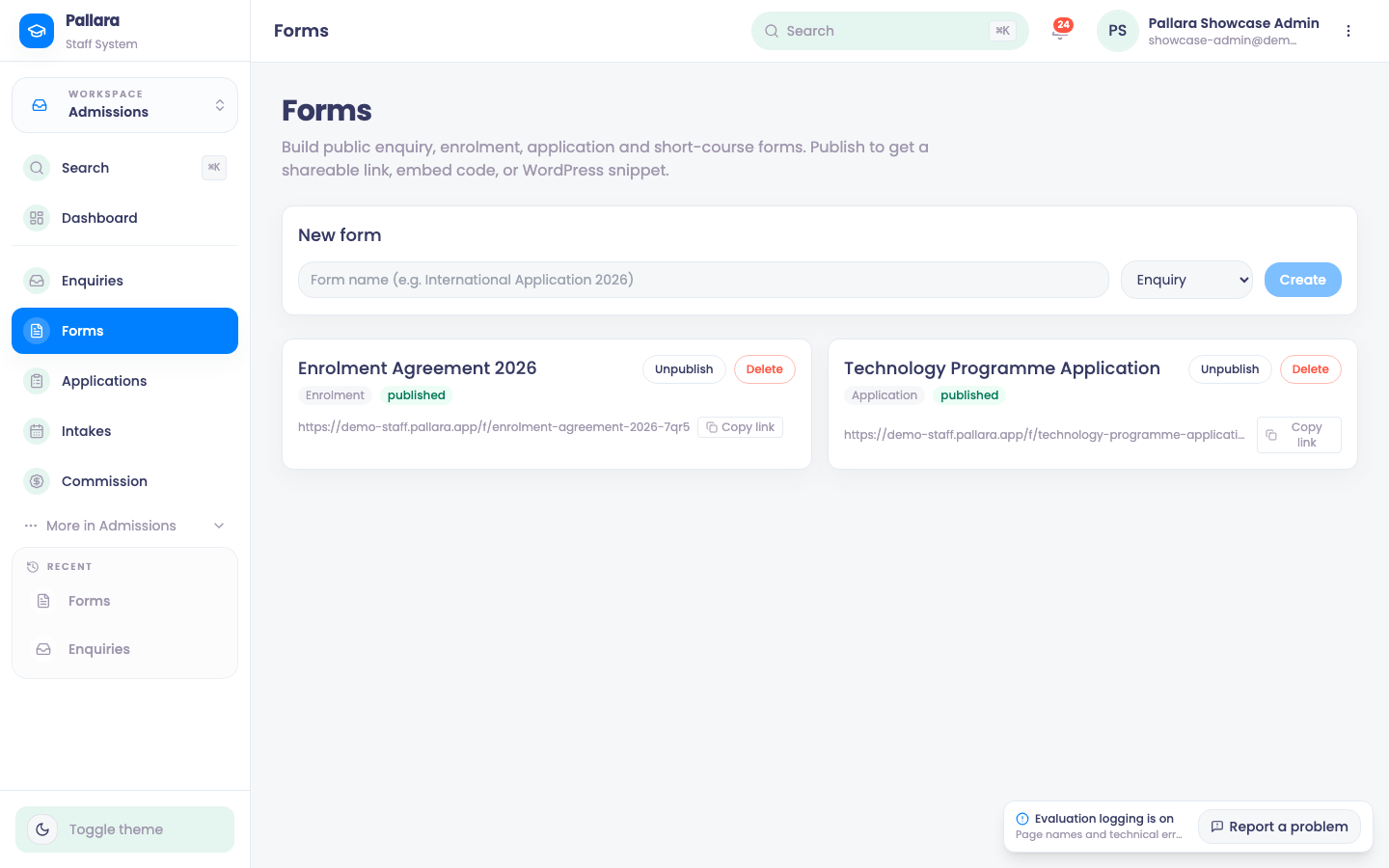
- Open Admissions → Forms. Under New form, choose the type and select Create, then build it: add fields, mark the required ones, and add help text where a question needs it. The address field uses the same validated lookup as the rest of Pallara.
- Publish the form. Use Copy link for the public URL, or take the embed code or WordPress snippet. Unpublish takes it offline without deleting it.
- As submissions arrive, open one from the form's submissions list. Every answer is shown as the person entered it.
- Select Mark validated when the submission is complete and correct, or Mark rejected with a reason. Reload to confirm the status.
- Select Generate PDF to keep a copy of the submission as a form-submission document.
- Mark converted records that you have actioned the submission. It is a status only — it does not create a student, enrolment or application by itself; use Create and work an enquiry for that.
NoteThe form builder also supports incomplete-submission capture, multi-signature and in-form Stripe checkout for short courses. Treat those as configured per form; the validate/reject/PDF flow above is the same for every type.
Was this guide helpful?