Confirm a learner's programme record
Check the enrolment, intake, status and course access on a learner's record after enrolment.
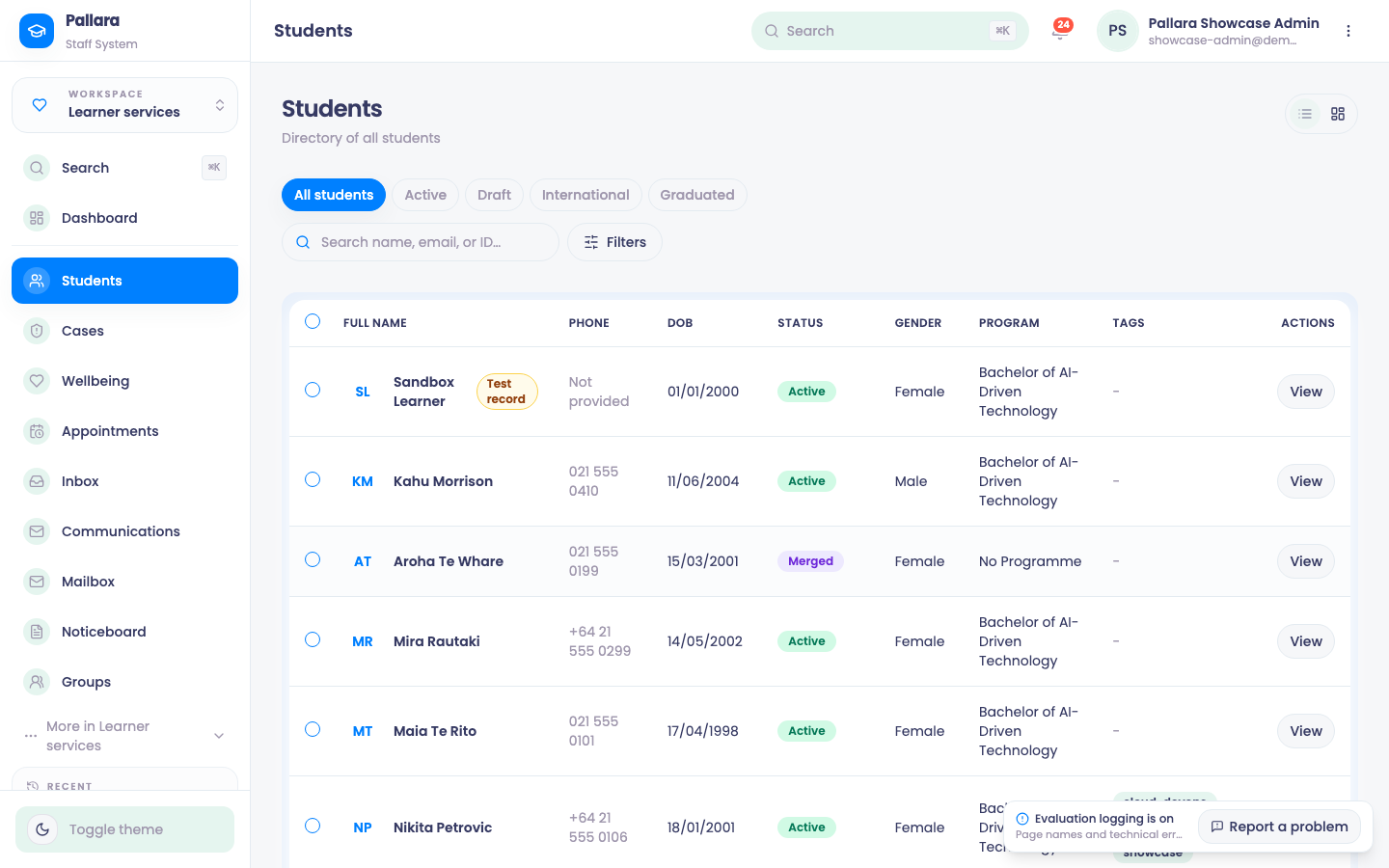
- Open Learner services → Students and search by name or NSN.
- Confirm the directory row shows the expected programme and student status.
- Select View, then the Programme tab.
- Confirm the programme, enrolment status and type, start date and active intake under Enrolment and programme details and Student Intakes.
- Scroll to Student Courses to see every course assigned to the learner, its enrolment, and whether it is locked or Unlocked.
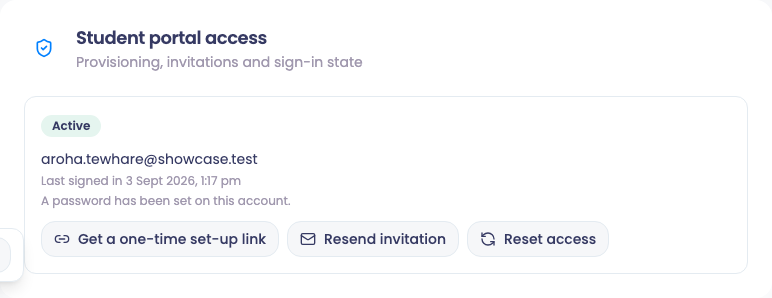
- Student portal access shows whether the learner has been provisioned and invited, and their sign-in state.
Help a learner activate portal access
In Programme → Student portal access, check the sign-in email and the access state before taking action. Manage access from this learner record so you are working with the correct account.
Choose the next access step
Check the learner record and sign-in email, then select Provision and invite.
Check the email and delivery state. Use Resend invitation for a fresh email. For a password account, Get a one-time set-up link lets you hand a link over securely after confirming the learner's identity.
Check the sign-in email and last sign-in. If a password account needs recovery, Reset access sends a reset link and ends existing learner sessions.
Check why the learner was suspended. An authorised change back to Active restores the same account when access should resume.
What does Student portal access show?
Every path, as a list
- Not provisioned Check the learner record and sign-in email, then select Provision and invite.
- Invited or delivery failed Check the email and delivery state. Use Resend invitation for a fresh email. For a password account, Get a one-time set-up link lets you hand a link over securely after confirming the learner's identity.
- Active Check the sign-in email and last sign-in. If a password account needs recovery, Reset access sends a reset link and ends existing learner sessions.
- Suspended Check why the learner was suspended. An authorised change back to Active restores the same account when access should resume.
- For a new account, select Provision and invite. Check the resulting state: an account being provisioned does not by itself prove that an invitation was delivered.
- The learner follows the invitation, chooses their own password and signs in. An SSO-only learner uses their institution account instead.
- If email delivery fails, check the address and mailbox before resending. For a password account you can use Get a one-time set-up link: confirm the learner's identity, then share the displayed link privately. This action ends existing learner sessions; the link can be used once and expires after one hour.
- After activation, check the Active state and sign-in information. If the learner can sign in but cannot see a course, check Student Courses separately.
Assign, remove or unlock a course by hand
- In Student Courses, choose the enrolment and the course, then assign it. Courses added this way are recorded with Course assigned.
- To let a learner into a locked course before its term starts, use Override for this learner, enter a Reason that explains why early access is appropriate, and confirm. The card shows Course unlocked early for this learner and the override is written to the activity log with your reason.
- Remove course assignment? asks for confirmation before a course is taken away.