AI analytics, insights, DevOps checks and the scheduler
How much the AI is used and what it costs, what learners are asking, whether the services are healthy, and the scheduled tasks that run.
Analytics and Insights
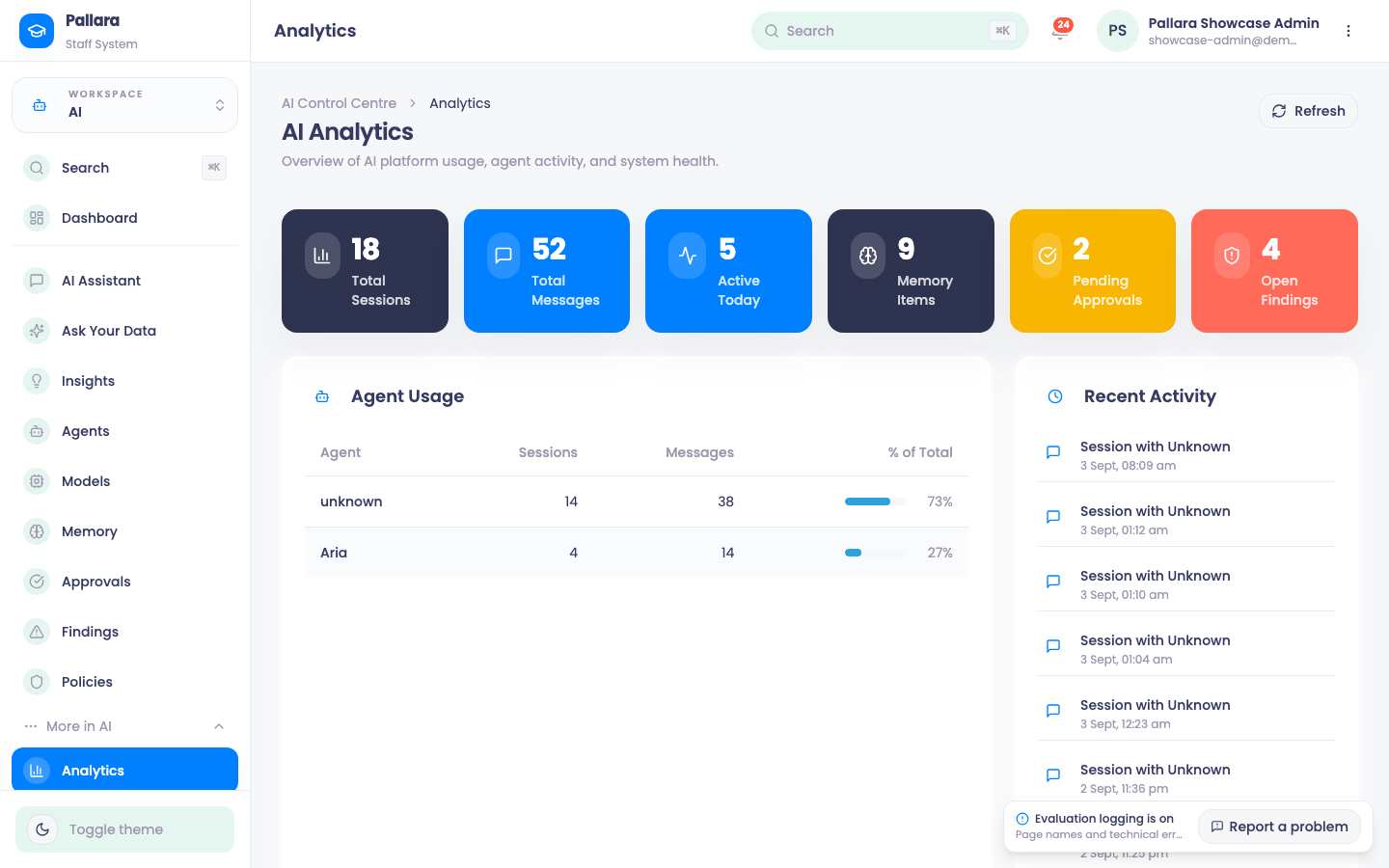
- Open AI → More → Analytics for sessions, messages, memories, interactions, estimated cost and per-agent usage. Active Today uses the New Zealand day.
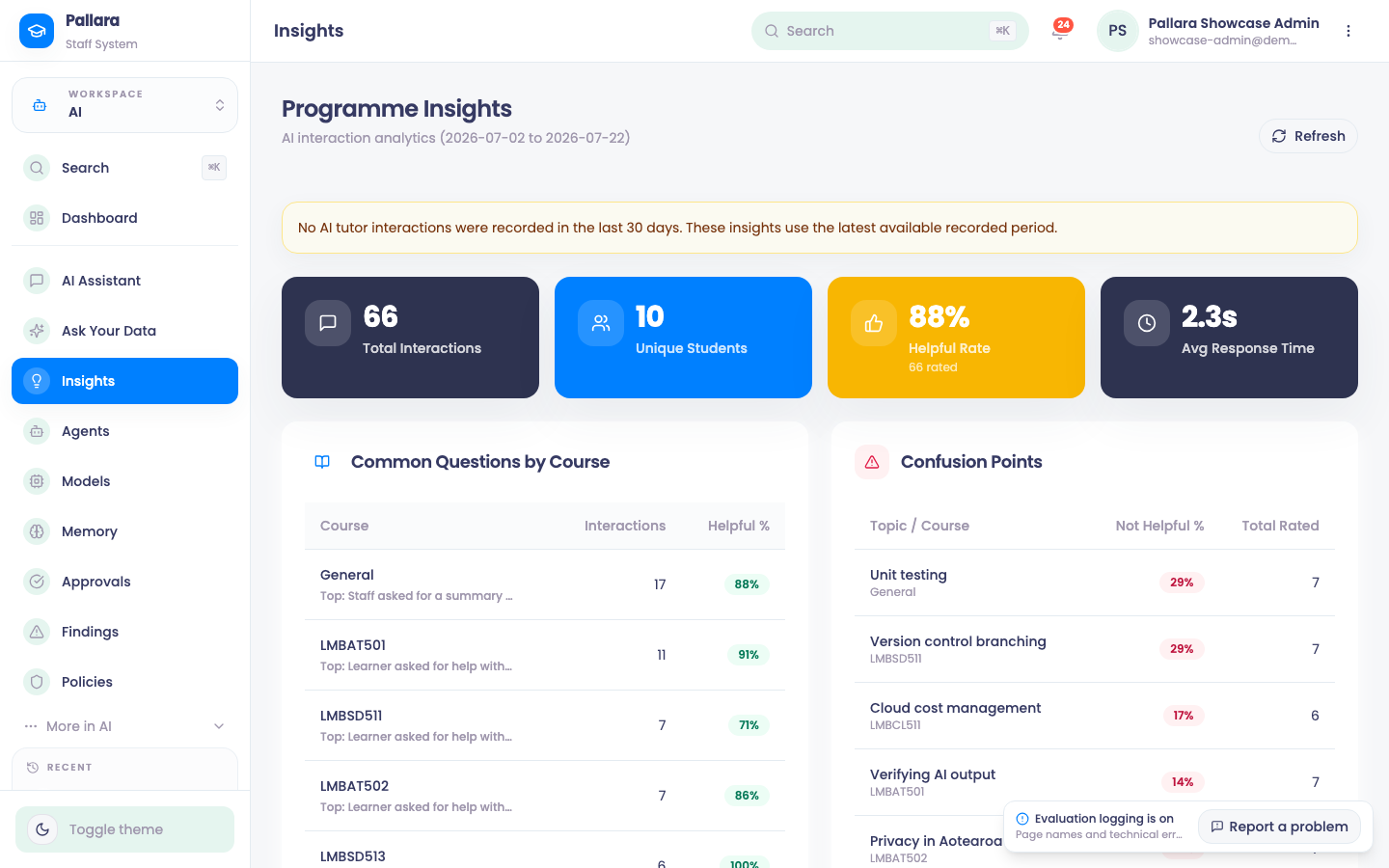
- Open AI → Insights and select Refresh for interaction totals, unique learners, ratings, tokens, activity per day and the agent routing split.
DevOps health check
- Open AI → More → DevOps and select Run Check Now. Read the health state, the check count, latency, service states and recommendations; both portals are checked.
- The result is written to Recent History and the system log, so it survives navigation and restarts.
Scheduler
- Open AI → More → Scheduler and select New Task. Enter name, description, schedule and type, leave Enabled on, and Create Task.
- The row's switch disables or re-enables it; Edit changes it; Run runs it now and updates Last Run with its duration and result; Delete removes it after confirmation.
Was this guide helpful?