Marking submissions with SpeedGrader
SpeedGrader is Pallara's marking view for working through a queue of submissions quickly: keyboard navigation, a reusable comment bank, a clickable rubric that sums itself, and optional AI grading assistance. This guide marks one assessment end to end.
Before you start
- You need the Marker permission on the course (or any teaching role).
- The assessment should have a rubric attached — see Building rubrics that auto-sum.
Open the marking queue
-
1
In the Staff Portal, go to Marking. The queue shows every assessment with ungraded submissions, oldest first.
-
2
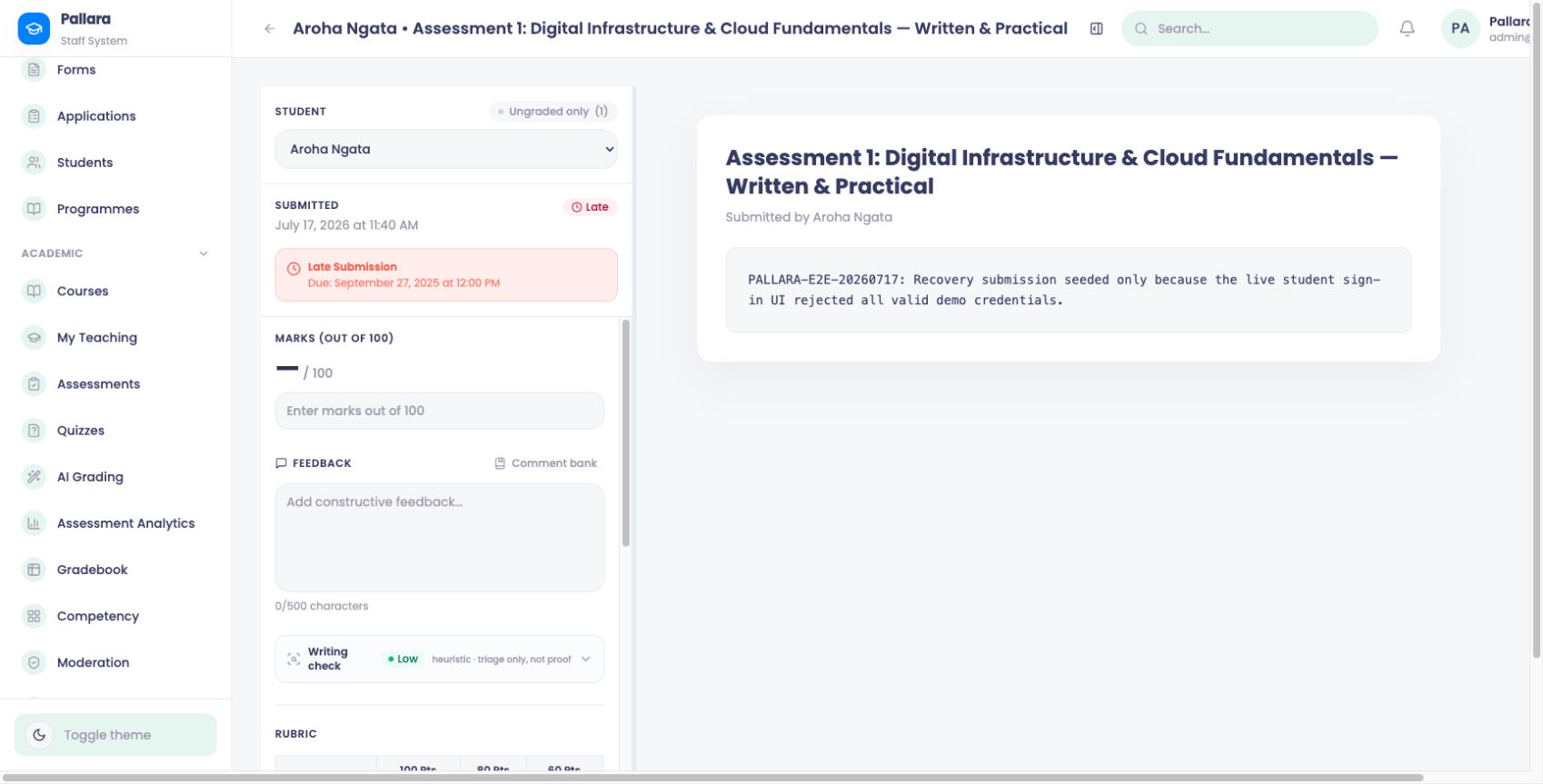
Select the assessment. SpeedGrader opens on the first ungraded submission, with the rubric on the right.
Mark with the rubric
-
3
Read the submission, then click the level you're awarding on each rubric criterion. The total sums automatically — no arithmetic, no transcription.
-
4
Add feedback. Type freely, or open the comment bank with B and insert a saved comment, then personalise it.
-
5
Optionally, click AI assist for a suggested mark and draft feedback against the rubric. Review and edit before saving — the suggestion is never applied automatically.
Note. AI grading assistance follows your provider's AI policy. If your administrator has gated it behind approvals, suggestions appear only after a reviewer signs off.
Move through the queue
-
6
Save and advance with ⌘ Enter. Use J / K to move without saving.
-
7
When the queue is empty, choose Release grades. Students get an automatic "grade released" notification, and every mark lands in the gradebook and the activity log.
Tip. Marking on a marae, in a workshop, or anywhere loud? SpeedGrader autosaves your draft comments as you type — nothing is lost if you close the tab mid-queue.
What happens next
Released grades update completion tracking and mastery, feed assessment analytics and moderation, and — where a grade contributes to an at-risk score — recalculate the student's flag overnight. Every change is recorded in the activity log: who marked what, and when.
Was this helpful?
Thanks — noted.
Last updated 14 July 2026